Getting started in Word
Five steps take you from an empty ribbon to a tracked change in your document. Each one names the control you press and says what happens next.
You need a Judicio account with an active seat, and your organisation needs the Word add-in switched on. Both are visible on one card in the web app, covered in step 1.
Check that the add-in is available to you
In the Judicio web app, open Settings, then the Organization tab, and scroll to the Add-ins section. It is headed Install the Judicio add-ins for your team and set the on-send compliance policy that applies to every member.
Three cards sit under that heading, one per add-in. The Word card reads Judicio for Word, with the line Draft, redline, and run compliance checks inside Microsoft Word. A badge beside the name tells you where you stand.
| Badge | What it means | What you do |
|---|---|---|
| Enabled | The add-in is available to your organisation | Use the Install button on the card |
| Not enabled | It is available but switched off for your organisation. The card adds Not enabled for your organization. Contact your admin to turn it on. | Ask your administrator |
| Coming soon | No install link is configured for your organisation | Ask your administrator; keep using the web app meanwhile |
Install appears only on an Enabled card, and opens the listing in a new browser tab.
The Add-ins section is visible to organisation administrators. If you cannot see it, ask your admin to check the card for you. See Add-ins settings.
Open the task pane in Word
Once the add-in is installed, Word shows a Judicio group on the ribbon holding a single button: Open Judicio. Its tooltip reads Open the Judicio task pane to draft, redline in native Track Changes, run a playbook review and chat with your document.
Press Open Judicio and the pane docks beside your document. Everything in it then works on that document.
Word also adds three entries to the right-click menu on selected text, each of which opens the pane straight into the matching tool:
| Right-click entry | Opens |
|---|---|
| Judicio: Explain selection | Assistant, on its Explain section |
| Judicio: Redline selection | Document Review, on Review, scoped to your selection |
| Judicio: Rewrite selection | Assistant, on its Rewrite section |
Sign in
The pane opens on Sign in to Judicio, subtitled Draft, redline in native Track Changes, run playbook reviews and chat with your document, all inside Word. Two buttons sit below it.
Press Sign in. A Judicio sign-in window opens. Sign in with the account you use in the web app, and the window closes on its own. The pane reloads with the icon rail on the left and your credit balance in the header.
A note under the buttons explains where the session lives: Your session token is held in memory only and never saved into the document. On Mac or Word-on-the-web, use the pairing code if the sign-in window does not complete.
If the sign-in window does not finish, pair instead
Some Mac and browser setups stop the sign-in window from completing. Press Use a pairing code instead, the second button on the sign-in screen.
The pane replaces the buttons with a card holding three things: the line Open (link) in your browser and enter this code, an eight-character code shown in two groups of four, and a countdown reading The code expires in 5 minute(s). Waiting for confirmation…
Open the link in a browser where you are already signed in to Judicio, and confirm the code there. The pane picks up the confirmation on its own within a few seconds. The pairing page is documented in Add-ins settings.
Cancel pairing at the foot of the card abandons the attempt and returns you to the two sign-in buttons. If the countdown runs out, press Use a pairing code instead again for a fresh code.
Run your first action
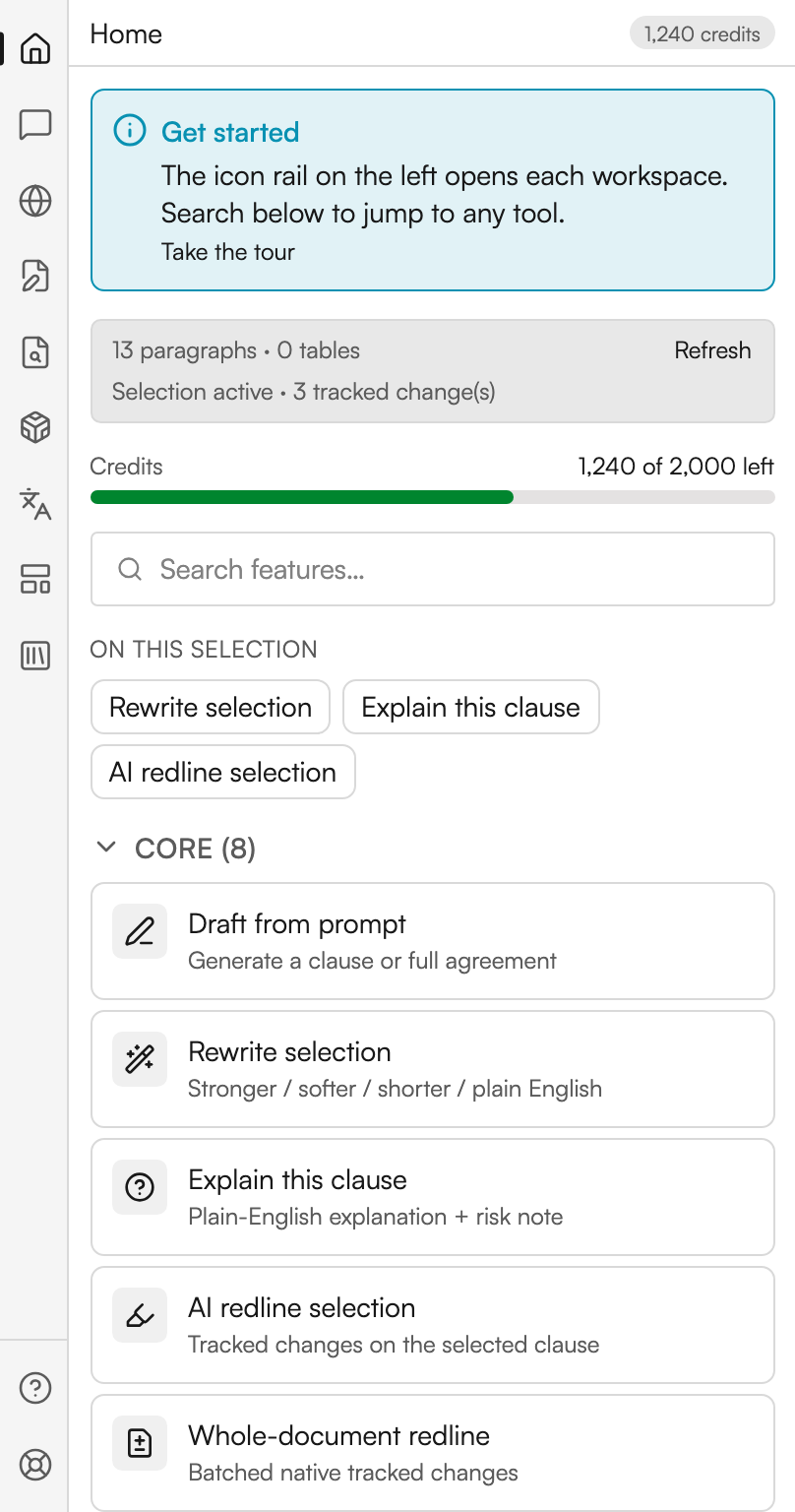
The pane lands on Home. Four things are worth finding before you start.
- A Get started callout at the top, with Take the tour underneath it. The tour is a seven-stop lap of the pane and can be replayed at any time from Guides on the rail.
- A document card reading
N paragraphs · M tables, with Refresh beside it. Under that it says either Selection active or No selection, and on Word versions that expose them, a count of tracked changes. - Your balance, shown as
N of M leftwith a bar beneath it. The bar turns amber under ten per cent. - A search box placeholdered Search features…, which finds all twenty-eight tools by name and description.
For a first run, highlight a clause in the document and watch the On this selection strip appear above the search results with three chips: Rewrite selection, Explain this clause and AI redline selection. Press Explain this clause.
The Assistant opens on Explain, showing how many characters you selected. Press Explain. The answer arrives with a risk note, and Add as Word comment attaches it to the clause in the document.
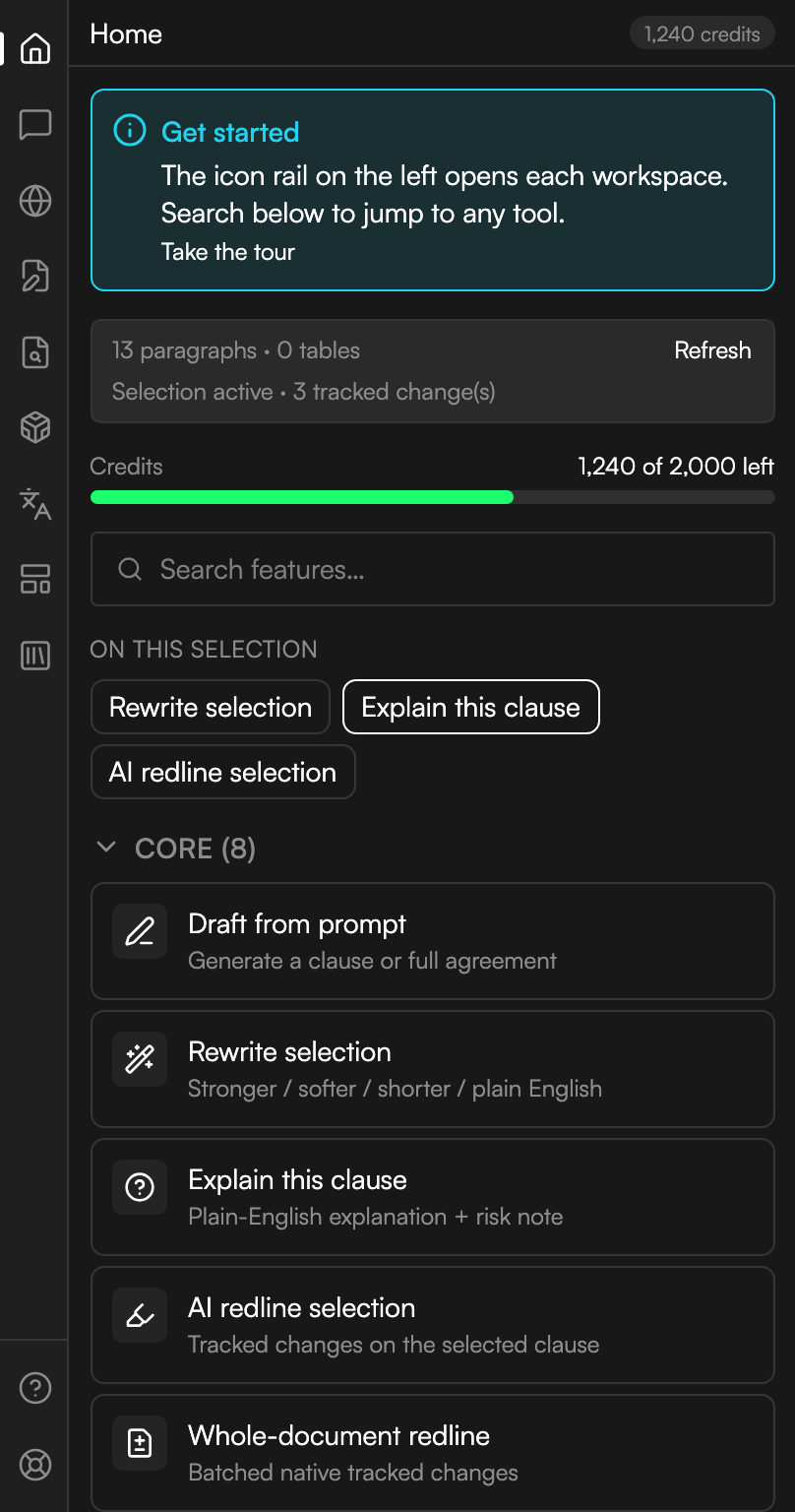
The Home screen this step starts on, with a clause selected so the selection strip and its three chips are showing.
Appearance, context and recovery
Choose Light, Dark or System in the header. System follows Office appearance, then your operating system when Office does not expose a theme. This preference stays on the device; authentication tokens remain in memory.
Choose a matter and library sources before starting a context-based run. Saving needs an explicit destination folder. If a long-running job loses its connection, open File Library → Activity and reconnect to the existing job rather than starting it again.
If the pane cannot initialize Word, it shows a retry screen after a bounded wait. Check the network connection, reopen the document and use Retry. A browser preview cannot perform Word document actions.
What to read next
- The Home screen - every tile in Core, Differentiators and Best in class, and the seven search-only tools.
- Assistant - the Ask and Edit modes, and where rewrites and explanations live.
- Document Review - redlining, the counterparty's changes, and citation checking.
- Checks - what to run before a document leaves your desk.