Checks
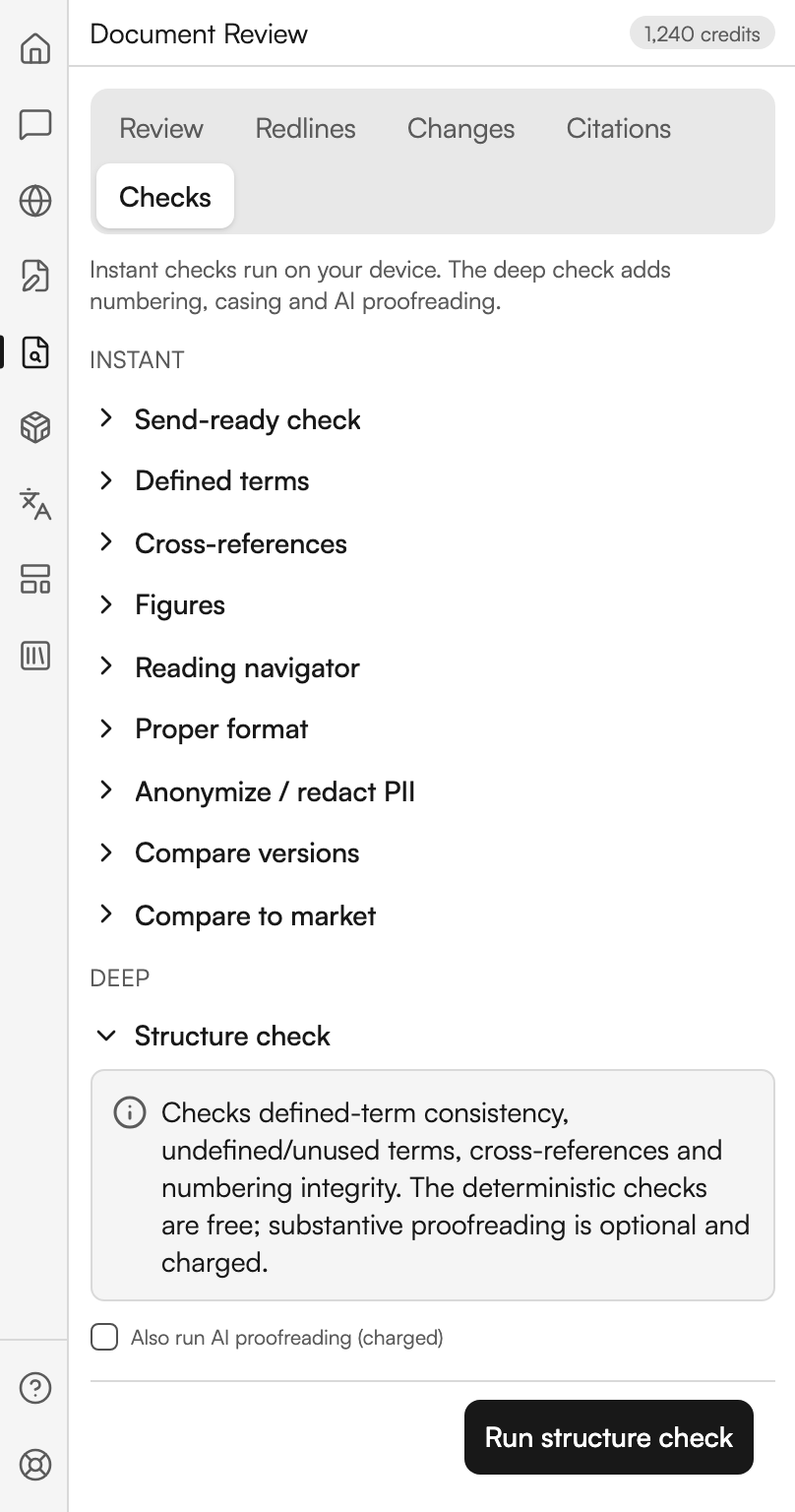
Checks is the last tab of Document Review and the one to run before a document leaves your desk. It opens with the line Instant checks run on your device. The deep check adds numbering, casing and AI proofreading.
The tab is an accordion in two groups. Opening one section closes the last, so you work through them one at a time.
| Group | Sections |
|---|---|
| Instant | Send-ready check, Defined terms, Cross-references, Figures, Reading navigator, Proper format, Anonymize / redact PII, Compare versions, Compare to market |
| Deep | Structure check |
Six of the instant sections run entirely on your device and cost nothing: Send-ready check, Defined terms, Cross-references, Figures, Reading navigator and Proper format. The other three reach the server and are charged: Anonymize / redact PII, Compare to market, and Compare versions when you use Compute redline. Each of those shows an estimate chip before you run it.
Findings from the instant scans are tagged Instant; findings from the deep pass are tagged Deep. Most findings offer Find to scroll to them and Comment to write them into the document.
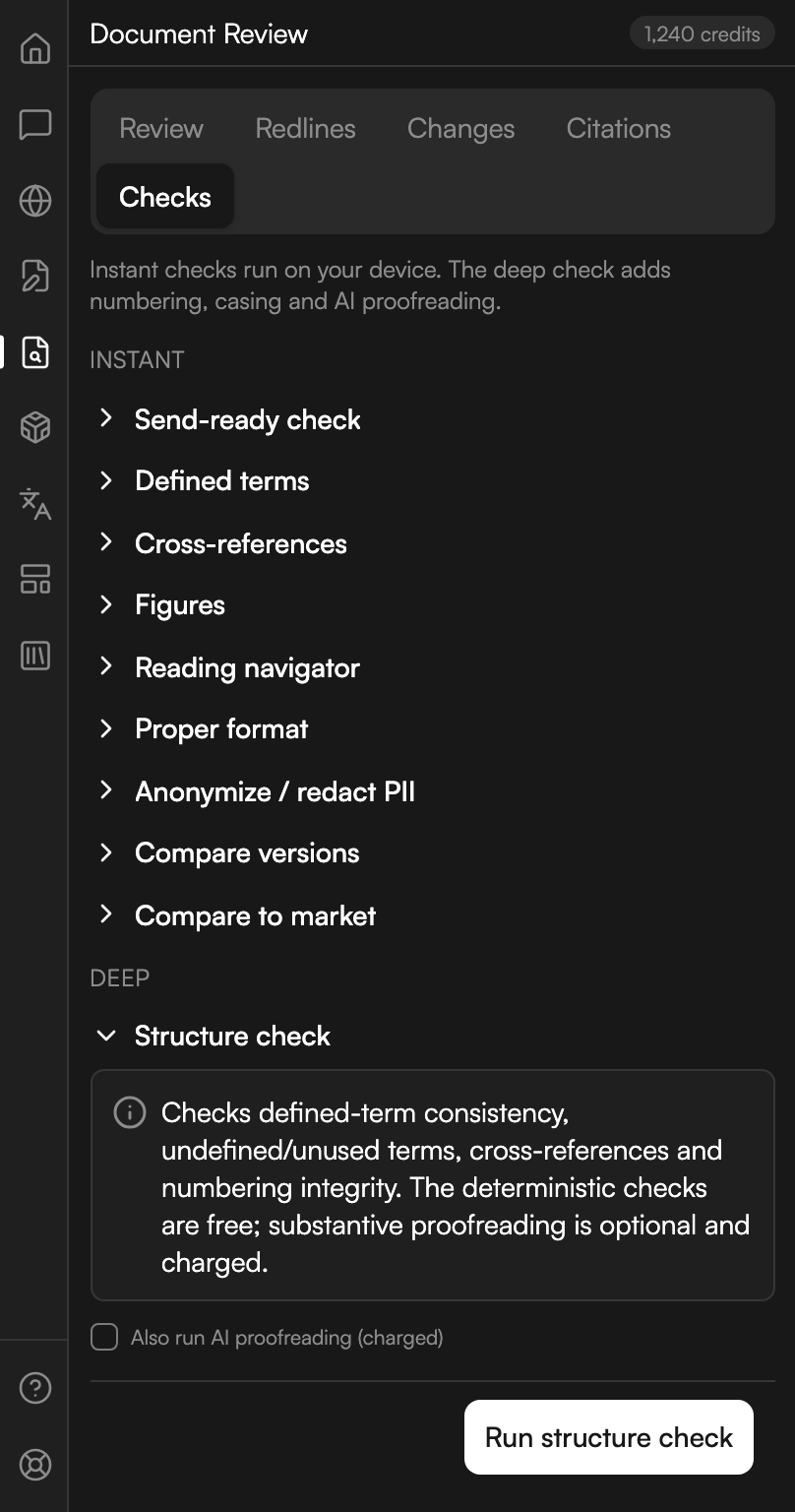
The Checks accordion
The two groups, with the deep section open and every instant section collapsed.
Send-ready check
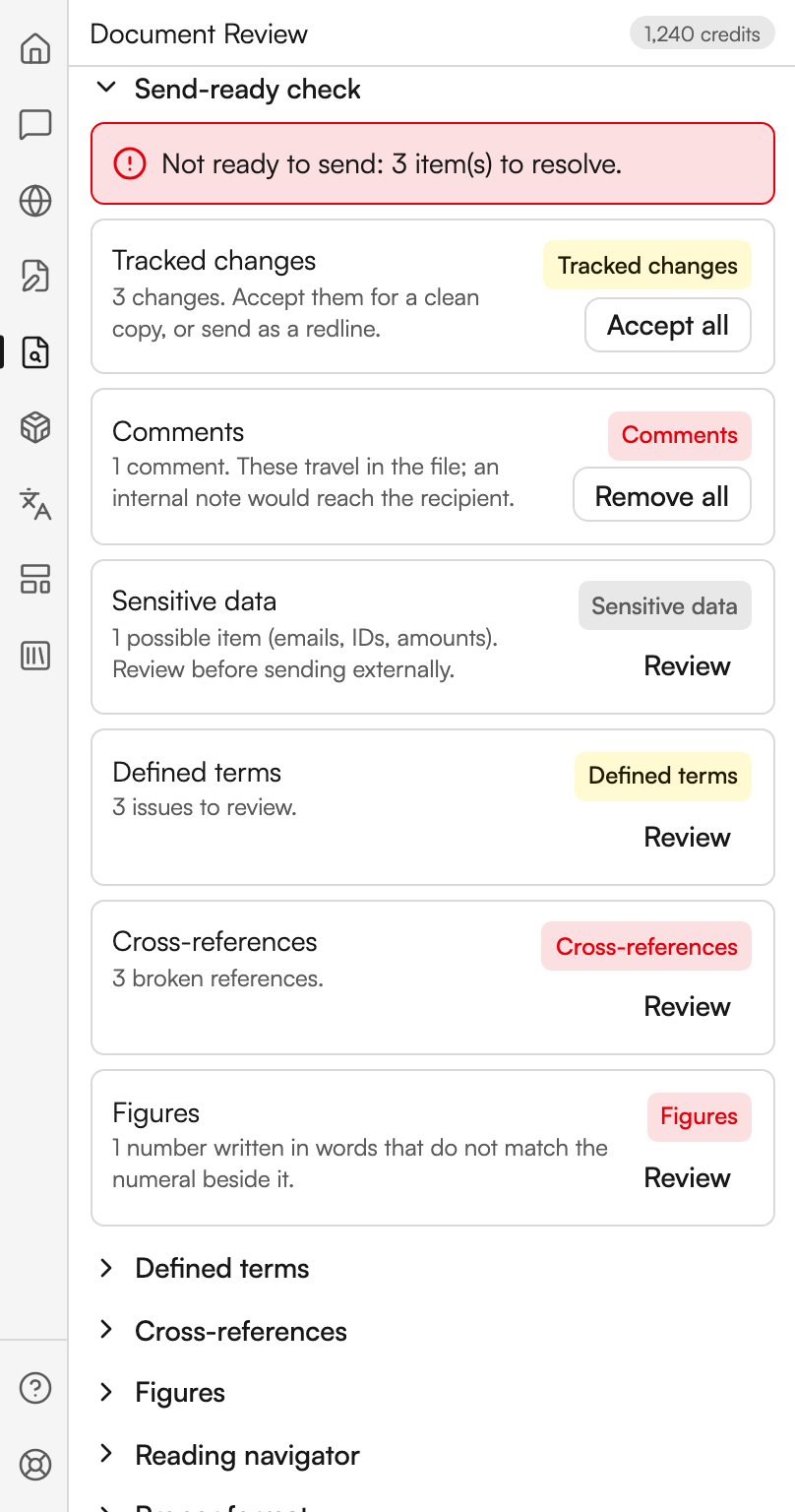
The pre-flight. It scans six things at once and tells you whether the document is ready to leave.
| Row | Blocks sending? | Action offered |
|---|---|---|
| Tracked changes | No | Accept all |
| Comments | Yes | Remove all |
| Sensitive data | No | Review, which opens Anonymize / redact PII |
| Defined terms | No | Review, which opens that section |
| Cross-references | Yes | Review, which opens that section |
| Figures | Yes | Review, which opens that section |
With nothing blocking, the panel says This document looks ready to send. Clear any advisories below if they apply. Otherwise it counts the items to resolve.
The two bulk actions ask before they run, because both are sweeping. Accept all warns This flattens every tracked change in the document, including the counterparty's. Word's Undo (Ctrl+Z) reverses it. Remove all warns the same way about comment threads. Each shows Confirm and Cancel, and each reports afterwards how many items it touched and reminds you that Undo reverses it.
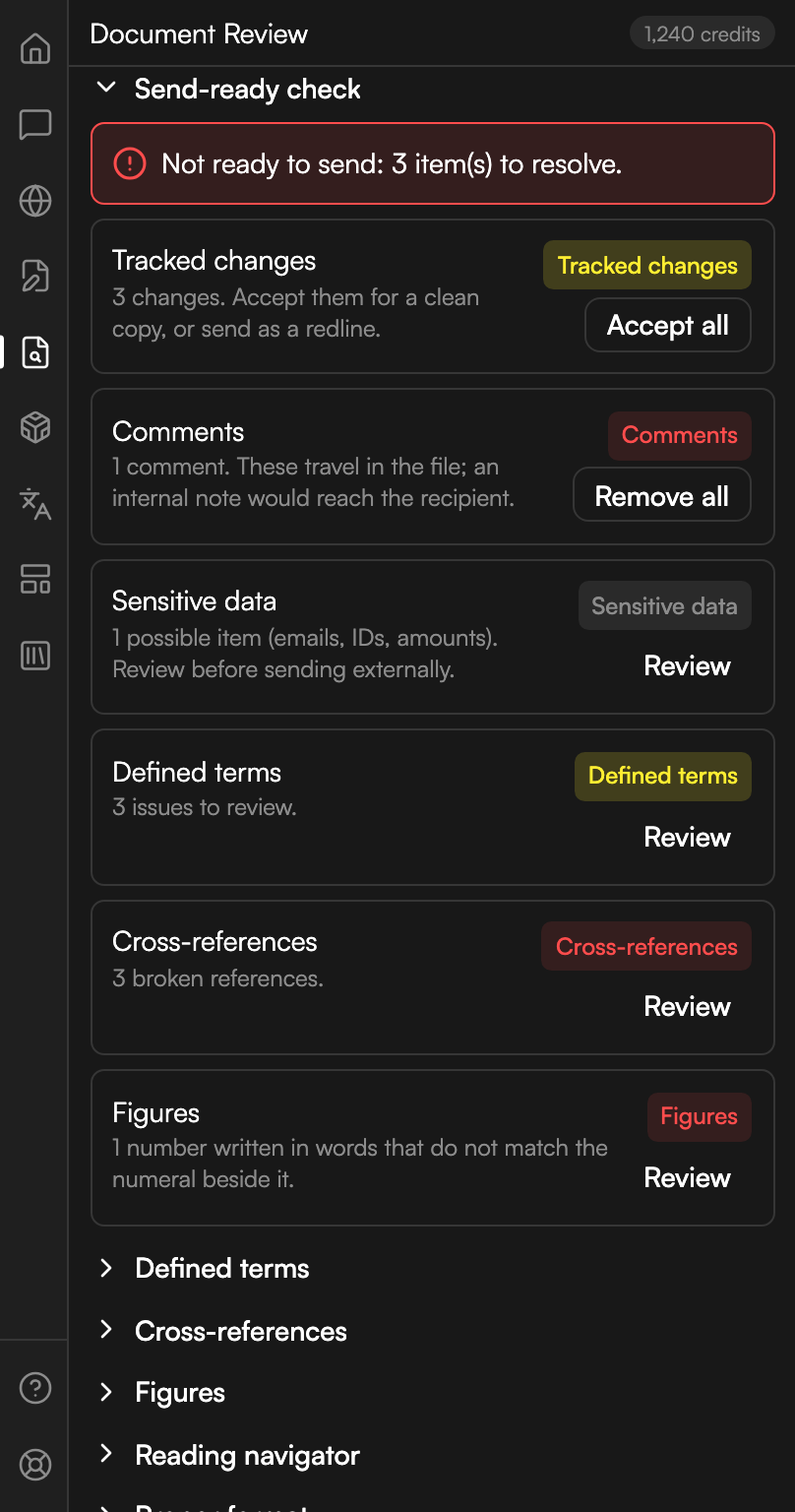
A document that is not ready
The six rows of the pre-flight, with the count of items left to resolve at the top.
Defined terms
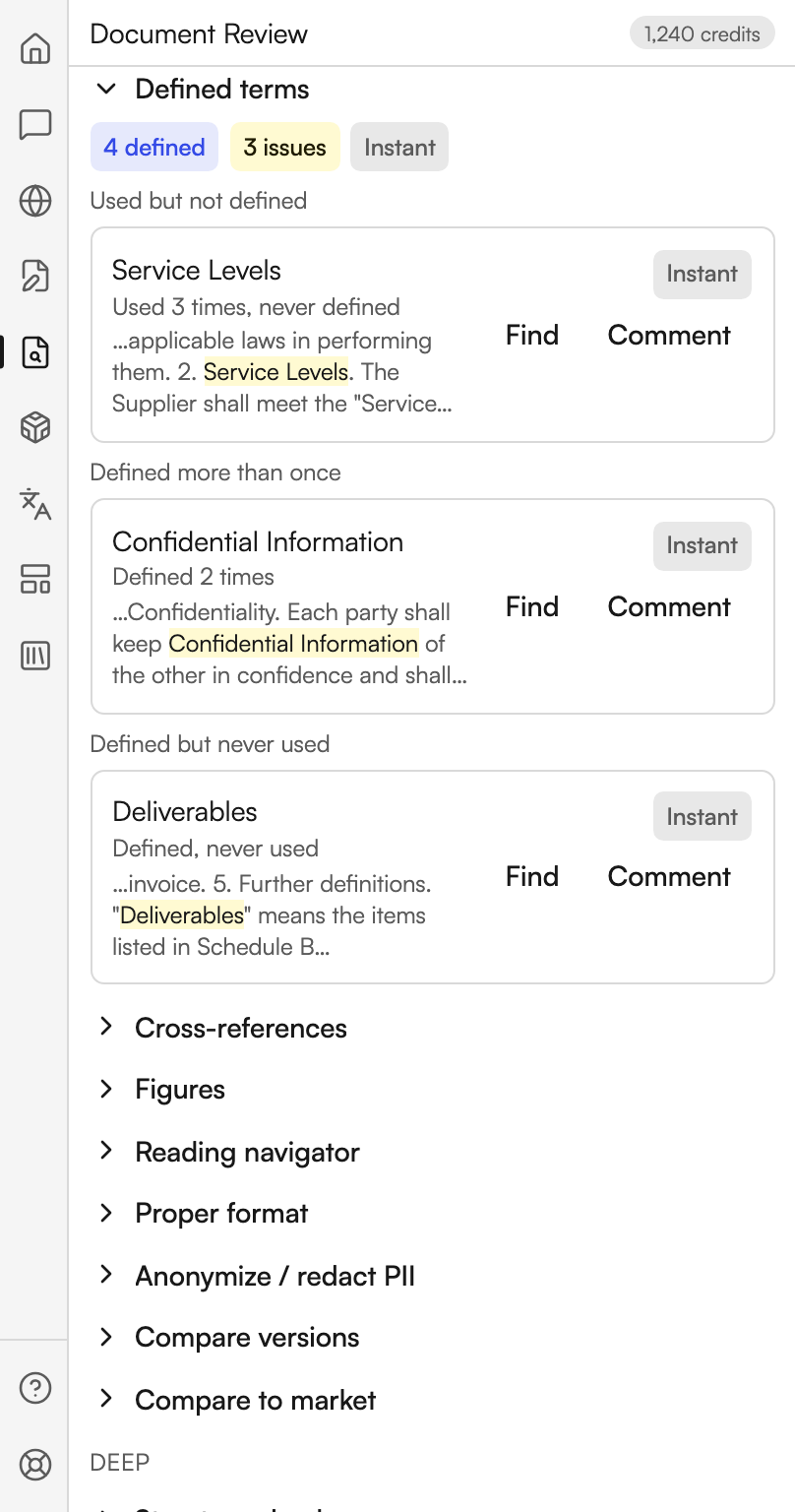
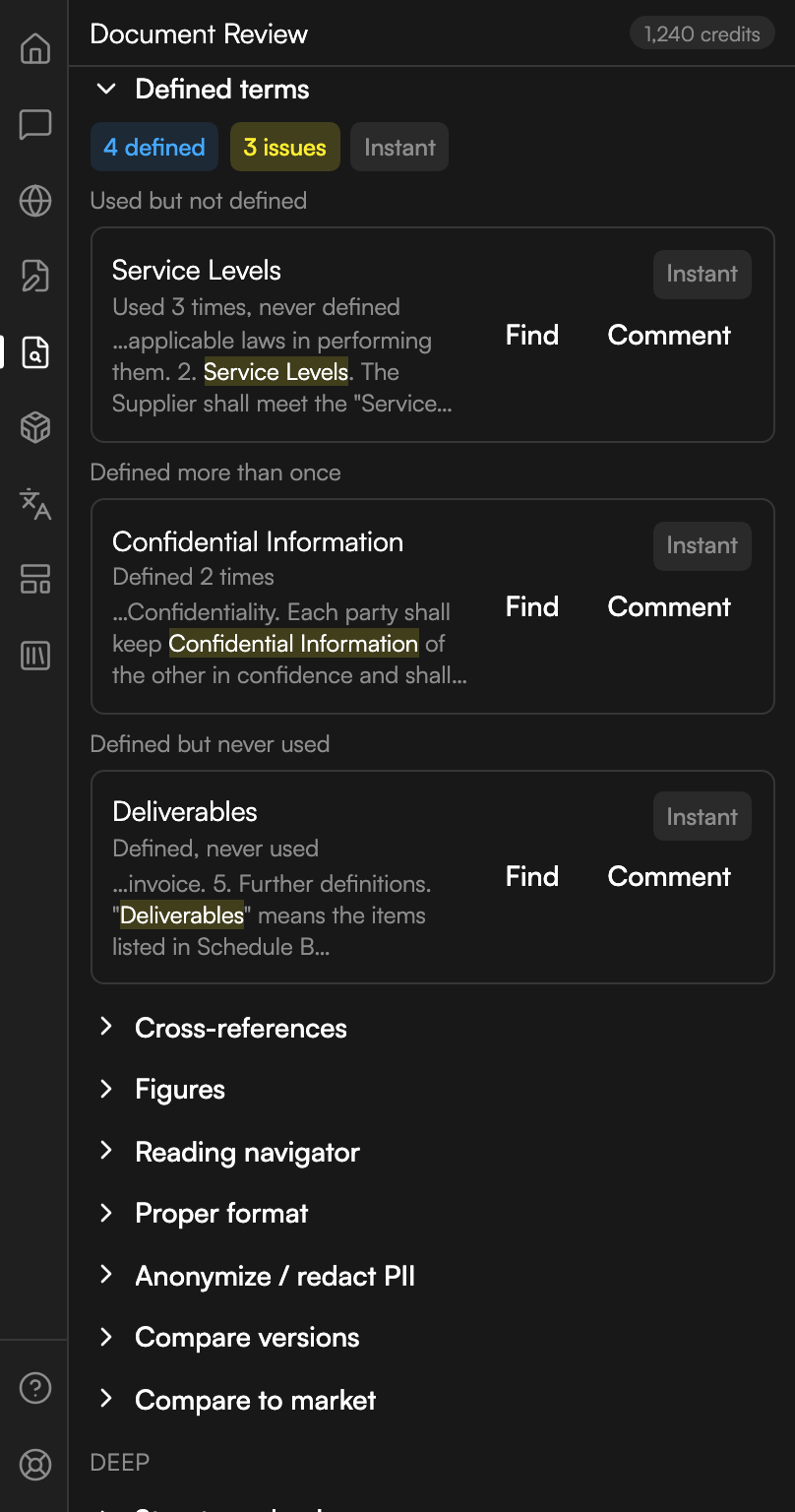
Finds three faults in a document's definitions:
- Used but not defined, with a count of how many times the term appears.
- Defined more than once, with the number of definitions.
- Defined but never used.
The header counts both the terms it found and the issues among them. A clean document reports No defined-term issues found.
Three kinds of defined-term fault
One term used without a definition, one defined twice, and one defined but never used.
Cross-references
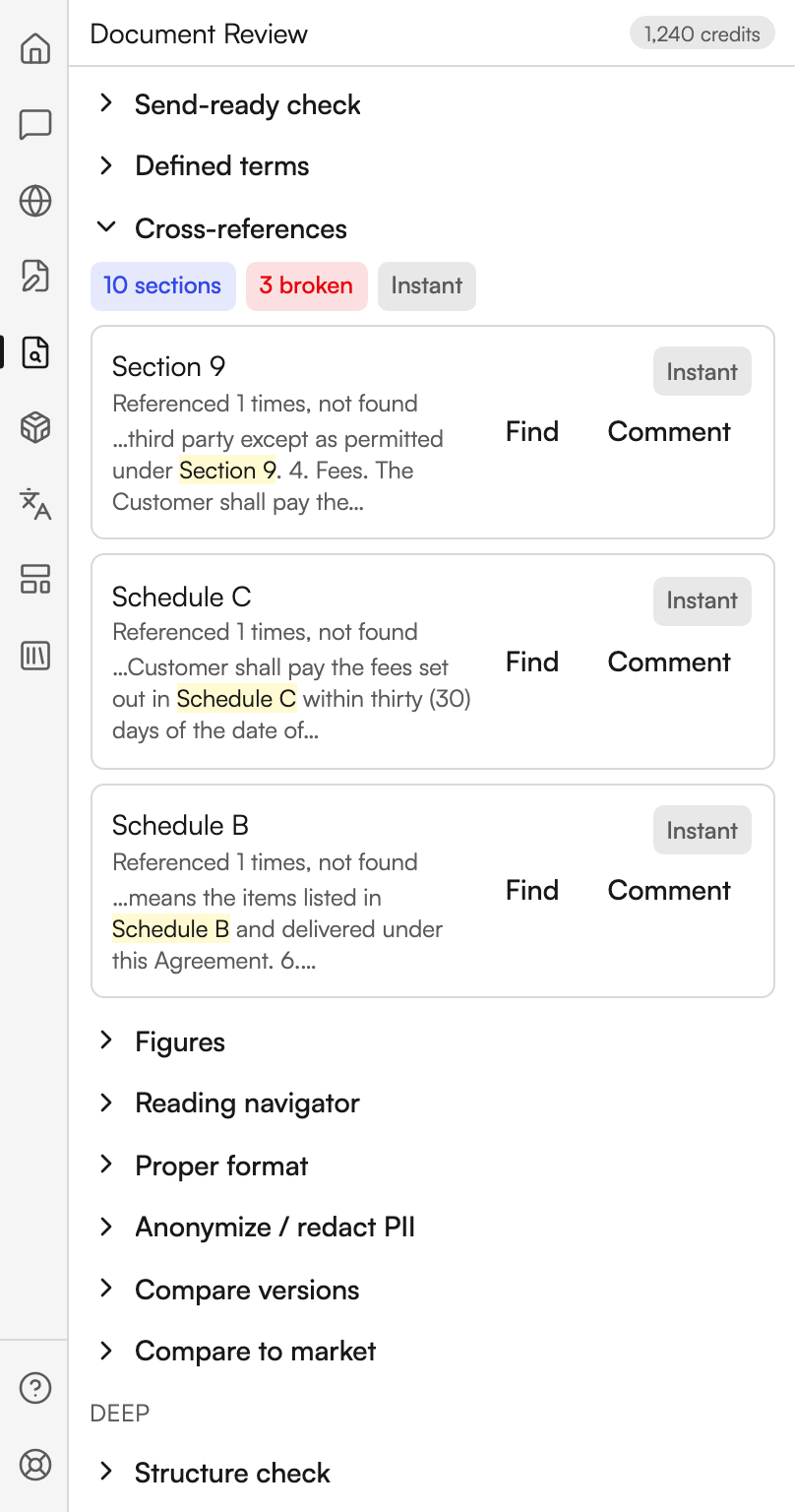
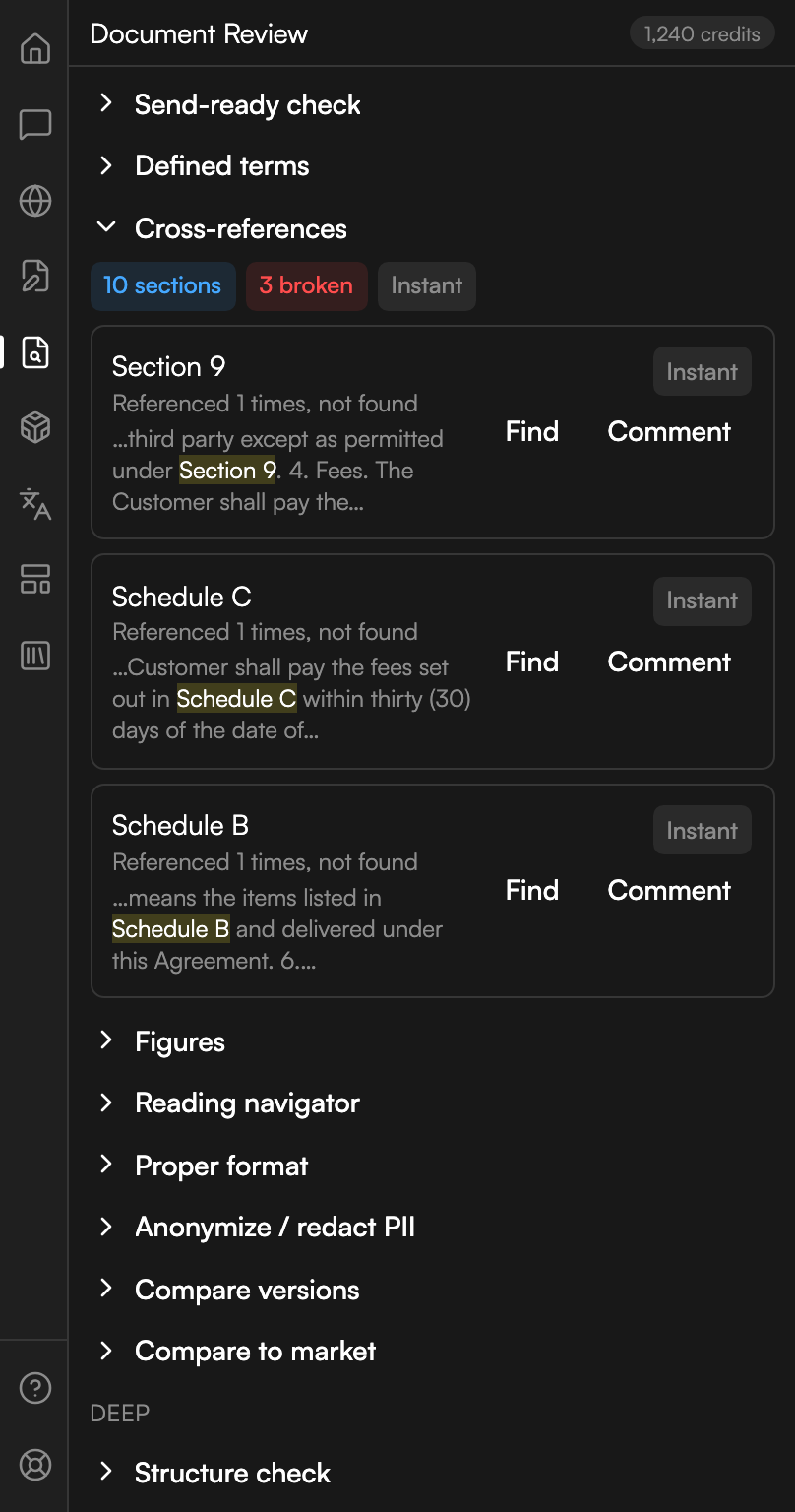
Finds references pointing at a section or schedule that does not exist. The header counts the sections it mapped and the broken references among them, and each finding says how many times the missing target was referenced.
A clean document reports No broken cross-references found. Where Judicio cannot work out how the document numbers its sections, it says so rather than guessing: Could not confidently map this document's section numbering, so section references were not checked.
References with no target
Three references pointing at a section and two schedules the document does not contain.
Figures
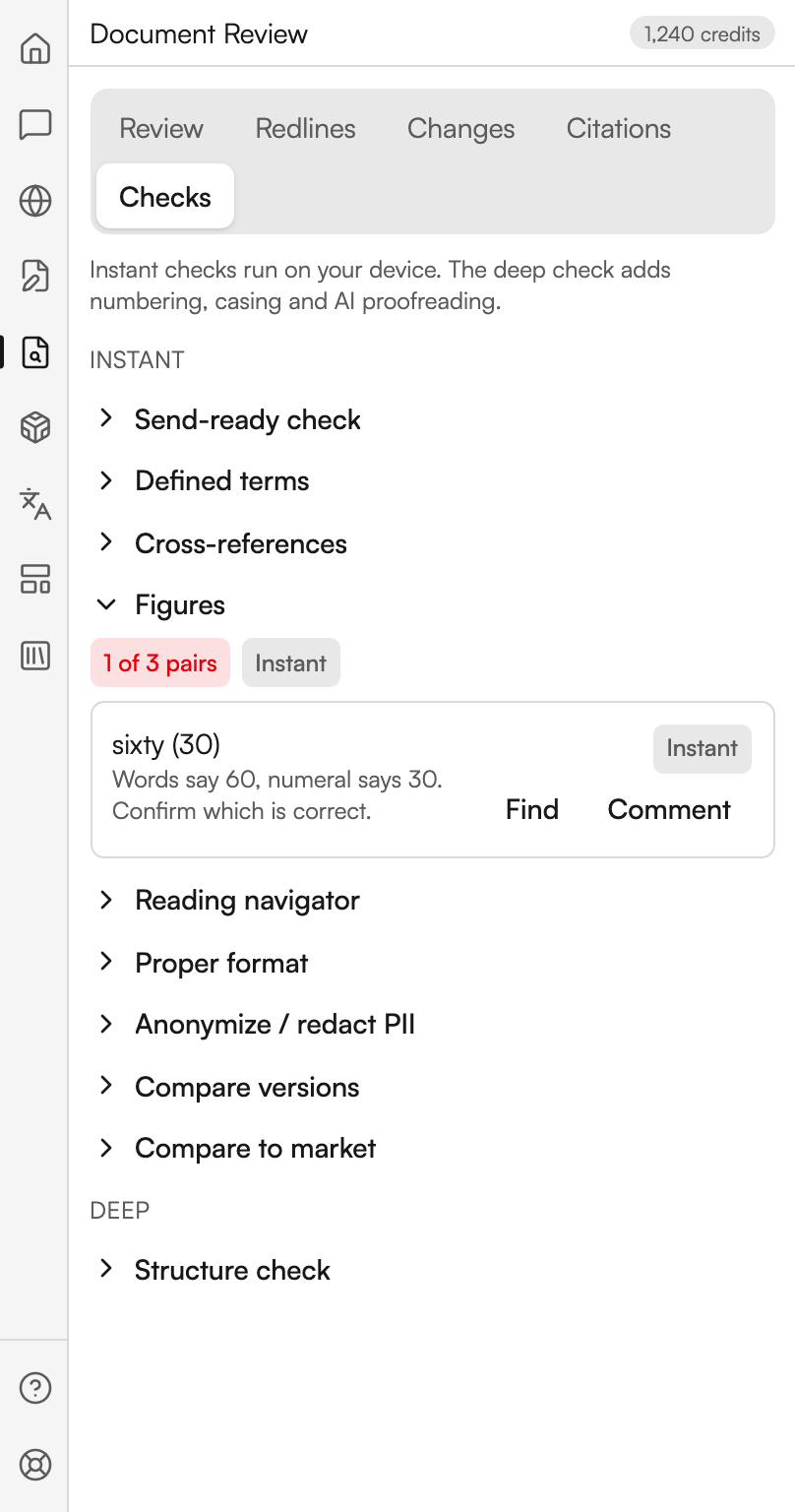
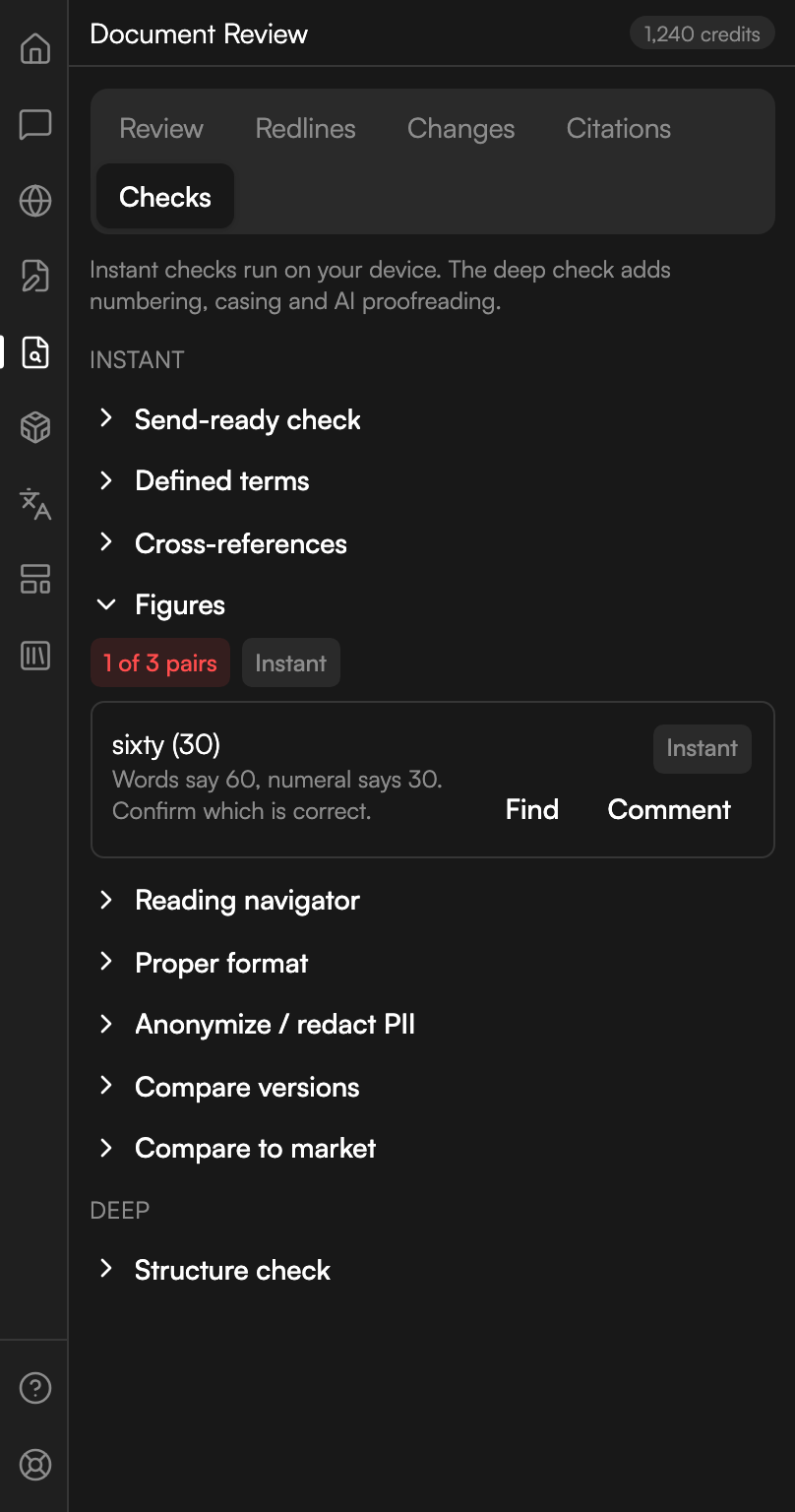
Compares numbers written in words against the numeral beside them, the classic ten (10) pattern. Each mismatch spells out both readings and asks you to confirm which is correct.
The header counts the mismatches against the pairs it checked. A clean document reports All number/word pairs agree. A document with no such pairs at all reports that instead.
A words and numerals mismatch
One pair where the written number and the numeral beside it disagree.
Reading navigator
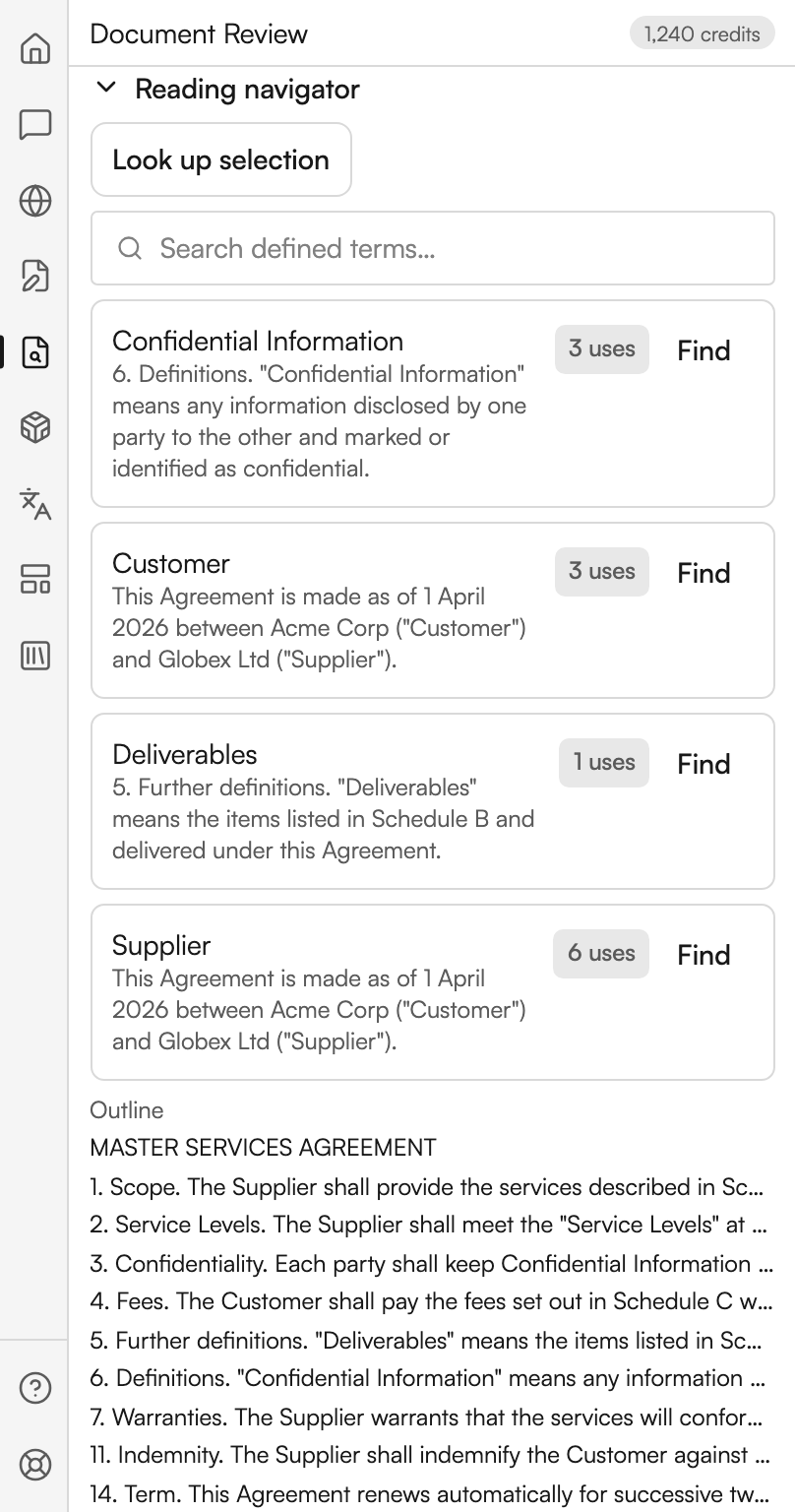
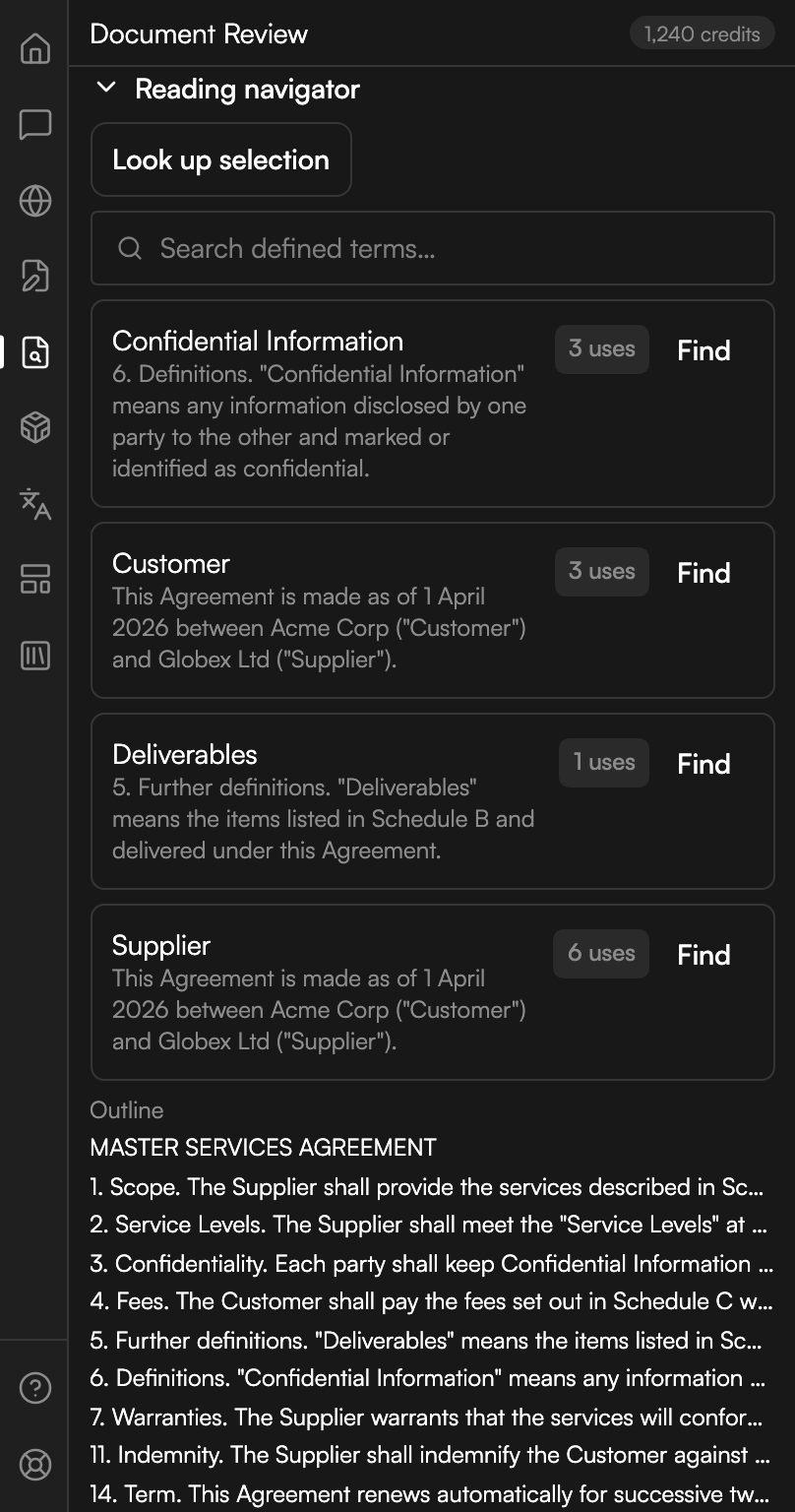
A lookup tool rather than a scan. It lists every defined term in the document with a use count, and a search box placeholdered Search defined terms….
Look up selection resolves whatever you have highlighted. Select a defined term or a cross-reference and it shows you the definition or the target without moving you off the clause you are reading. Below the terms, a block headed Outline lists the document's structure.
If nothing is selected it asks you to Select a defined term or a reference in the document, then look it up. If the selection points somewhere that does not exist, or is not a defined term or cross-reference at all, it says which.
Terms and outline in one place
Every defined term with its use count, and the document's outline below them.
Proper format
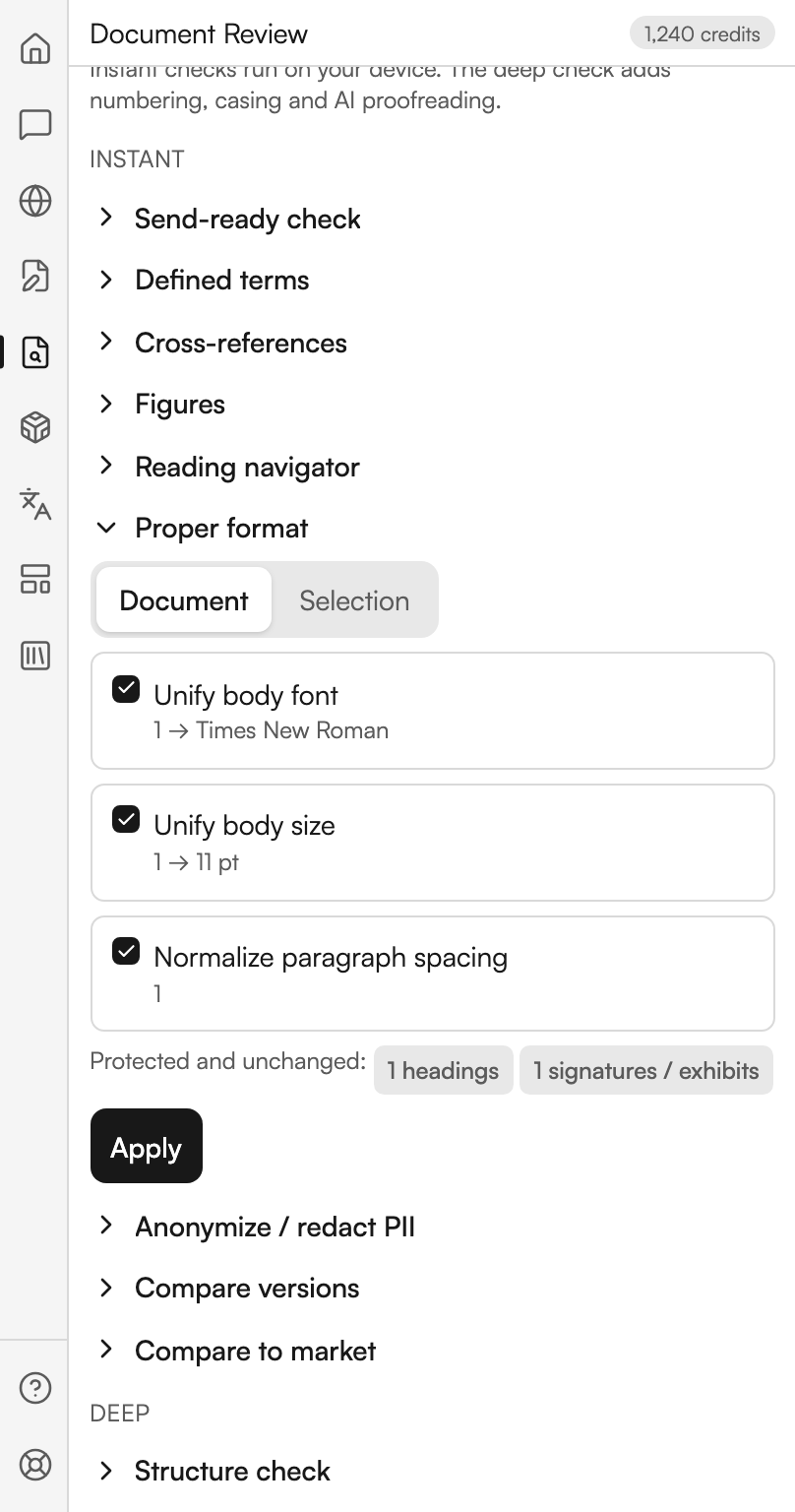
Standardises body formatting without touching anything structural. Three checkboxes choose what it unifies:
- Unify body font
- Unify body size
- Normalize paragraph spacing
A Document and Selection control sets the scope. Apply starts it, then Confirm format commits. Afterwards the panel reports how many paragraphs it standardised and reminds you that Word's Undo reverses it. A Protected and unchanged list names what it deliberately left alone, so numbering and signature blocks stay as they were.
Two conditions stop it. With tracked changes live it refuses: Resolve tracked changes first. Reflowing formatting over a live redline can corrupt revision marks. With nothing to format it says so. A document already consistent reports Ordinary body paragraphs already match the document's dominant style.
What Proper format would change
The three options ticked, with the count each would change and the list it will leave alone.
Anonymize / redact PII
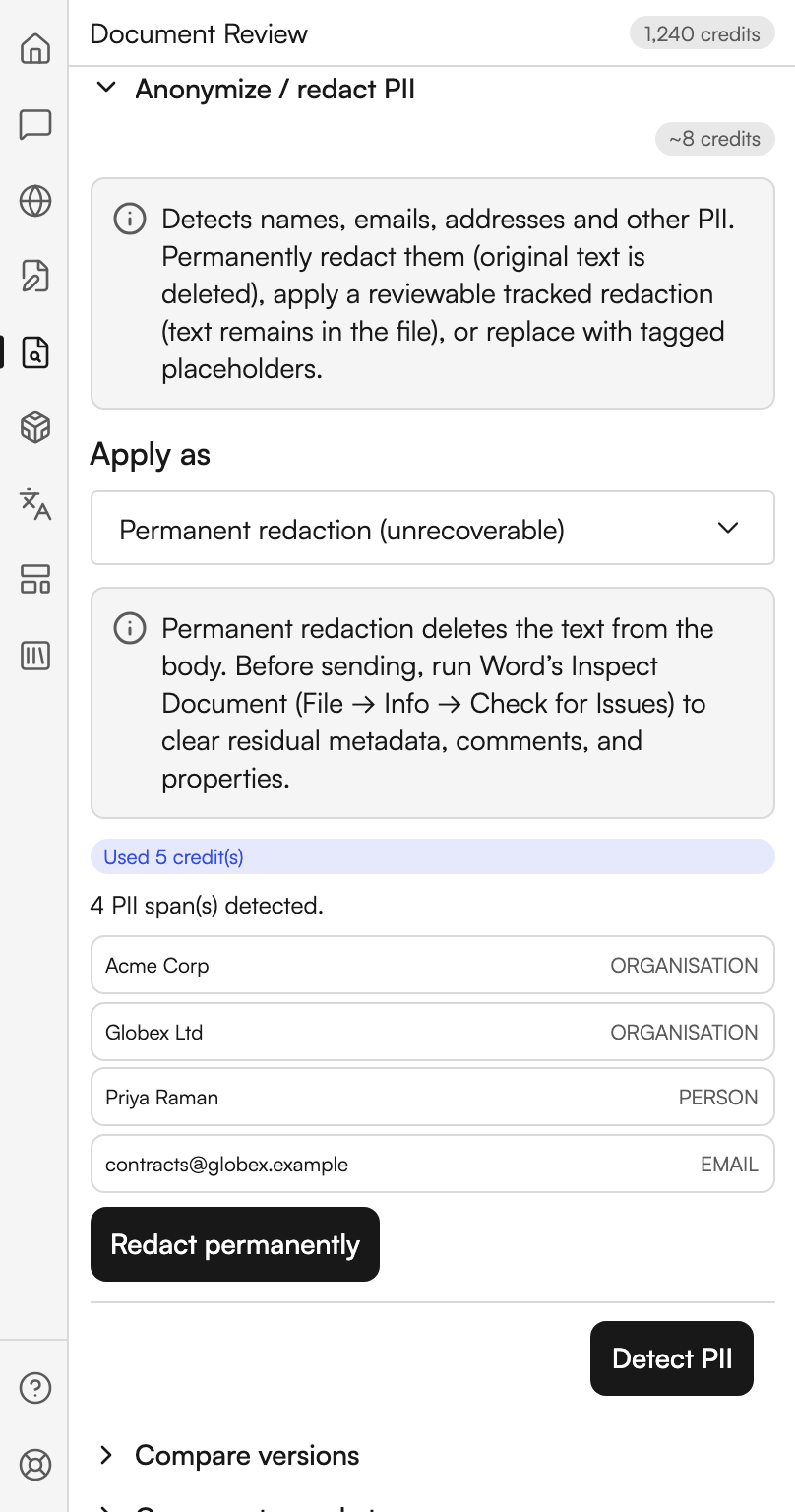
Finds names, emails, addresses and other personal data, then removes it in one of three ways. Apply as chooses which:
| Mode | What happens to the text |
|---|---|
| Permanent redaction (unrecoverable) | The original text is deleted from the body |
| Tracked redaction (reviewable, text remains in file) | A revision mark you can review. The original stays in the file |
| Content-control placeholders | Replaced with tagged placeholders |
Detect PII runs the scan and reports how many spans it found. The action button then matches the mode you picked: Redact permanently, Apply as tracked changes, or Insert placeholders. Each reports what it did, and names any span it could not locate.
Permanent redaction carries a warning worth heeding: it deletes the text from the body, but before sending you should still run Word's own Inspect Document, under File then Info then Check for Issues, to clear metadata, comments and properties.
Detected personal data
Four spans found and tagged by category, with permanent redaction chosen.
Compare versions
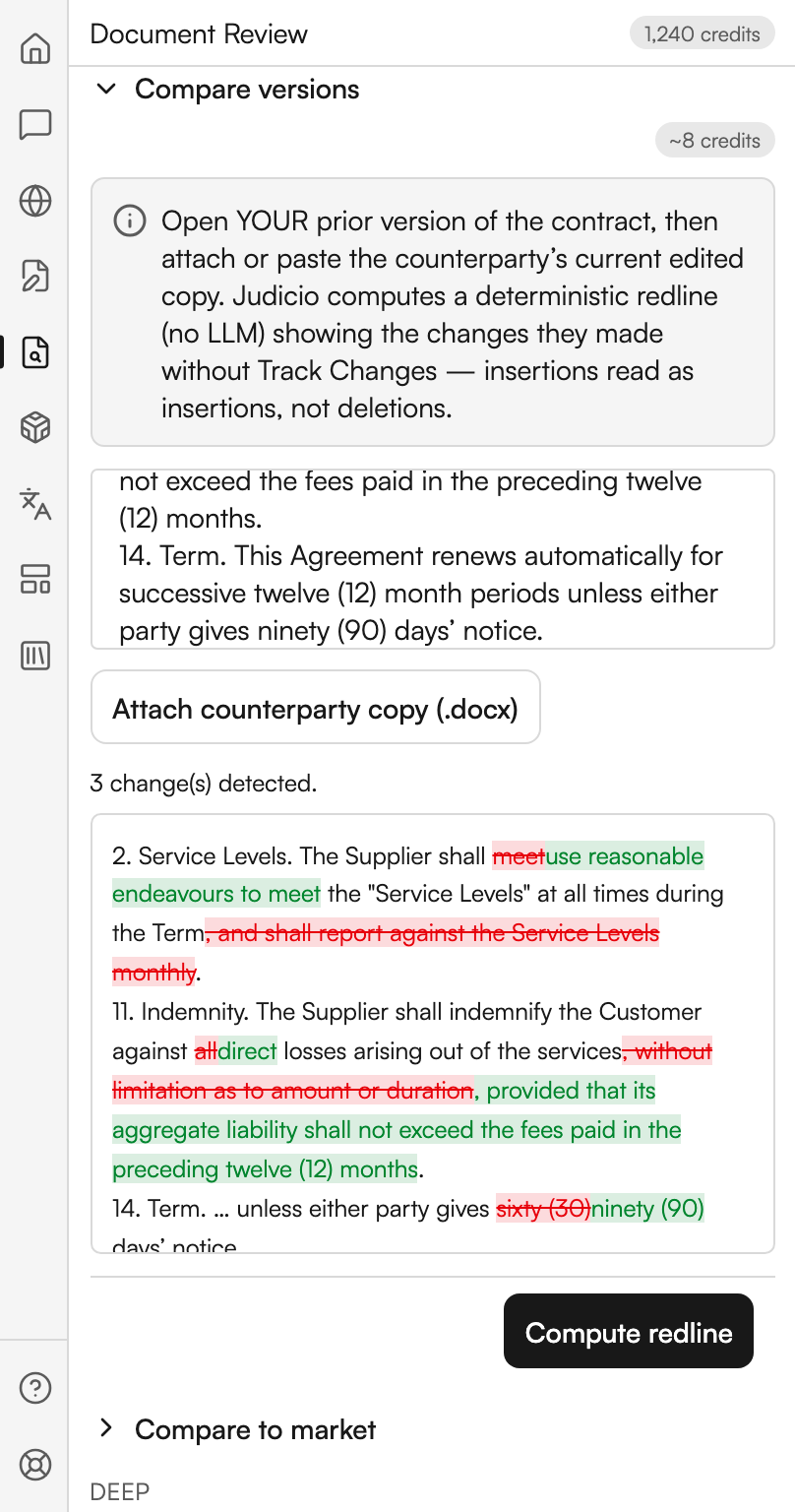
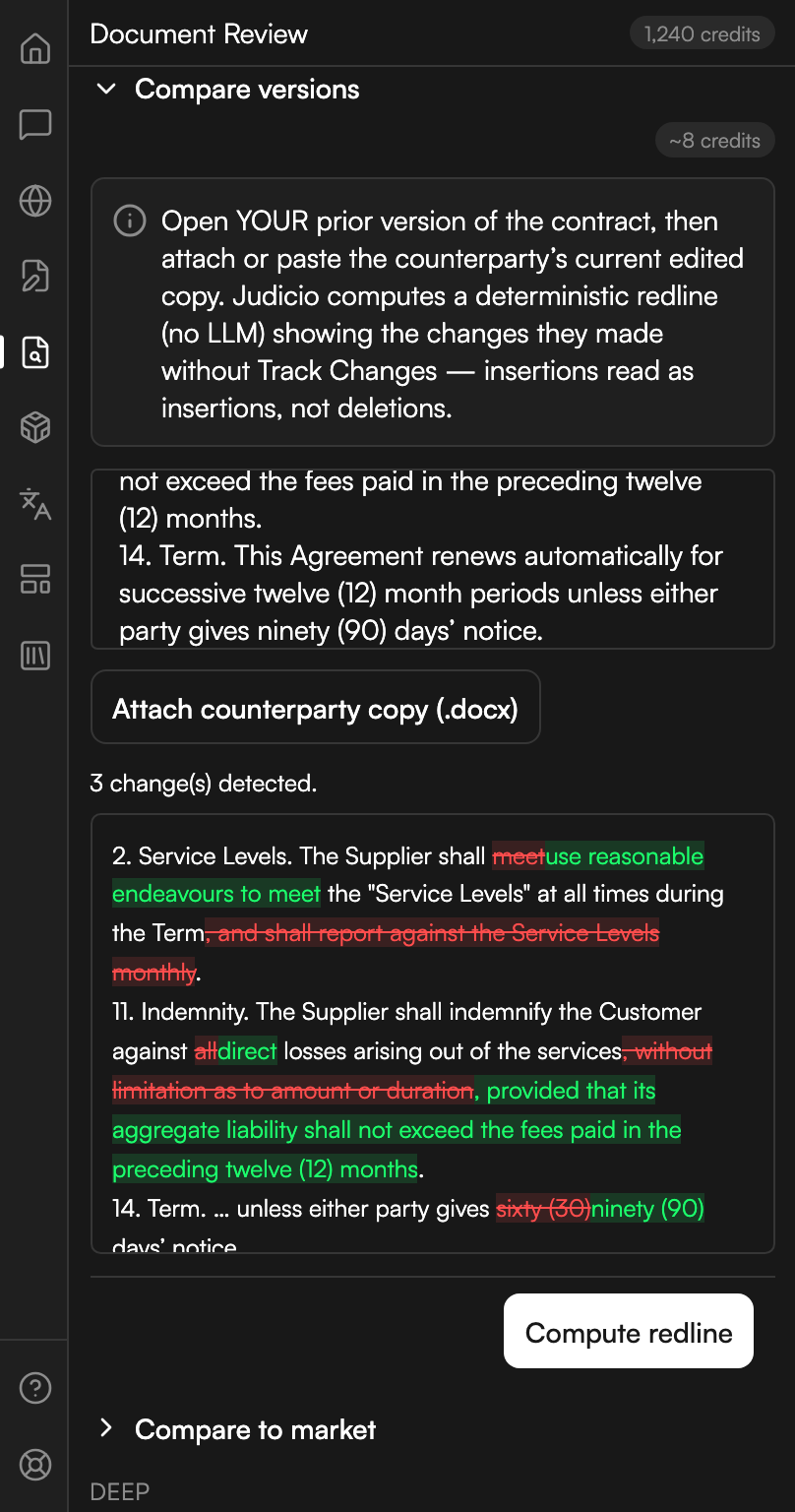
Computes a redline between the document you have open and a copy the other side edited without Track Changes on. Its note is precise about which file goes where: Open YOUR prior version of the contract, then attach or paste the counterparty's current edited copy. Judicio computes a deterministic redline (no LLM) showing the changes they made without Track Changes, insertions read as insertions, not deletions.
| Control | What it does |
|---|---|
| Attach counterparty copy (.docx) | Attaches their file. Remove clears it |
| The paste box | Placeholdered Paste the counterparty's current edited copy (OOXML or plain text)… |
| Compute redline | Runs the server-side comparison and reports the number of changes |
| Compare natively in Word | Uses Word's own compare on this device |
Compare natively in Word is free: Compares the open prior version against the attached copy using Word's built-in compare on this device, free, no credits. It needs desktop Word. On Word for the web the panel says so and points you at the paste box and Compute redline instead. When the native compare starts, the marked differences appear in the document rather than in the pane.
A redline against a pasted copy
The counterparty's copy pasted in, and the deterministic redline it produced.
Compare to market
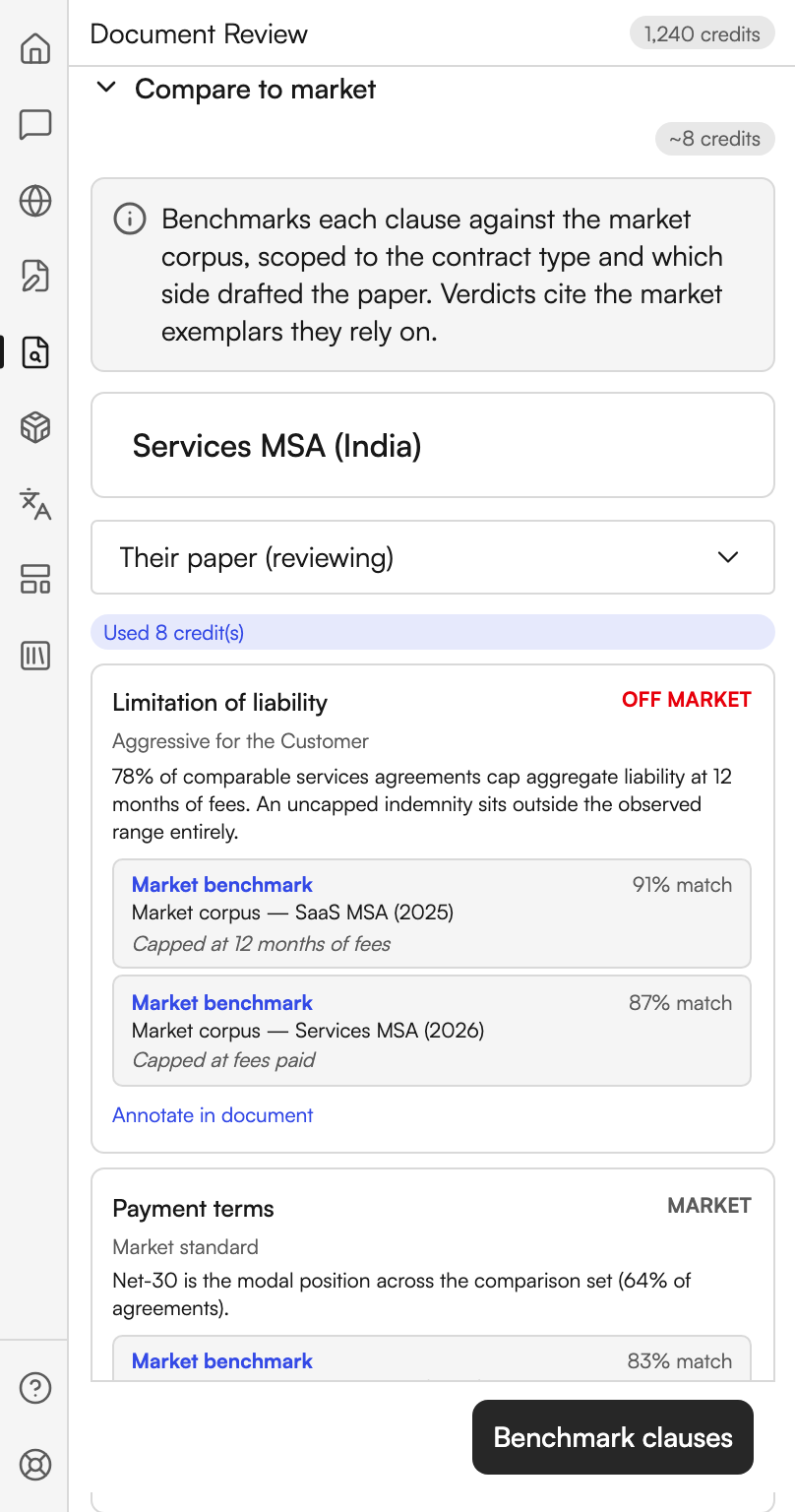
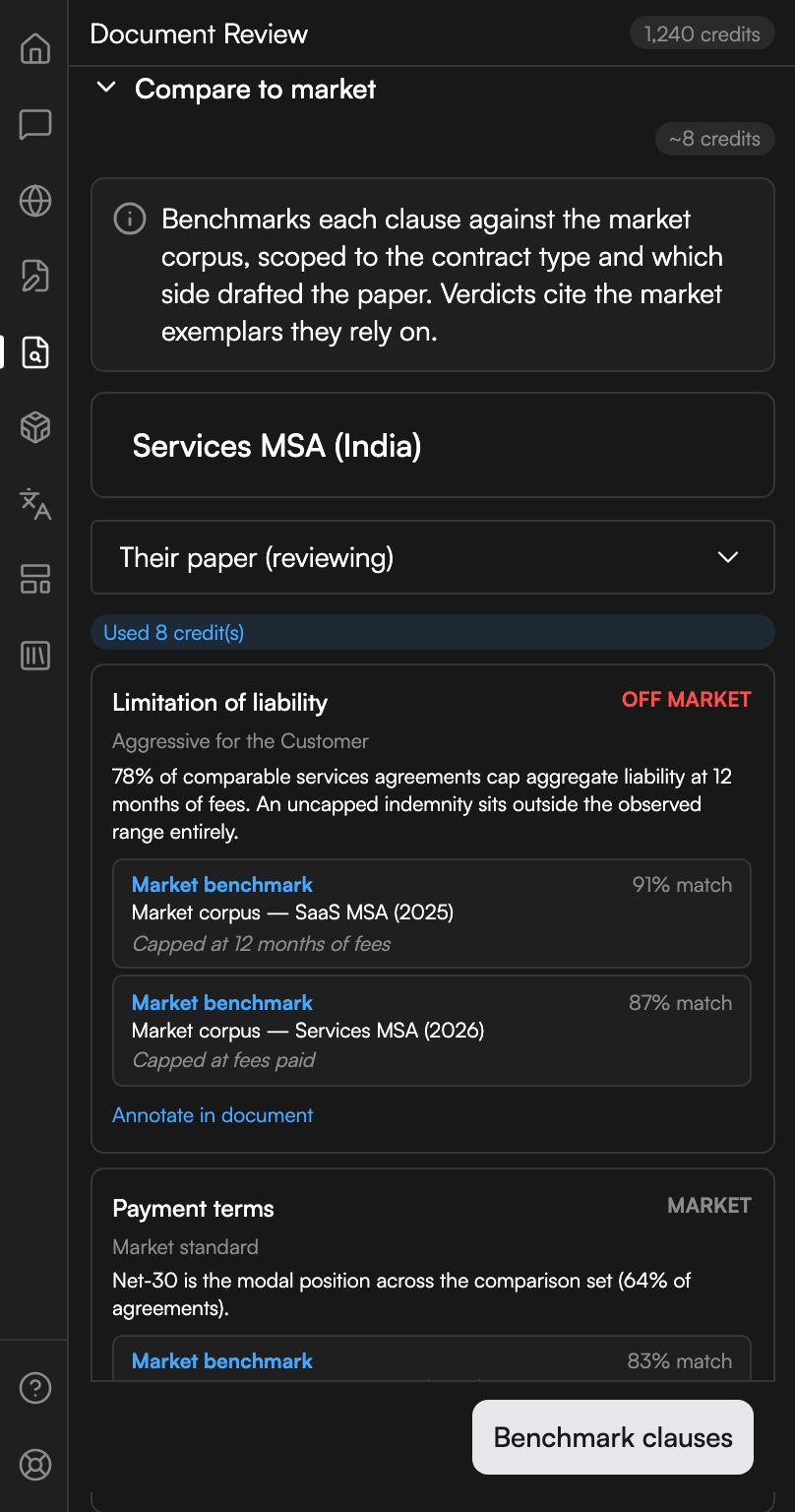
Benchmarks each clause against a market corpus. Its note says: Benchmarks each clause against the market corpus, scoped to the contract type and which side drafted the paper. Verdicts cite the market exemplars they rely on.
Two inputs are required before it runs. The contract type box is placeholdered Contract type (e.g. SaaS MSA, NDA), required, and a choice of Their paper (reviewing) or Our paper (drafting) tells Judicio which side you are on. Benchmark clauses runs it.
Each verdict cites the Market benchmark exemplars it leaned on, with a match percentage. Annotate in document writes the verdicts into the file.
Clause verdicts against the market
Two clauses judged against the market corpus, with the exemplars each verdict leaned on.
Structure check
The one deep pass, and the only section in the Deep group. Its note says: Checks defined-term consistency, undefined/unused terms, cross-references and numbering integrity. The deterministic checks are free; substantive proofreading is optional and charged.
Also run AI proofreading (charged) is a checkbox above the button. Leave it off and the run is free. Run structure check starts it.
Findings are marked into the document either one at a time with Mark in document, or all at once with Mark N in document. How they land depends on your Word version, and the panel says which you will get: critique annotations you can review in place, critique annotations whose popup applies a suggested fix as a tracked change, plain Word comments, or, on a host that supports none of those, nothing in the document at all and the findings stay in the pane.
The deep pass, run for free
Four findings from a run with proofreading left off, each ready to be marked into the document.
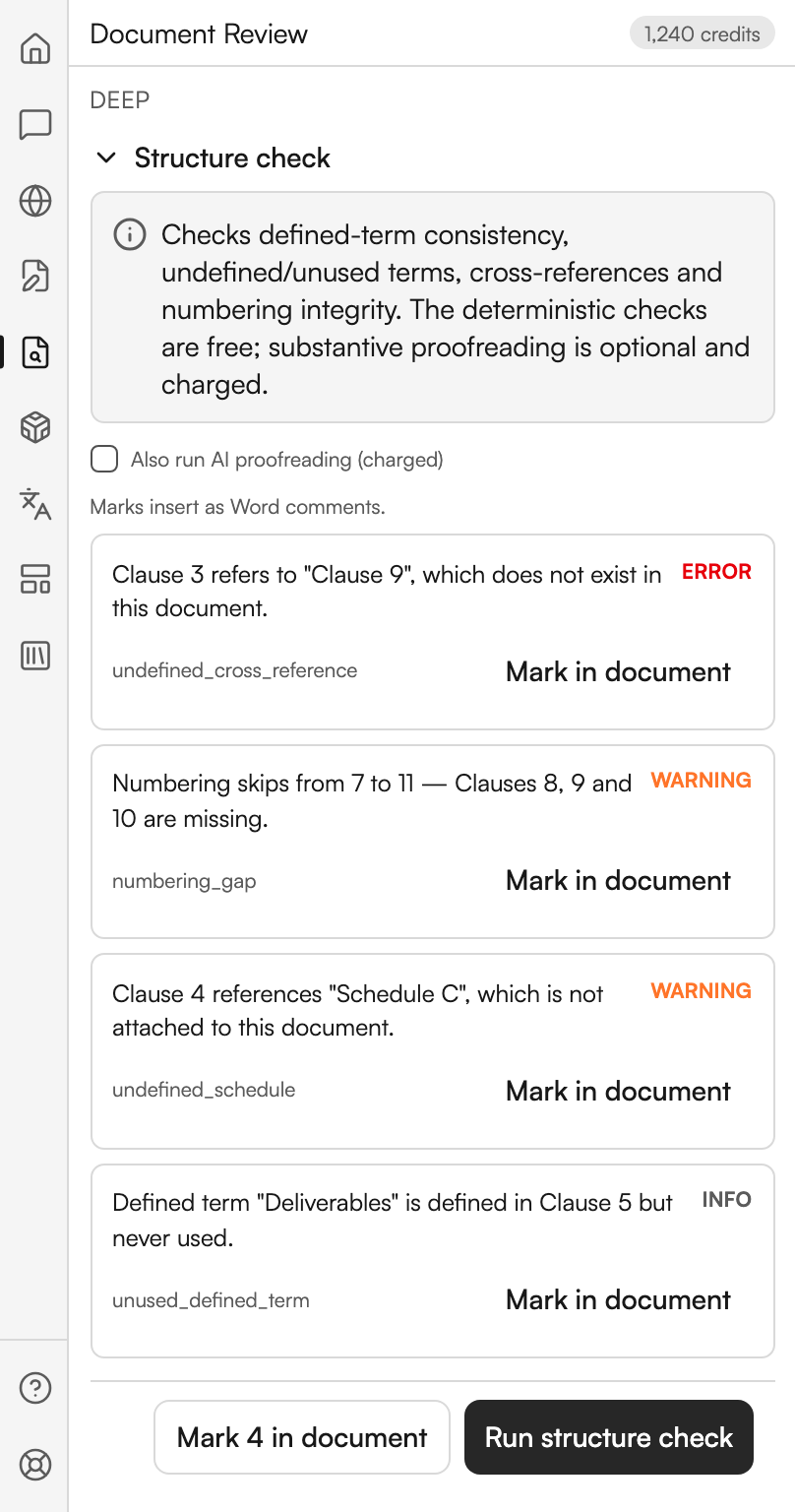
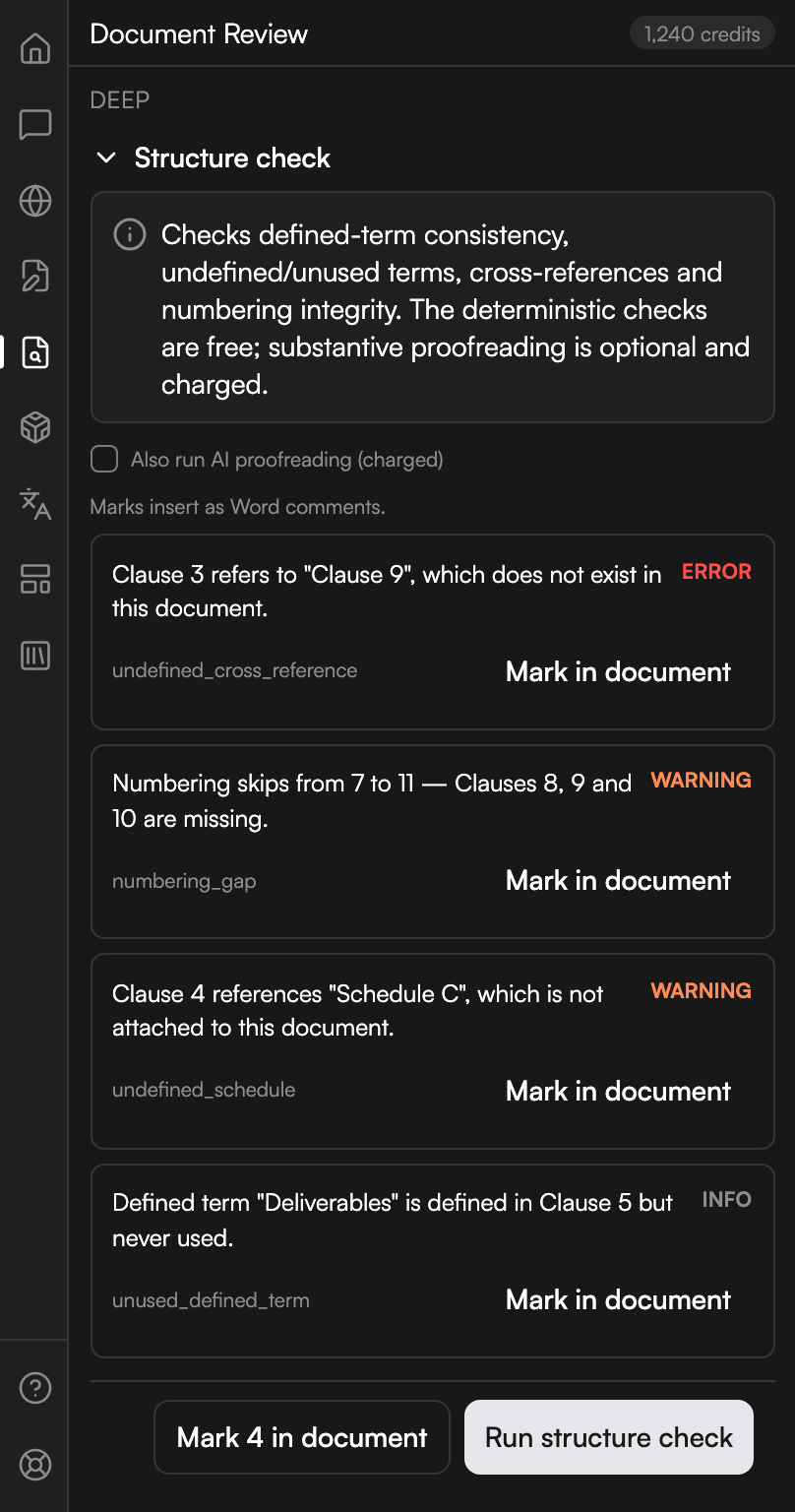
A clean document reports No structural issues found.
Next steps
- Document Review - the redline, triage and citation tabs beside this one.
- Drafting, Translation, Templates and File Library - including Clean copy, which also offers Run send-ready check.
- The Home screen - the search box is the fastest route into any of these.