Drafting, Translation, Templates and File Library
Four workspaces sit on the rail below Document Review. File Library includes Files, Activity, Save and Clean copy sections.
Drafting
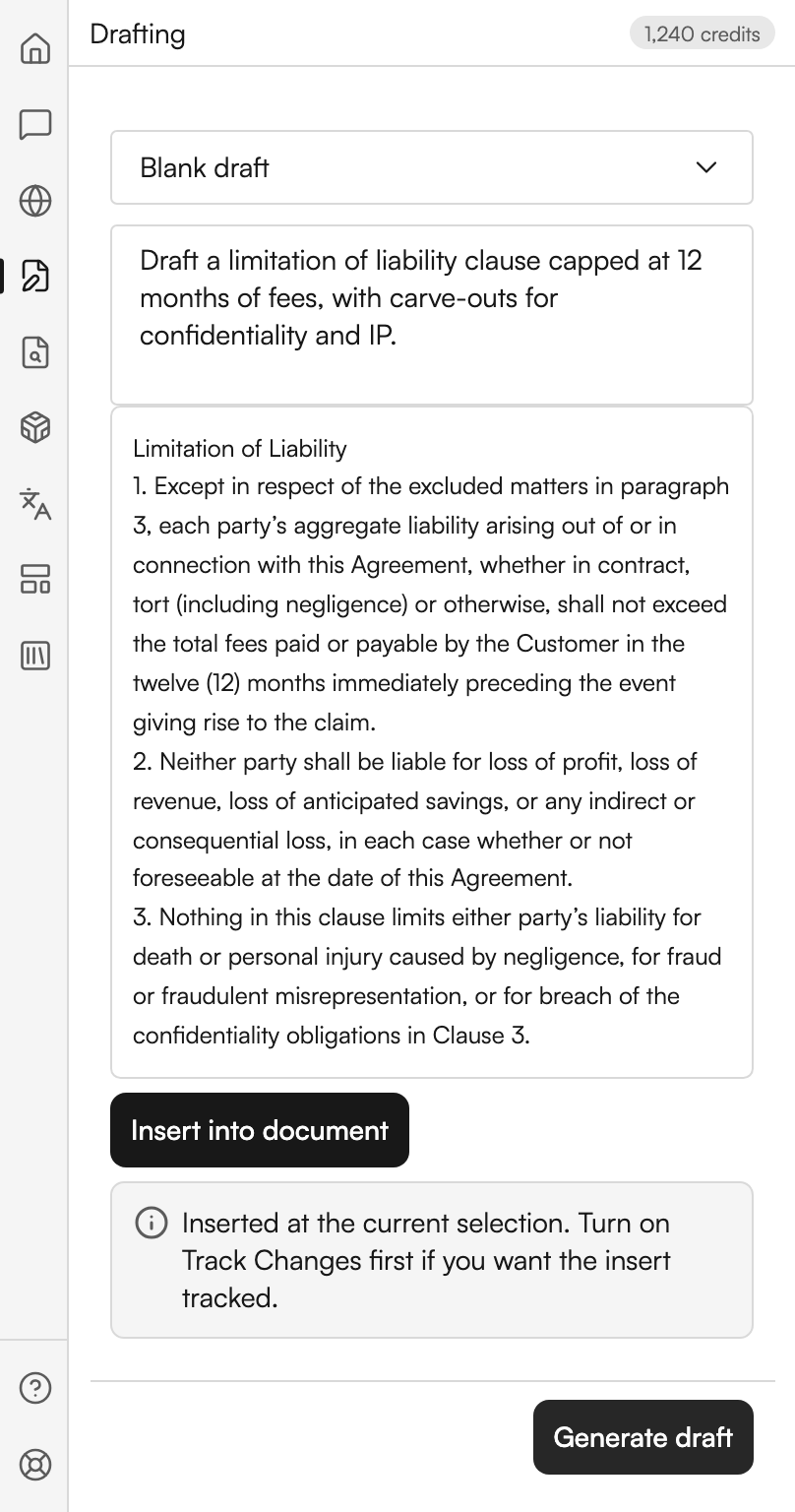
Draft from prompt generates new text from instructions, an optional template and selected library sources. You review the result before inserting it after the current selection.
| Control | Where | What it does |
|---|---|---|
| The template dropdown | Top of the panel | Which drafting template to start from. The first option is Blank draft |
| The prompt box | Below it | Placeholdered Describe the clause or agreement to draft… |
| Generate draft | Footer | Starts the run |
| Stop updates | Shown while running | Stops watching this job in the pane. The saved job may keep running; reopen it from Activity |
| Insert after selection | Under the result | Inserts without replacing selected text |
A prompt that is too short is refused with a message asking you to describe the draft in more characters.
Match document is the default insertion format and uses the current selection’s font, size and color. Keep source formatting retains supported source font, size, color and highlight tokens. Both keep headings, emphasis, lists, tables and alignment. Turn on Track Changes in Word first if you want the insertion tracked.
The template list is the same one you use in the web app. See Drafting templates.
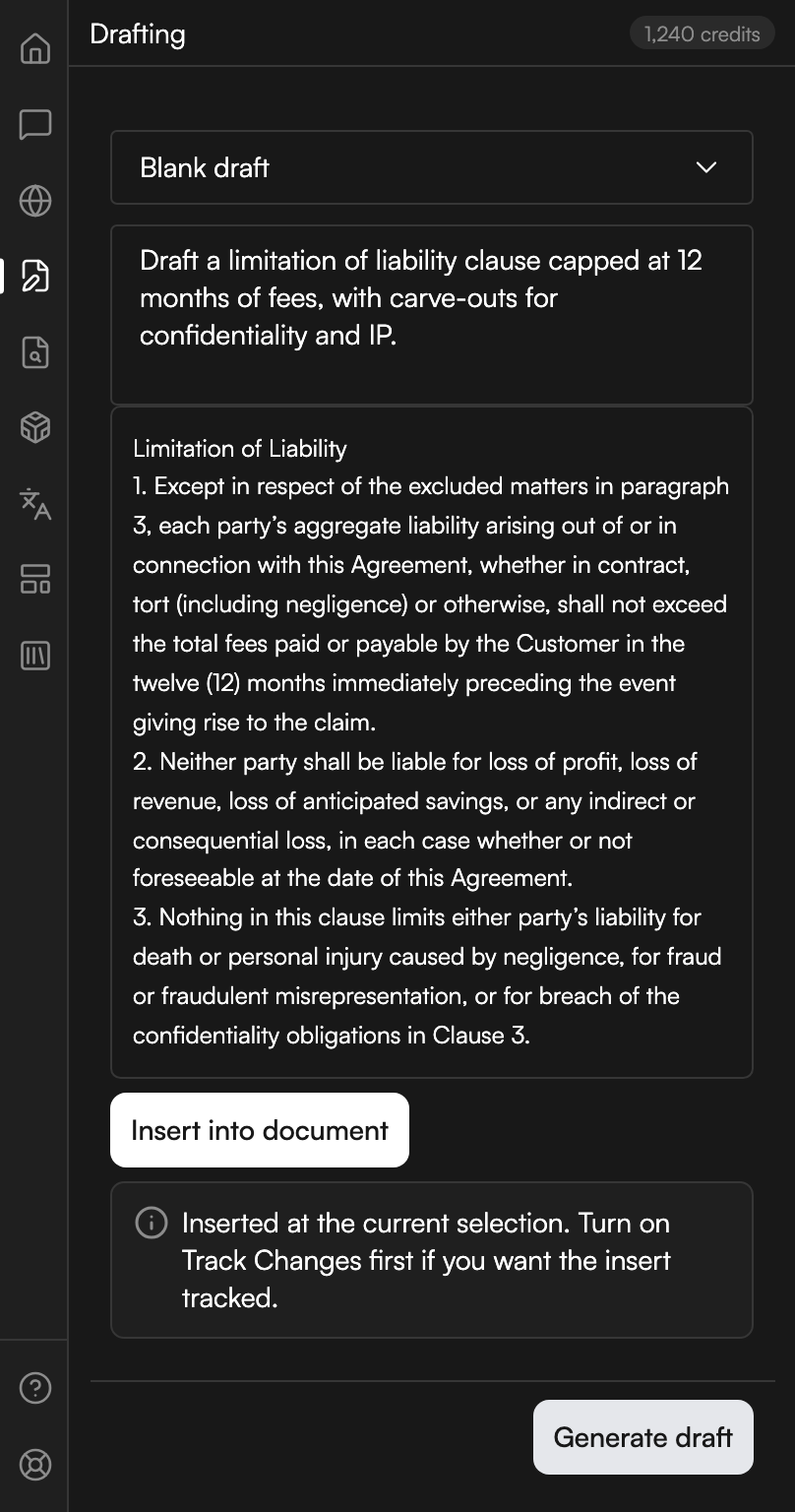
A generated clause, ready to insert
A clause drafted from a prompt, with the Track Changes reminder under the insert button.
Translation
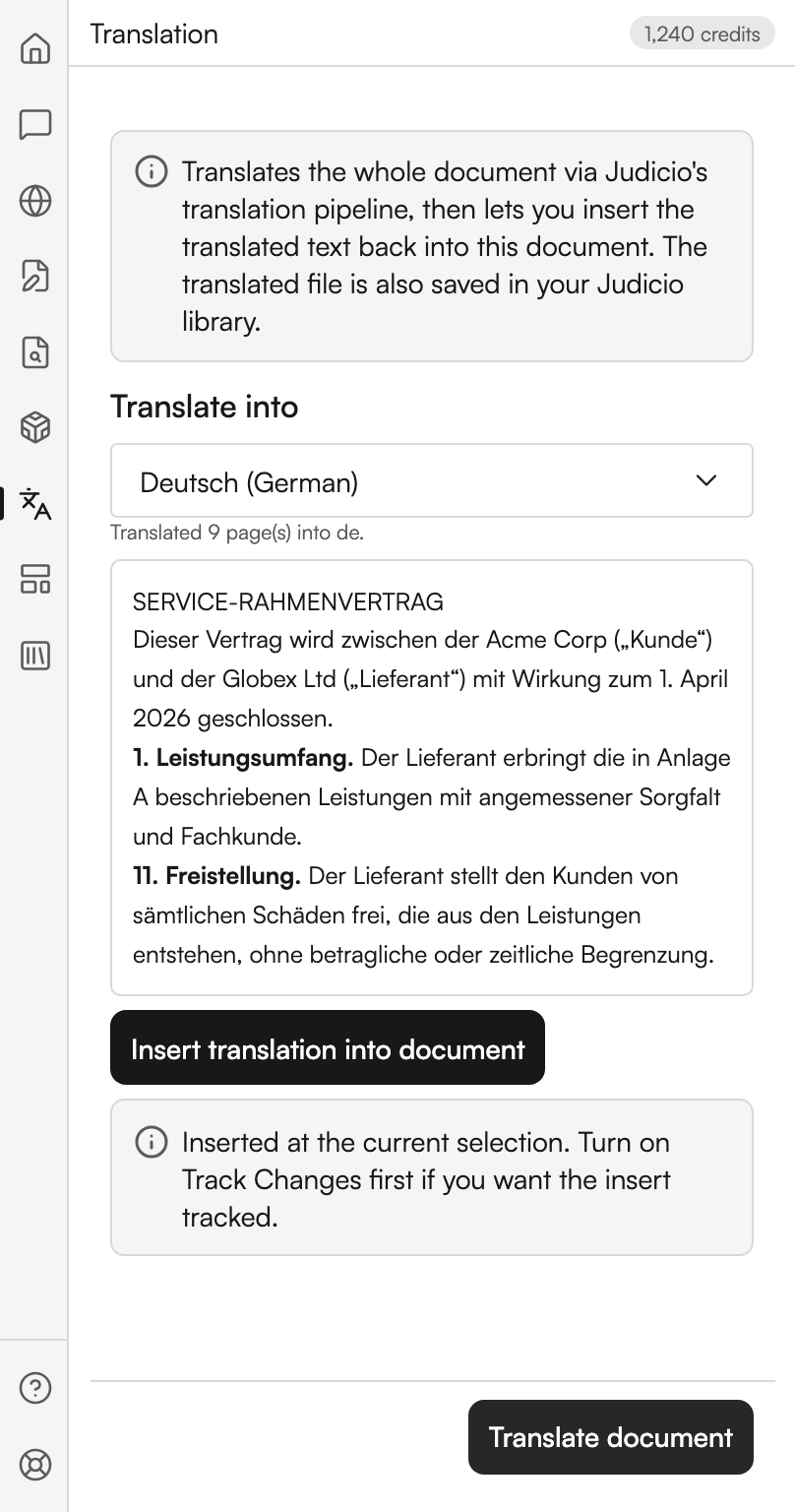
Translate document runs the whole file through Judicio's translation pipeline. Its note says: Translates the whole document via Judicio's translation pipeline, then lets you insert the translated text back into this document. The translated file is also saved in your Judicio library.
| Control | Where | What it does |
|---|---|---|
| Translate into | A searchable dropdown | The target language. It has a Search languages box and reports when nothing matches |
| Translate document | Footer | Starts the run |
| Insert translation after selection | Under the result | Places the translated text |
While it runs the panel reports progress, starting at Starting translation… and then Translating…. When it finishes it says how many pages it translated and into which language.
The insert lands after your selection and preserves the selected text. Choose Match document or Keep source formatting before inserting. The same Track Changes reminder applies: turn it on first if you want the insert tracked.
The translated file is saved into your Judicio library as well, so it is available in the web app. See Translation.
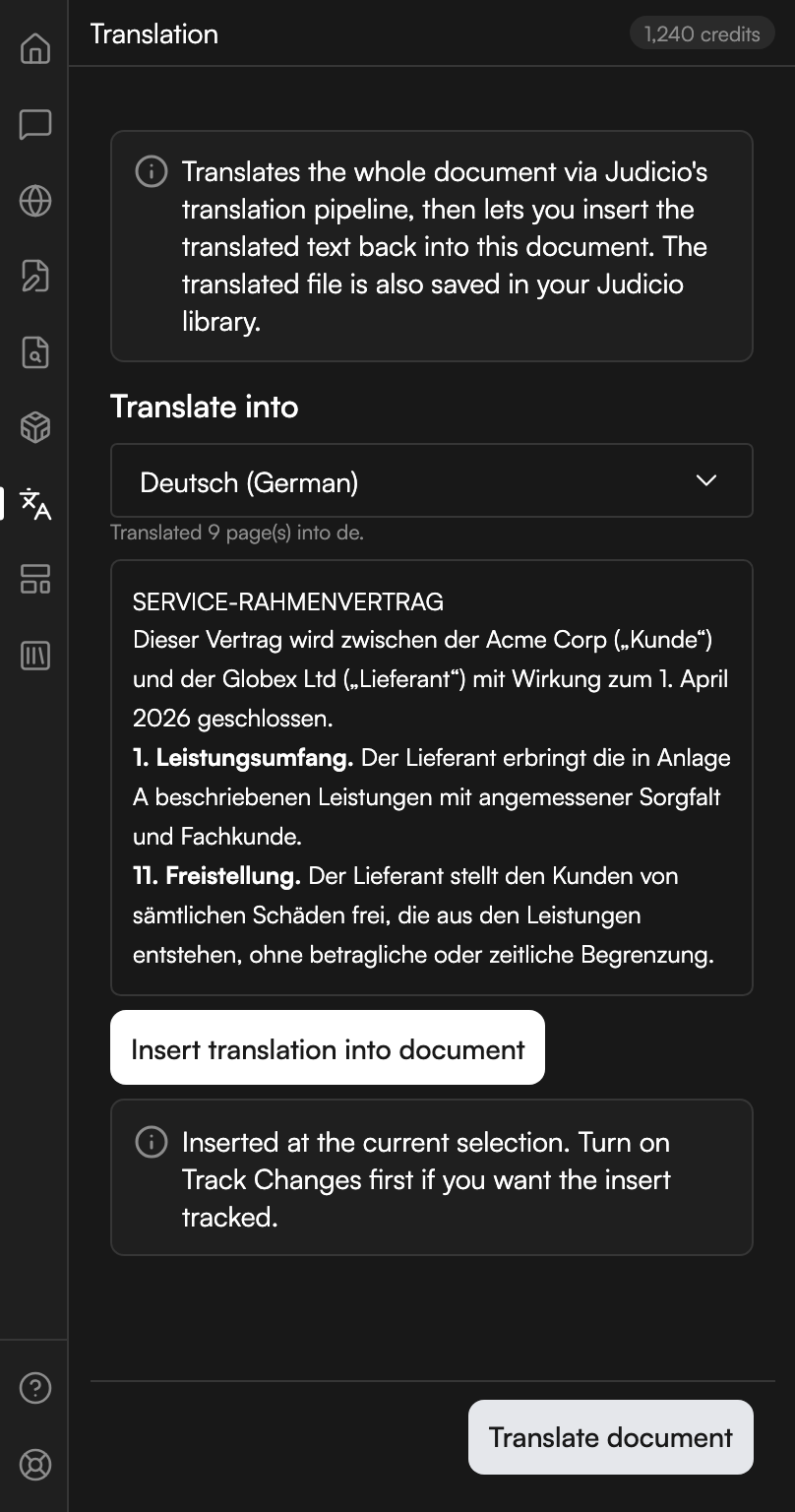
A translated document
The target language chosen and the translation returned, with the insert action beneath it.
Templates
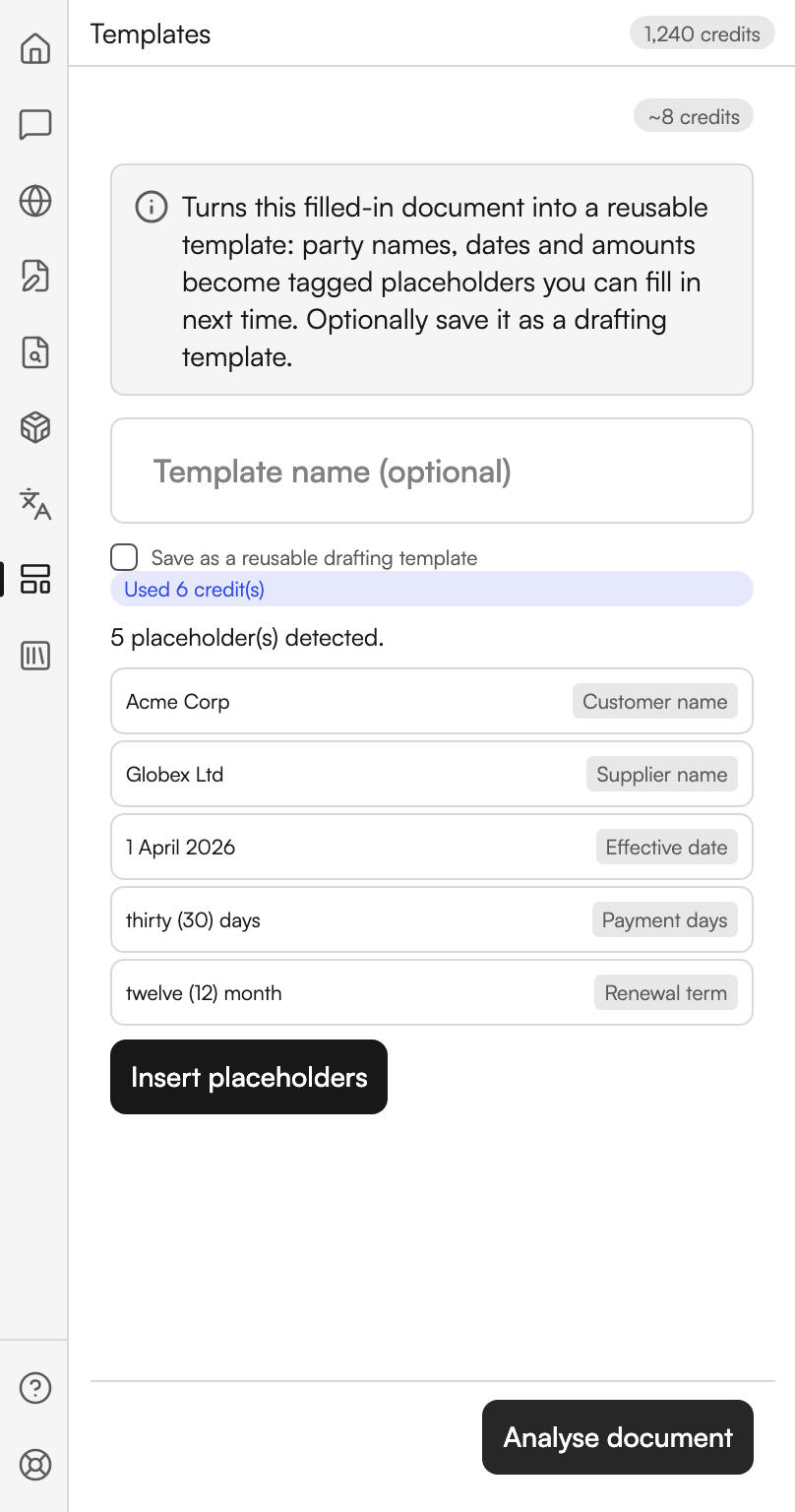
Convert to template turns a completed document into a reusable one. Its note says: Turns this filled-in document into a reusable template: party names, dates and amounts become tagged placeholders you can fill in next time. Optionally save it as a drafting template.
| Control | Where | What it does |
|---|---|---|
| The name box | Top of the panel | Placeholdered Template name (optional) |
| Save as a reusable drafting template | A checkbox below | Keeps the result as a drafting template rather than a one-off conversion |
| Only me / My organisation | A choice shown with that checkbox | Who can use the saved template |
| Analyse document | Footer | Runs the analysis and reports how many placeholders it detected |
| Insert placeholders | Under the result | Writes the placeholders into the open document |
Inserting reports how many placeholders it wrote, and names any span it could not locate in the document. On a Word version without content-control support the panel says placeholders cannot be inserted, but the template can still be analysed and saved.
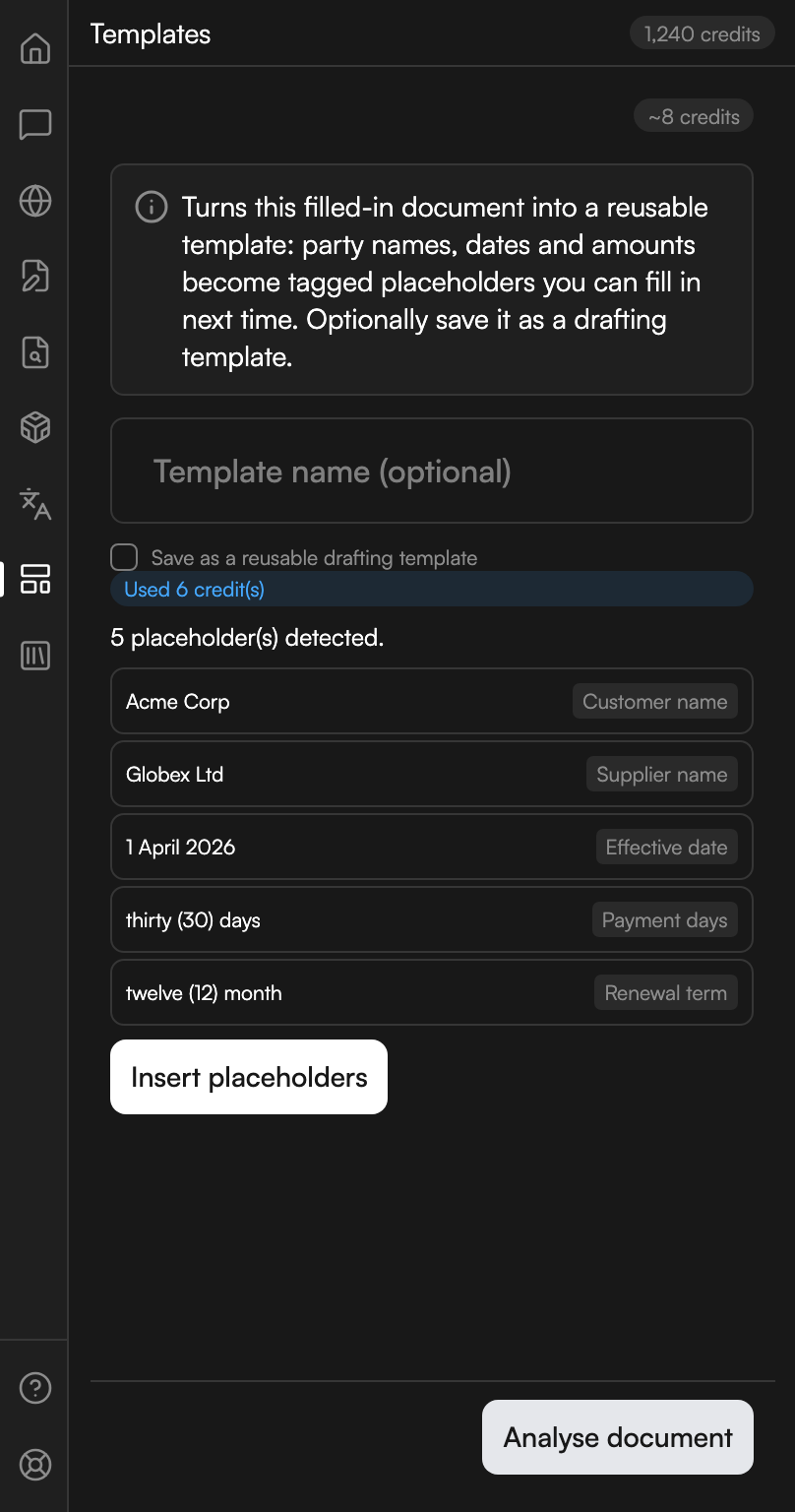
Detected placeholders
Five values found in the document, each tagged with the placeholder it would become.
File Library
File Library includes Files, Activity, Save and Clean copy.
Files and Activity
Choose a matter, search its ready library documents and select the sources for your next run. The source list stays visible in the drafting, research and review panels.
Use Prepare Timeline, Prepare Case Strategy or the prepare action for Full Review Matrix to continue with selected files in Judicio. Case Strategy also needs instructions or a matter description. Open the prepared link and review the selection before starting analysis. The private link expires after 30 minutes and requires the same authorized account and workspace.
Activity lists your saved drafts, research, document reviews and translations. Open saved work to reconnect to its status and reopen the result. Reconnecting and retrying a result fetch do not start another paid run. Citation links open the saved research in the web app for source inspection.
Save
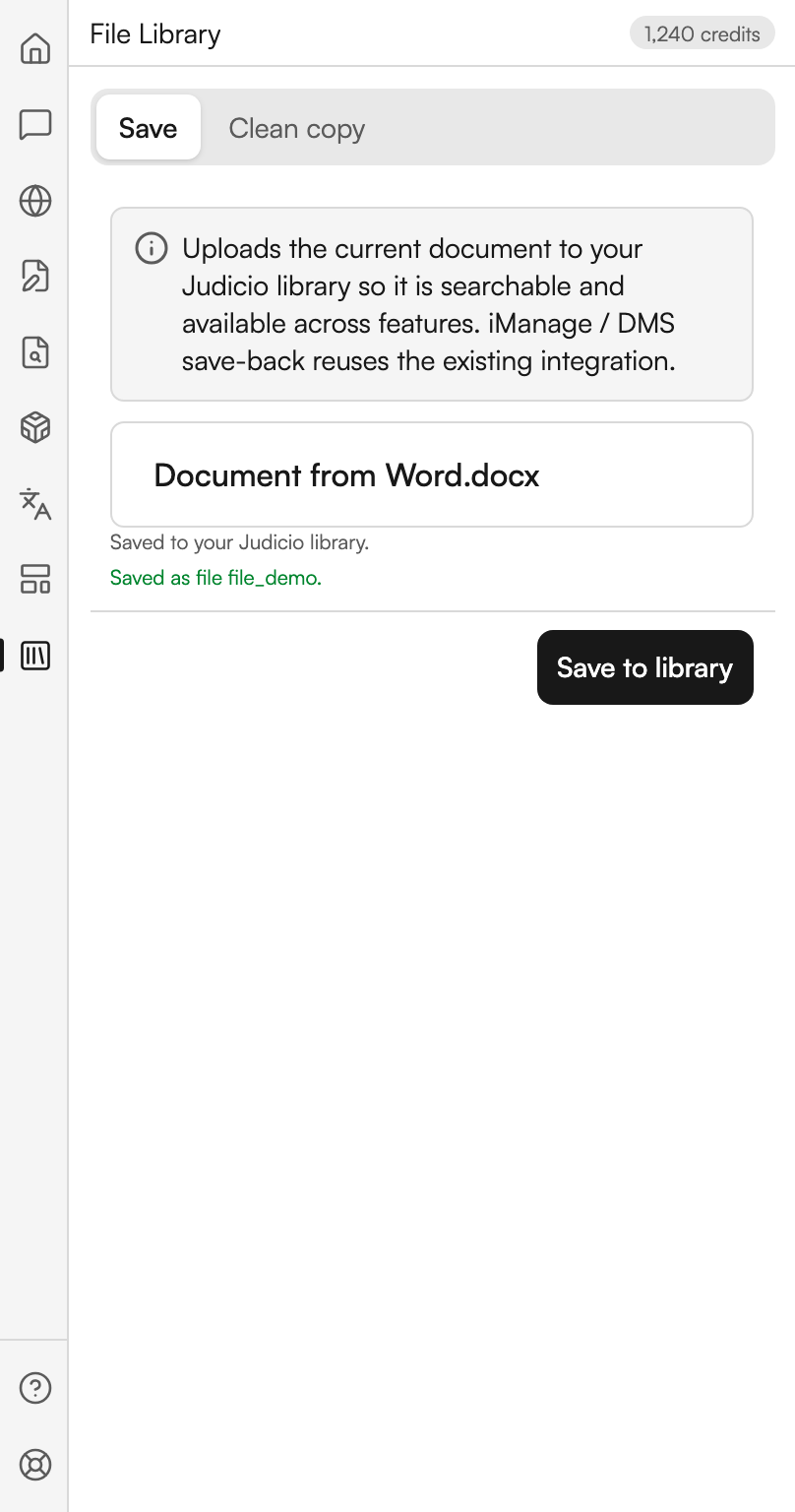
Save to Judicio pushes the open document into your library. Select a matter and an explicit destination folder, then choose the DOCX filename. The confirmation identifies the destination used for that upload.
Save to library in the footer runs it. The panel reports progress while it reads and uploads the file, then confirms Saved to your Judicio library. with the file's identifier.
Saving stays unavailable until you select a destination you can access. The server checks permission again when uploading.
A document saved back
The open document uploaded to the library, with the confirmation under its name.
Clean copy
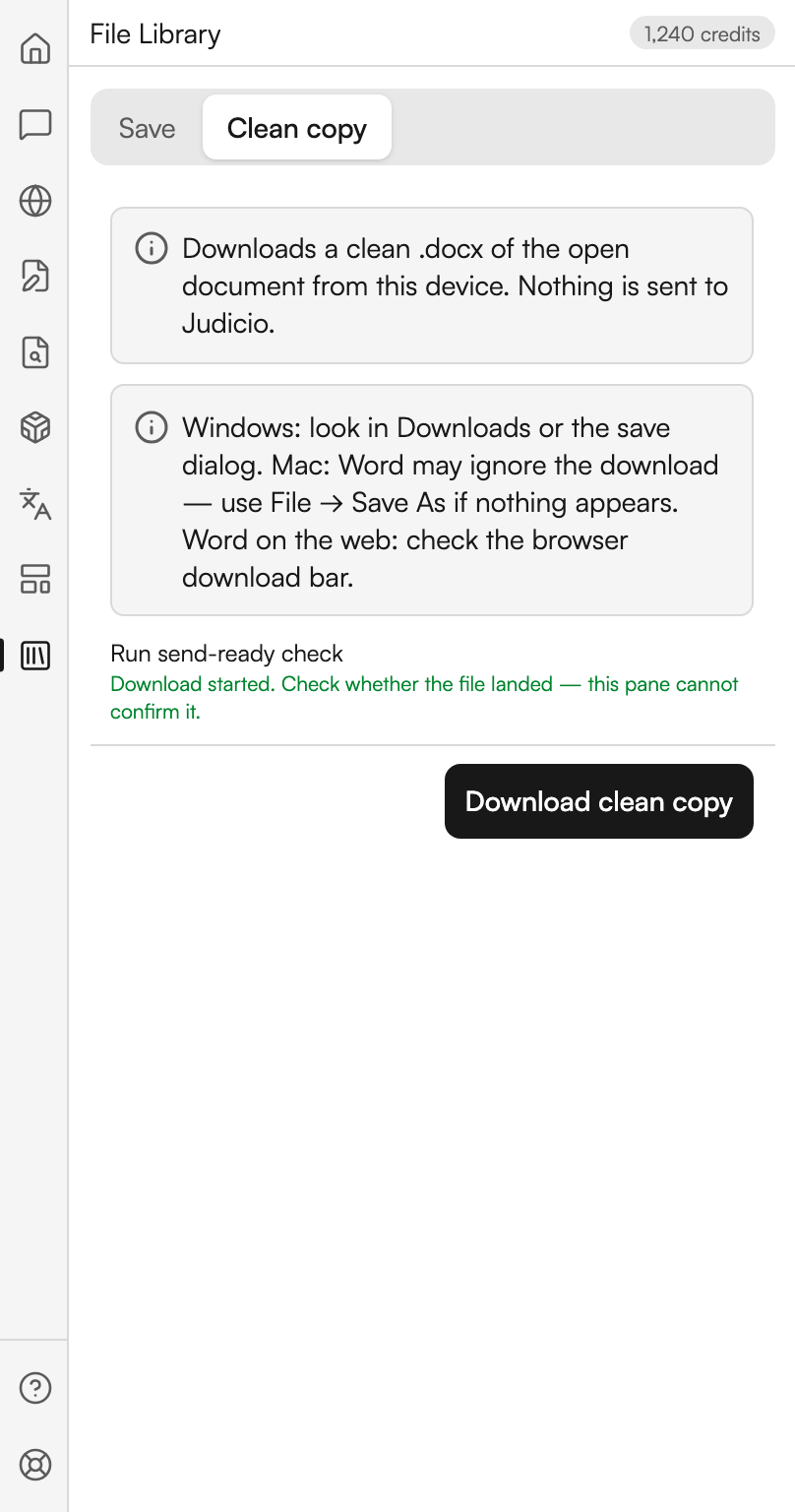
Download original exports the document as it is. Download clean copy processes a separate DOCX on your device: it accepts supported text, formatting and row revisions and removes comments across document stories. The open document remains unchanged, nothing is sent to Judicio, and neither export uses credits.
Clean copy is not a metadata scrubber. Documents with structural paragraph-boundary, cell-merge, custom-XML or conflict revisions, macros or signatures are rejected with an explanation. For those files, save a separate copy in Word, accept the revisions and remove comments there. Open every exported copy to inspect it before sharing.
Download clean copy starts it. Because a task pane cannot see whether a download landed, the panel is honest about that: Download started. Check whether the file landed, this pane cannot confirm it. A second note tells you where to look on each platform. On Windows, check Downloads or the save dialog. On Mac, Word may ignore the download, so use File then Save As if nothing appears. On Word for the web, check the browser download bar.
If the host refuses to start the download at all, the panel says so.
Run send-ready check sits beside the download button and takes you to the Send-ready check, which is the right thing to run before you hand a clean copy to anyone.
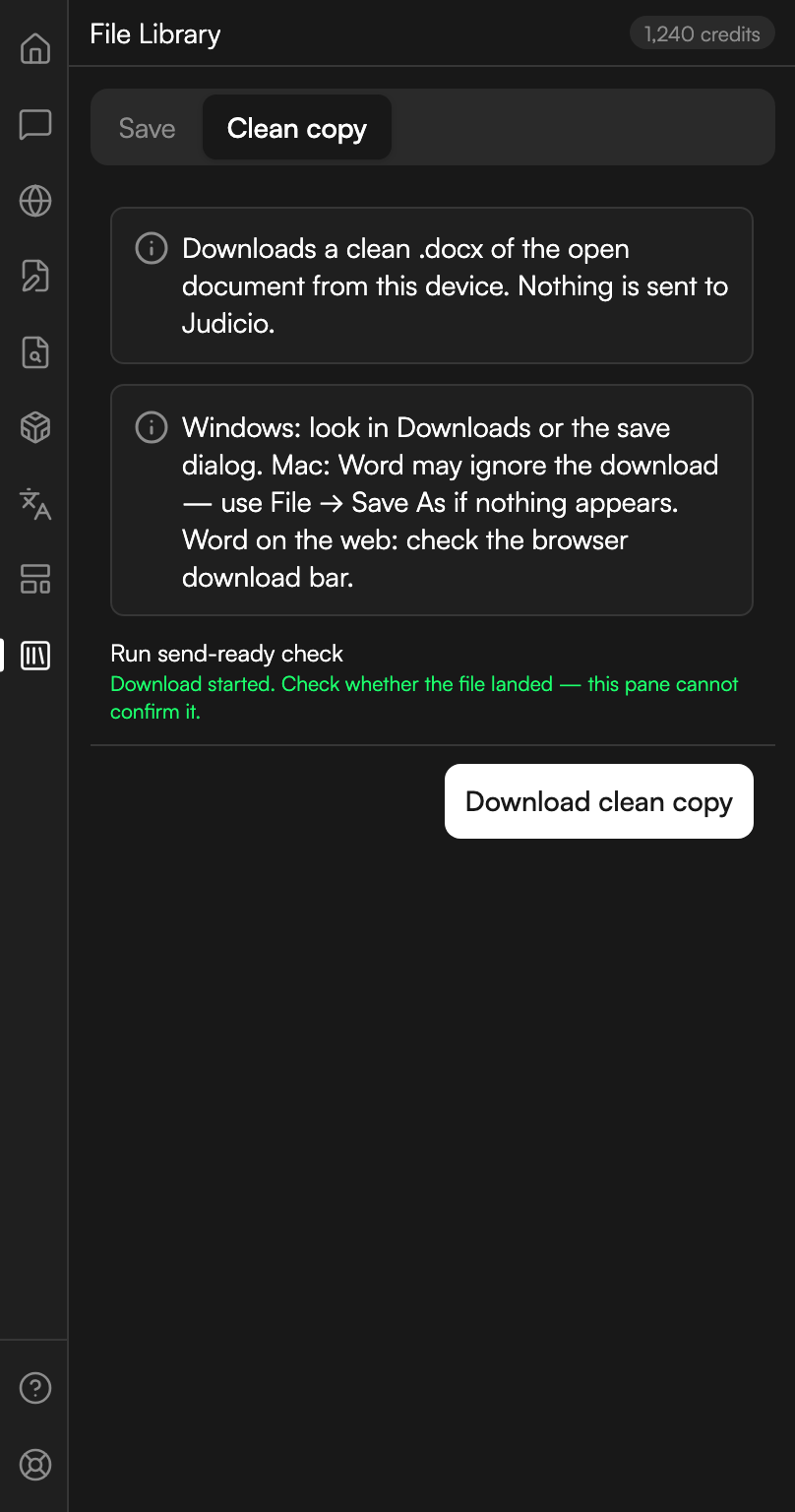
A clean copy on its way
The download started, with the note explaining why the pane cannot confirm it landed.
Where each of these is priced
Convert to template is a fixed Word action. Drafting and Translation bill at the same rate as the matching web-app feature, because they are the same runs. Save to Judicio and Clean copy are free.
The estimate chip in a charged panel's header quotes the figure before you commit, and the panel reports what the run actually cost afterwards. See Credits Explained.
Next steps
- Checks - run Send-ready check before you send the clean copy.
- The Home screen - where each of these tiles sits.
- File Library - what happens to a document once it is saved.