Assistant
Assistant is where you talk to the document. Four sections sit on a tab strip across the top: Compose, Rewrite, Explain and Chat. Opening Assistant from the rail lands you on Compose.
Switching sections unmounts what you were looking at, but a run already in flight keeps going and its result is waiting when you come back.
Compose
Compose is titled Ask / Edit. A note under the title explains the rule: Ask a question about this document, or describe an edit. Answers and redlines stay in this pane if you switch tools.
Everything you press lives in the footer, in two rows.
The controls row
| Control | Where | What it does |
|---|---|---|
| Ask / Edit | First segmented control | Chooses whether your text is a question or an instruction |
| Document / Selection | Second segmented control | Chooses what the request is about |
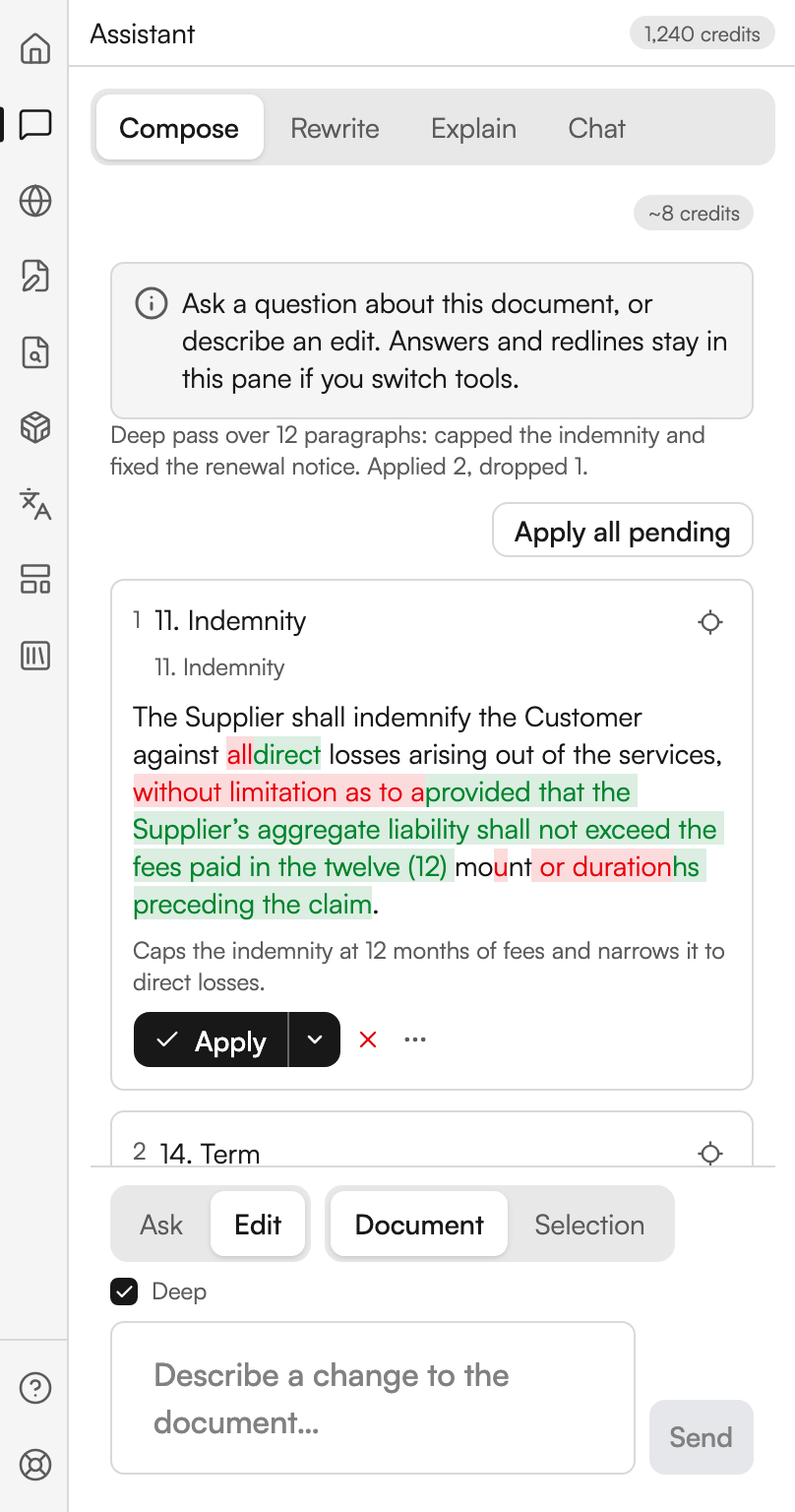
| Deep | A checkbox to their right | A stronger, slower, dearer pass. Only in Edit |
| New chat | Right-hand end of the row | Clears the conversation. Only in Ask, once there are turns |
Switching from Edit back to Ask clears Deep as well, because it does not apply to a question.
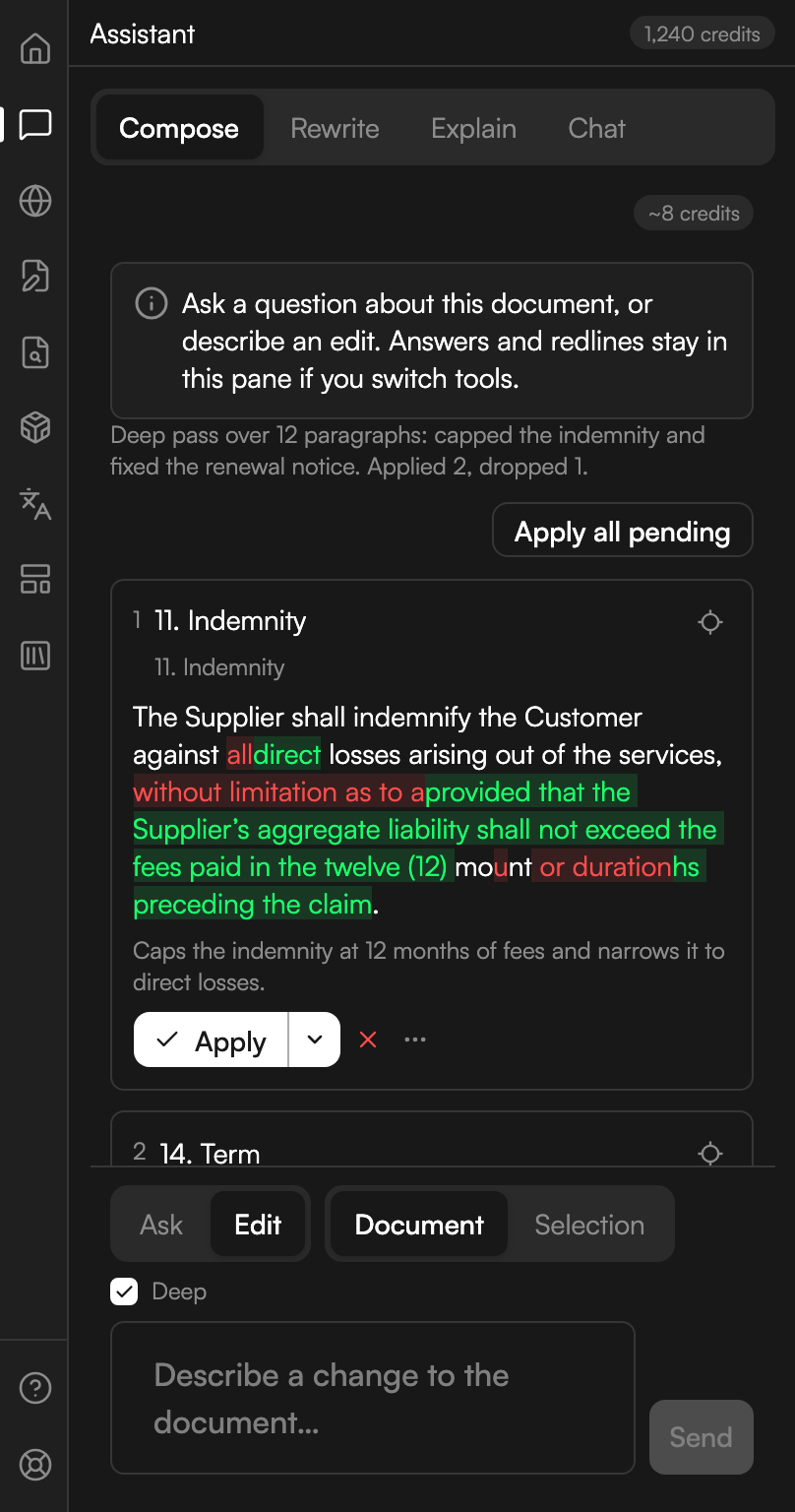
Edit, with Deep ticked
The two segmented controls and the checkbox, on a run whose summary line reports a deep pass.
The composer row
The box is placeholdered Ask about this contract… in Ask and Describe a change to the document… in Edit. Enter sends; Shift and Enter make a new line.
A microphone button sits beside the box on deployments where dictation is available, labelled Dictate with your voice. It opens a dictation window and appends what you say to whatever is already in the box.
Send submits, and stays disabled while the box is empty. While a run streams, Send is replaced by Stop, and the panel shows either Reading the document… or Analysing the document….
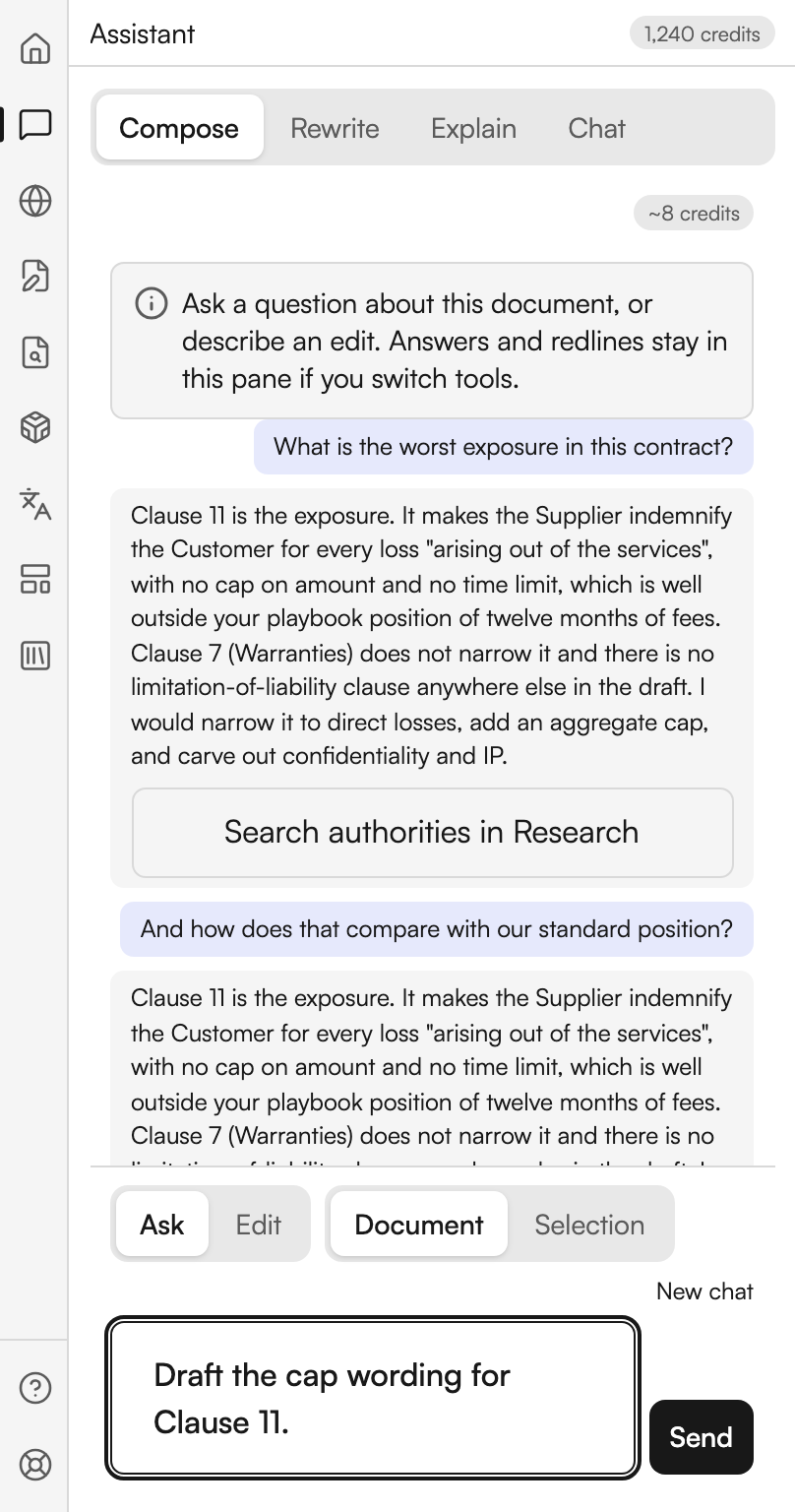
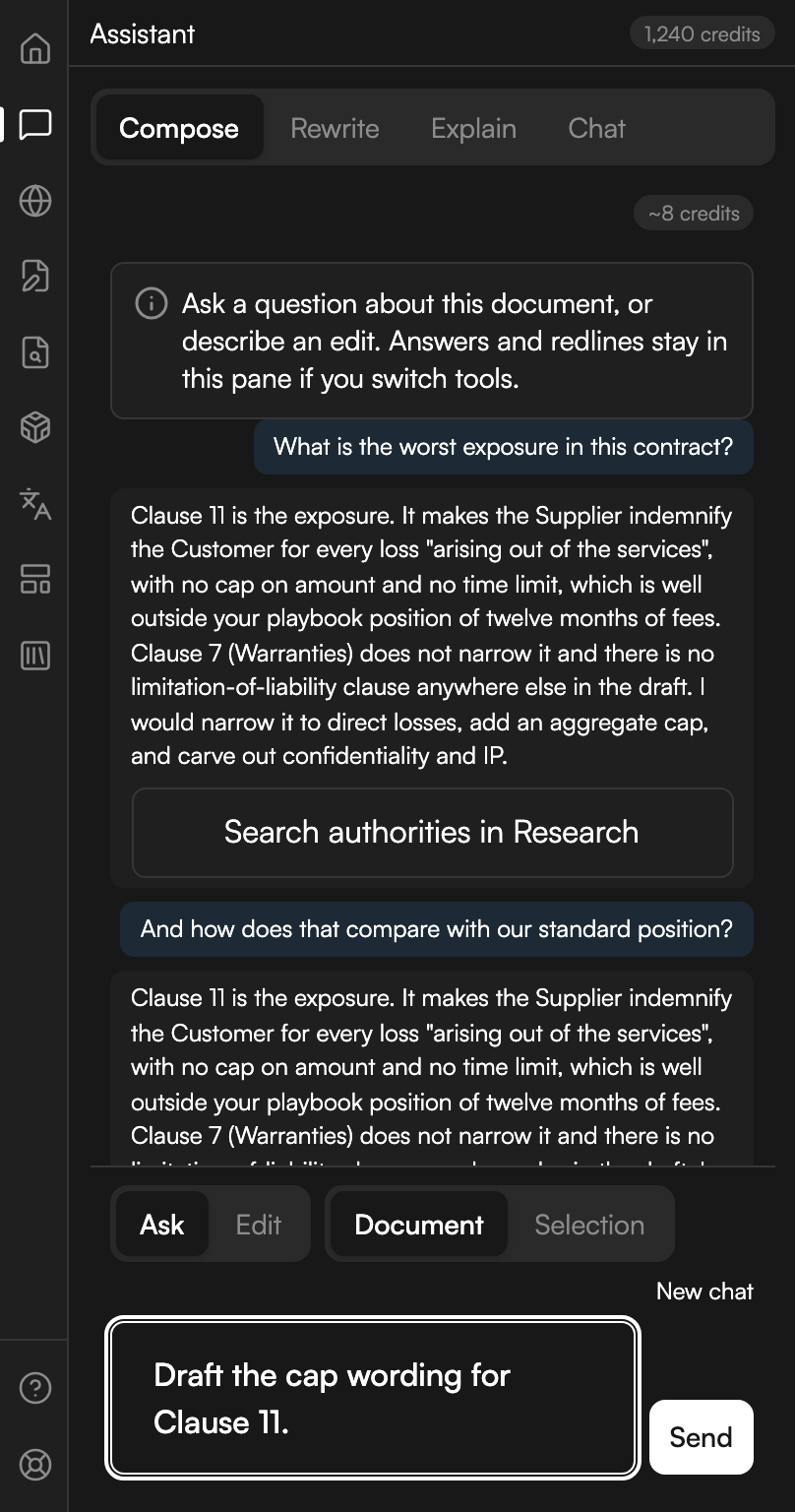
The composer, ready to send
Two answered turns above the composer, with a follow-up typed and Send live.
What comes back
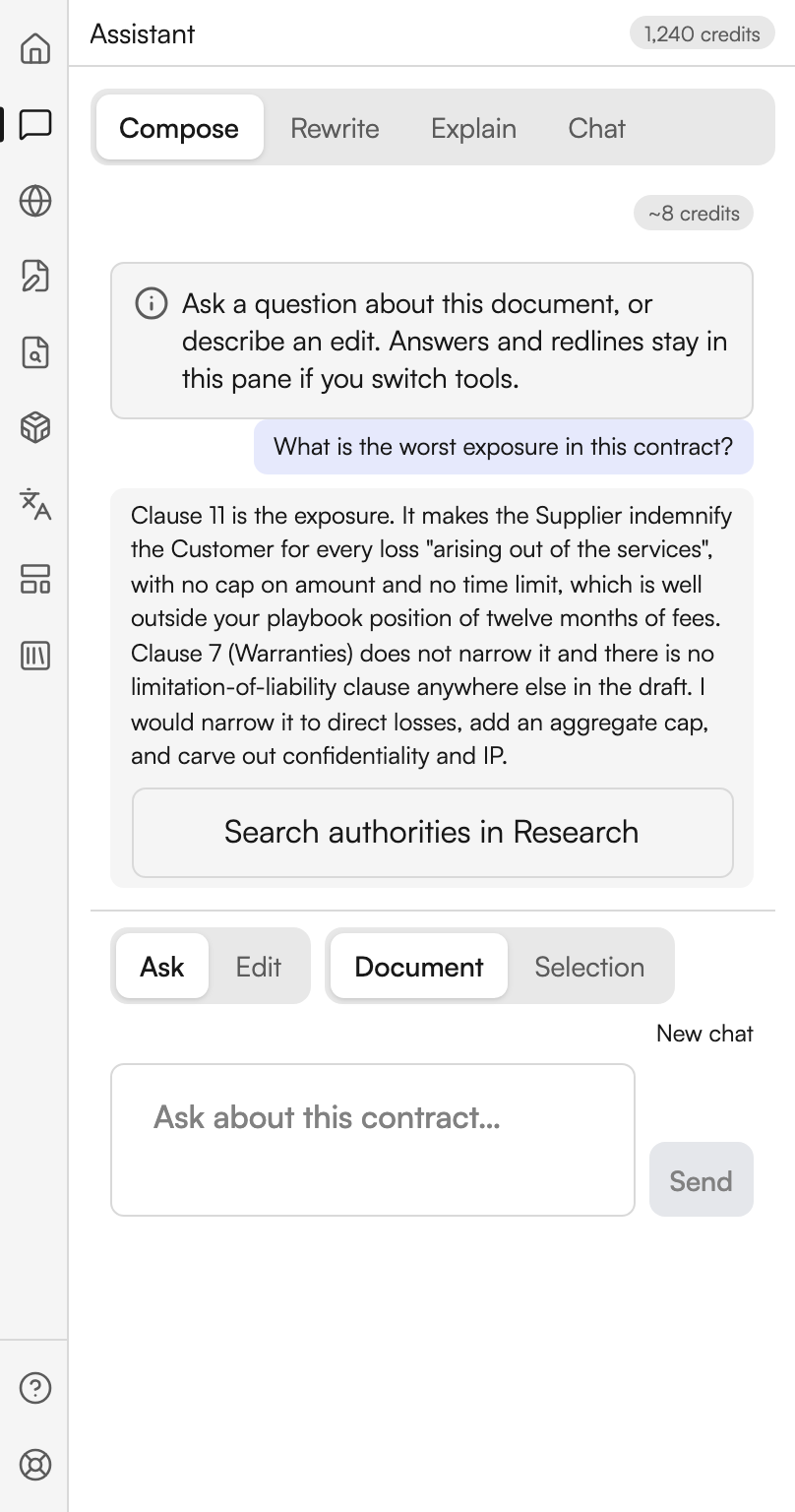
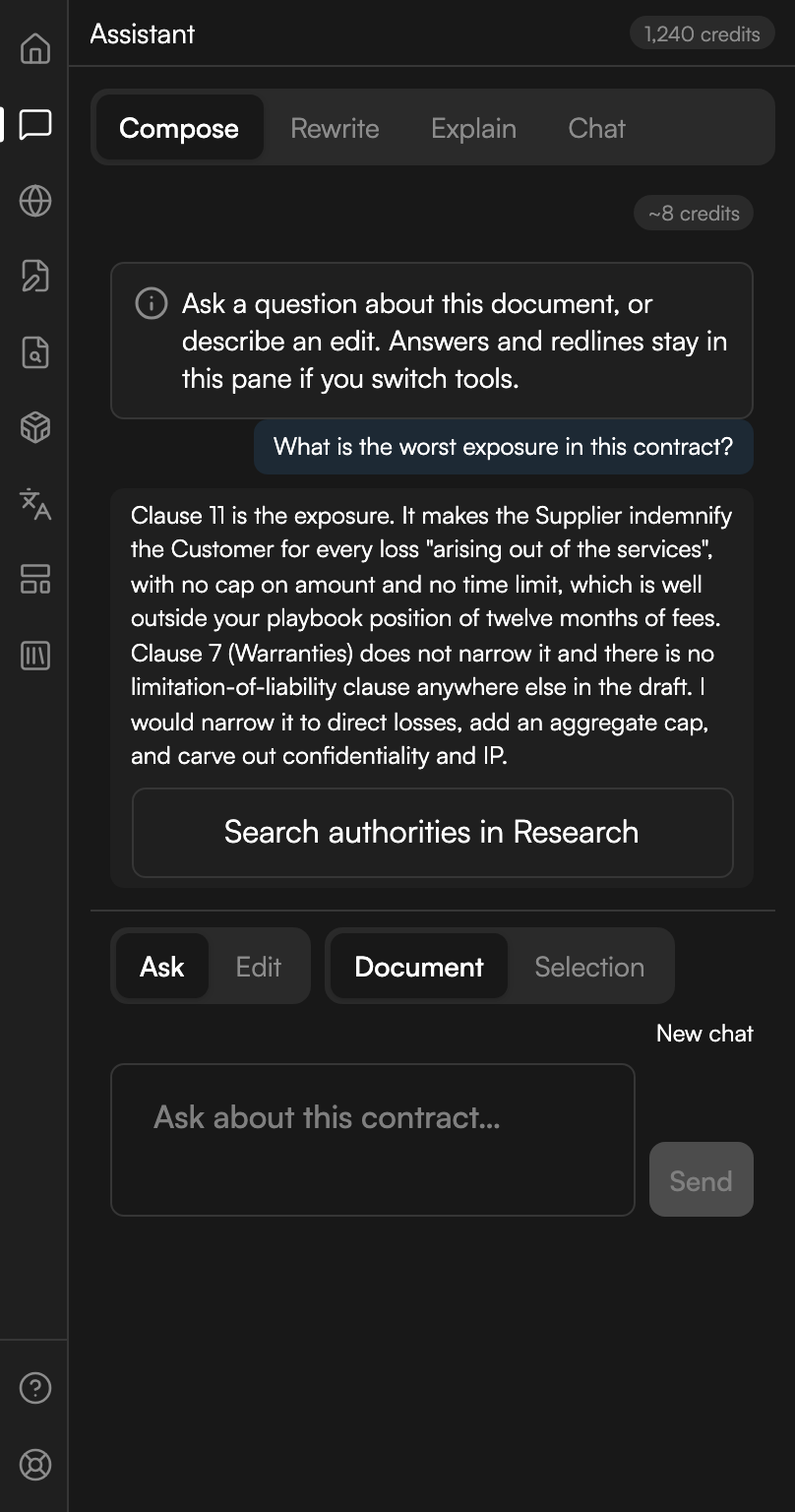
In Ask, answers appear as a conversation above the composer, your turns on the right and Judicio's on the left. Each answer carries a Search authorities in Research chip that hands the same question to Research, on its Ask section.
An answer in Ask
An answer about the open contract, with the hand-off to Research underneath it.
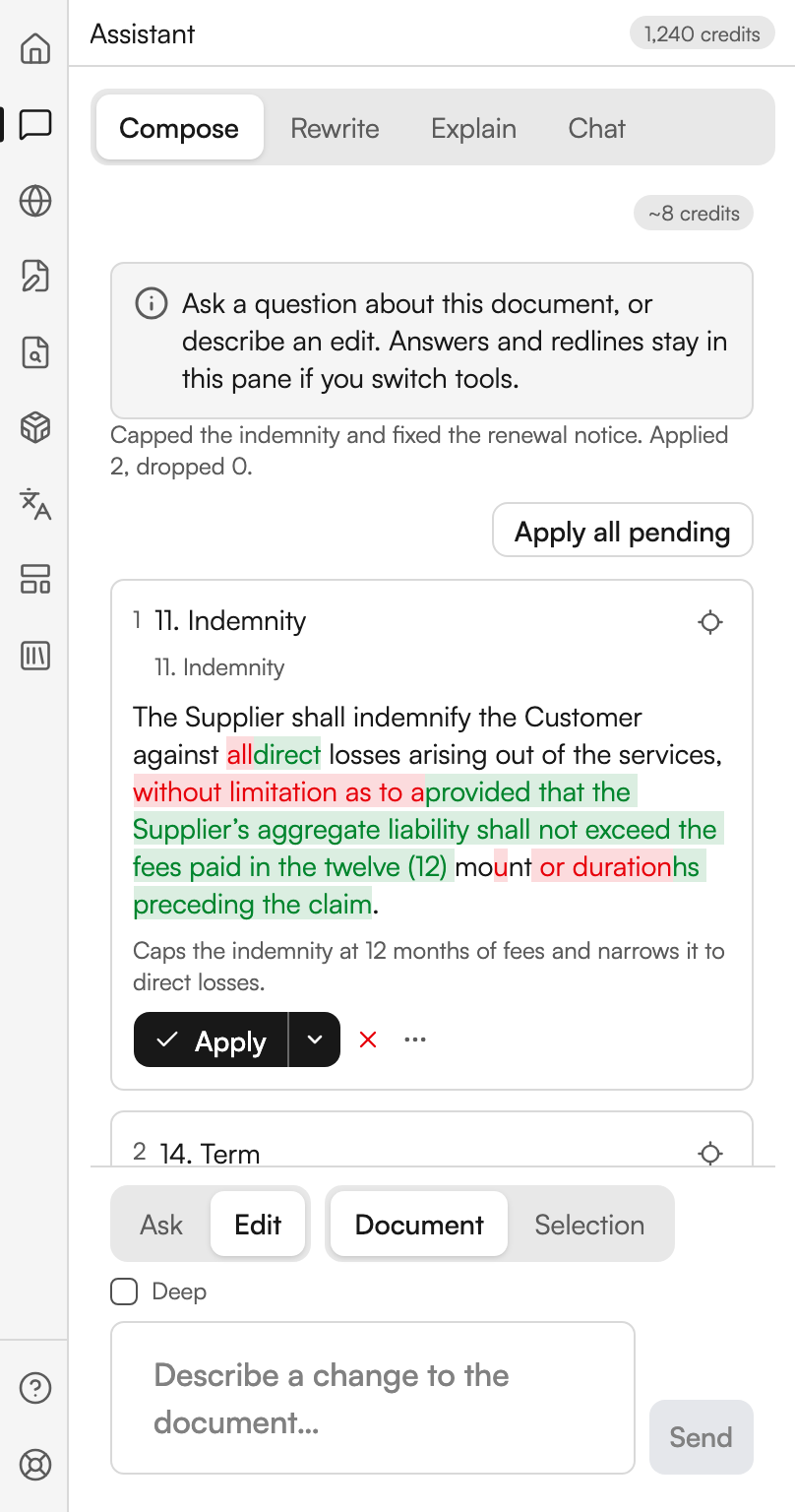
In Edit, answers come back as a stack of proposed edits with a one-line summary above them, and Apply all pending to take the lot. Each card carries the same controls:
| Control | What it does |
|---|---|
| Apply | Inserts the change as a native tracked change |
| Apply clean (no tracked change) | Under More apply options. Writes the change without a revision mark |
| Dismiss, then Restore | Sets the card aside, or brings it back |
| Find in document | Scrolls the document to the clause |
| Why this change | Shows the reasoning behind the suggestion |
| Edit language | Lets you rewrite the proposed text before applying, with Save and Cancel |
| Refine | Sends the suggestion back for another pass |
| Revert to original | Undoes your edits to the proposed text |
| Copy proposed | Copies the replacement text |
| Insert as comment | Attaches the suggestion to the clause as a Word comment |
| Ask the assistant | Carries the item back into Compose as an instruction |
Applied cards are marked Applied or Applied clean with the hint Ctrl+Z to undo. A card with nothing to substitute is marked Flag only — no replacement text. Cards also carry a Verified, Unverified or New clause marker.
If a suggestion cannot be placed the card says why: the text was not found, it appears more than once, the span no longer matches, or this Word version cannot apply that kind of edit.
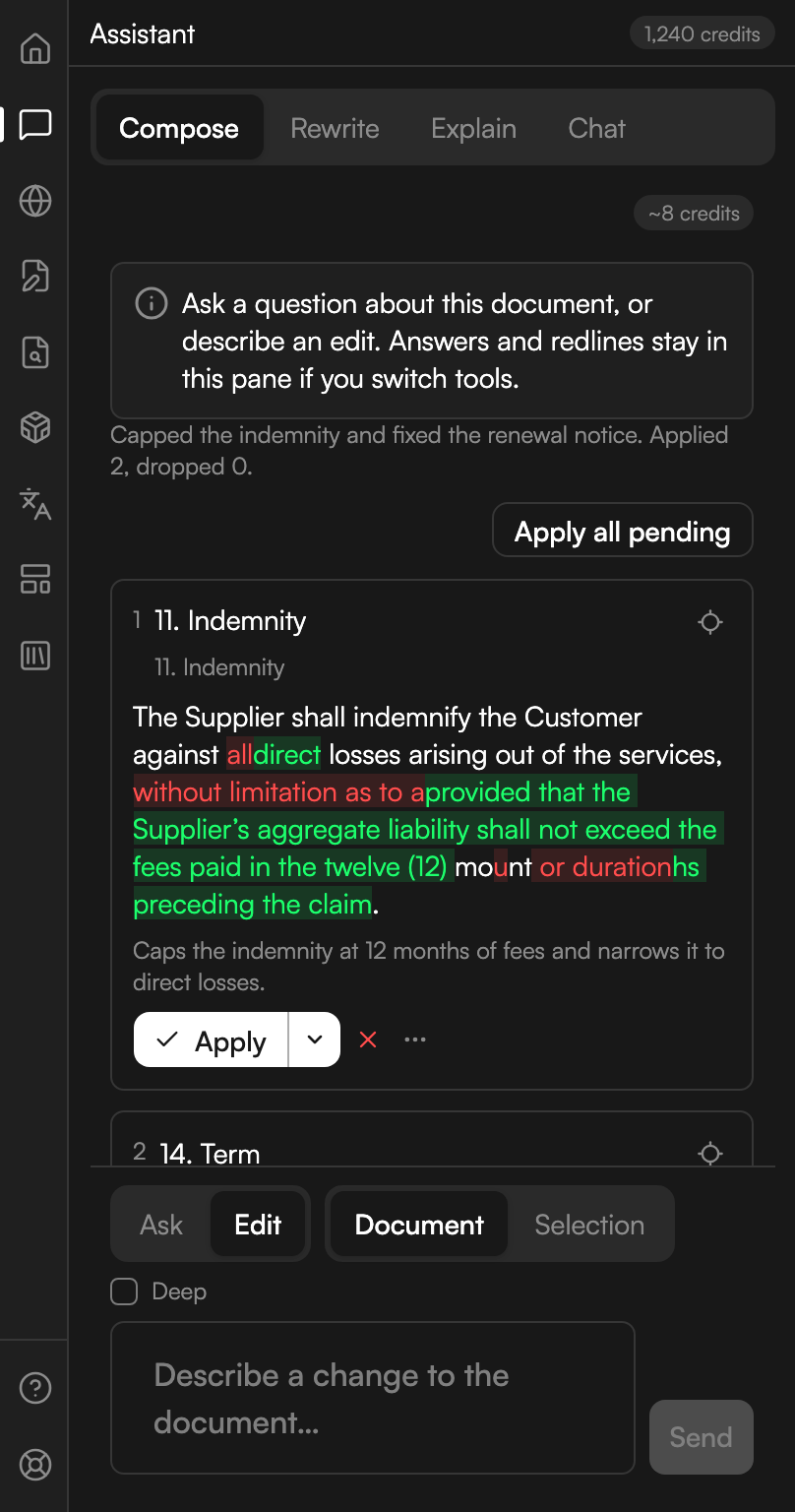
Proposed edits in Edit
Two proposed edits as cards, with the summary line and the bulk action above them.
Rewrite
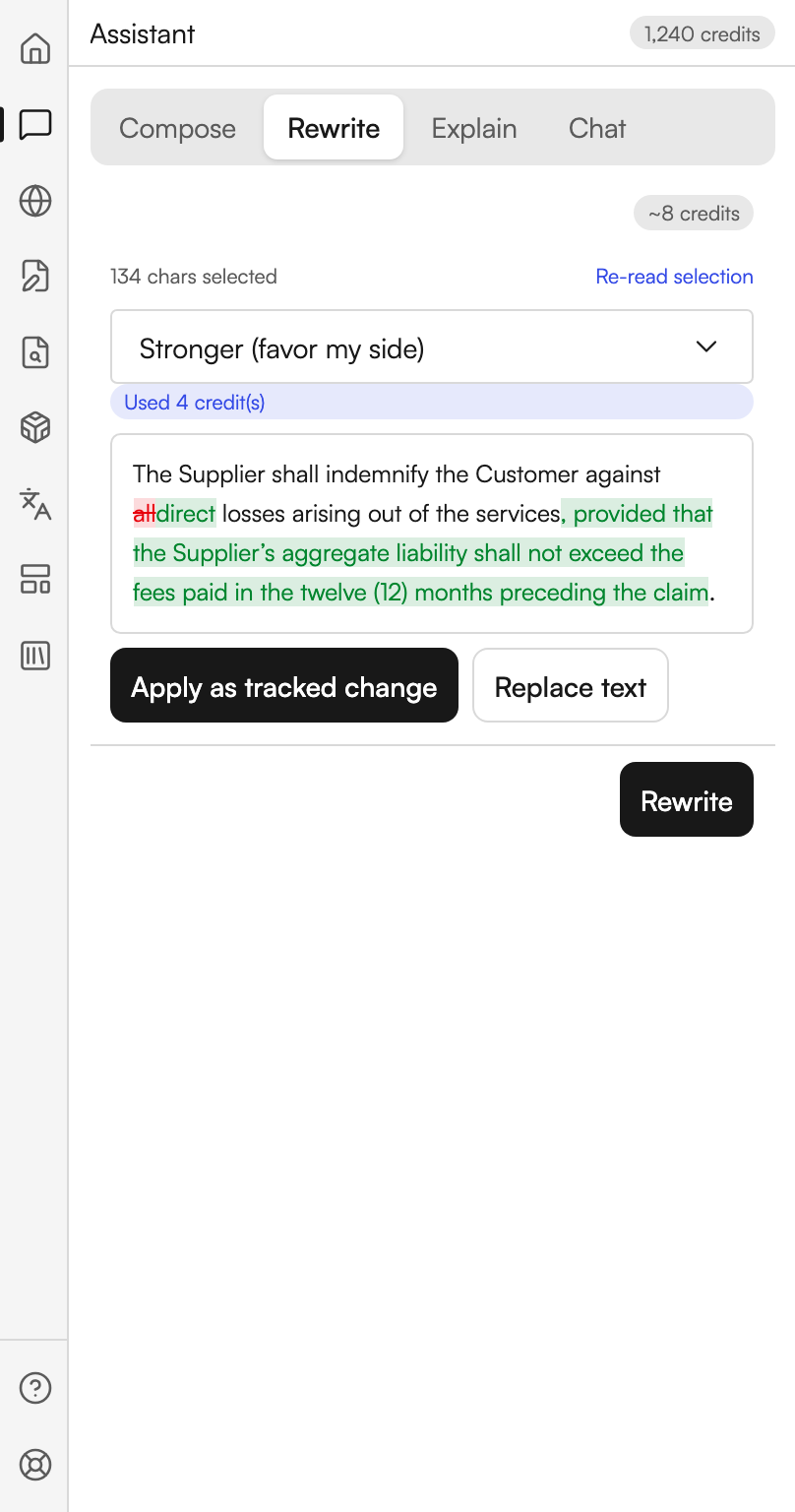
Rewrite selection works on highlighted text only. Select nothing and the panel says No selection; select something and it counts the characters, with Re-read selection to pick up a new highlight.
A dropdown chooses the transform:
| Option | What it asks for |
|---|---|
| Stronger (favor my side) | Shifts the balance towards you |
| Softer / more balanced | Evens it out |
| Shorter / tighter | Cuts length |
| Plain English | Removes the legalese |
| Adjust tone | Reveals a box placeholdered Target tone, e.g. firm but collegial |
| Custom instruction | Reveals a box placeholdered e.g. make this mutual and cap liability at fees paid |
Rewrite runs it. Choosing Custom instruction and leaving the box empty keeps the button disabled.
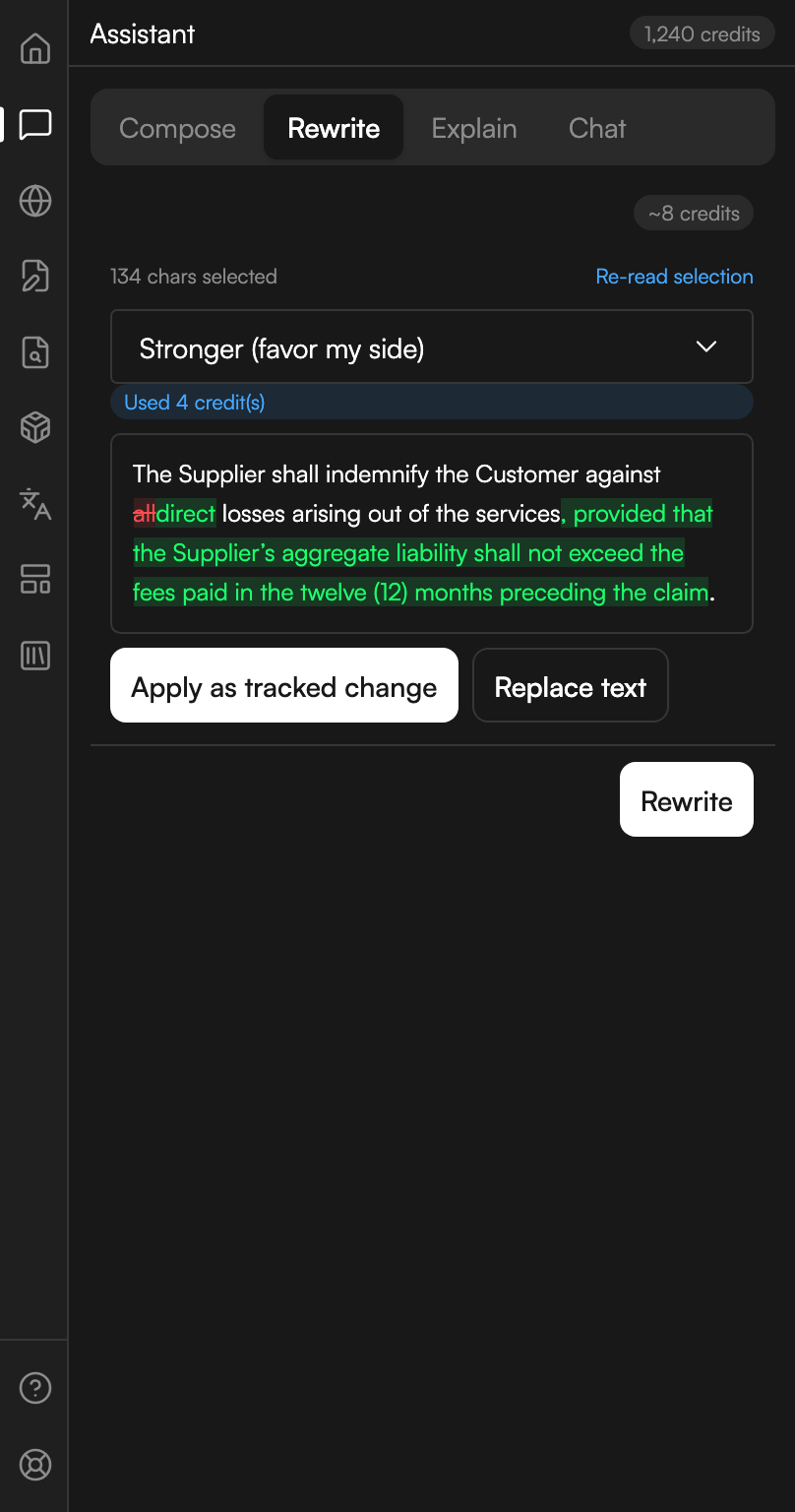
The result offers two ways to land it. Apply as tracked change writes a revision mark, and reports how many changes it made. Replace text overwrites the selection outright. On a Word version without Track Changes support the panel applies the edit anyway and tells you it did.
A rewritten clause
A selected clause rewritten to favour one side, with both ways to land it.
Explain
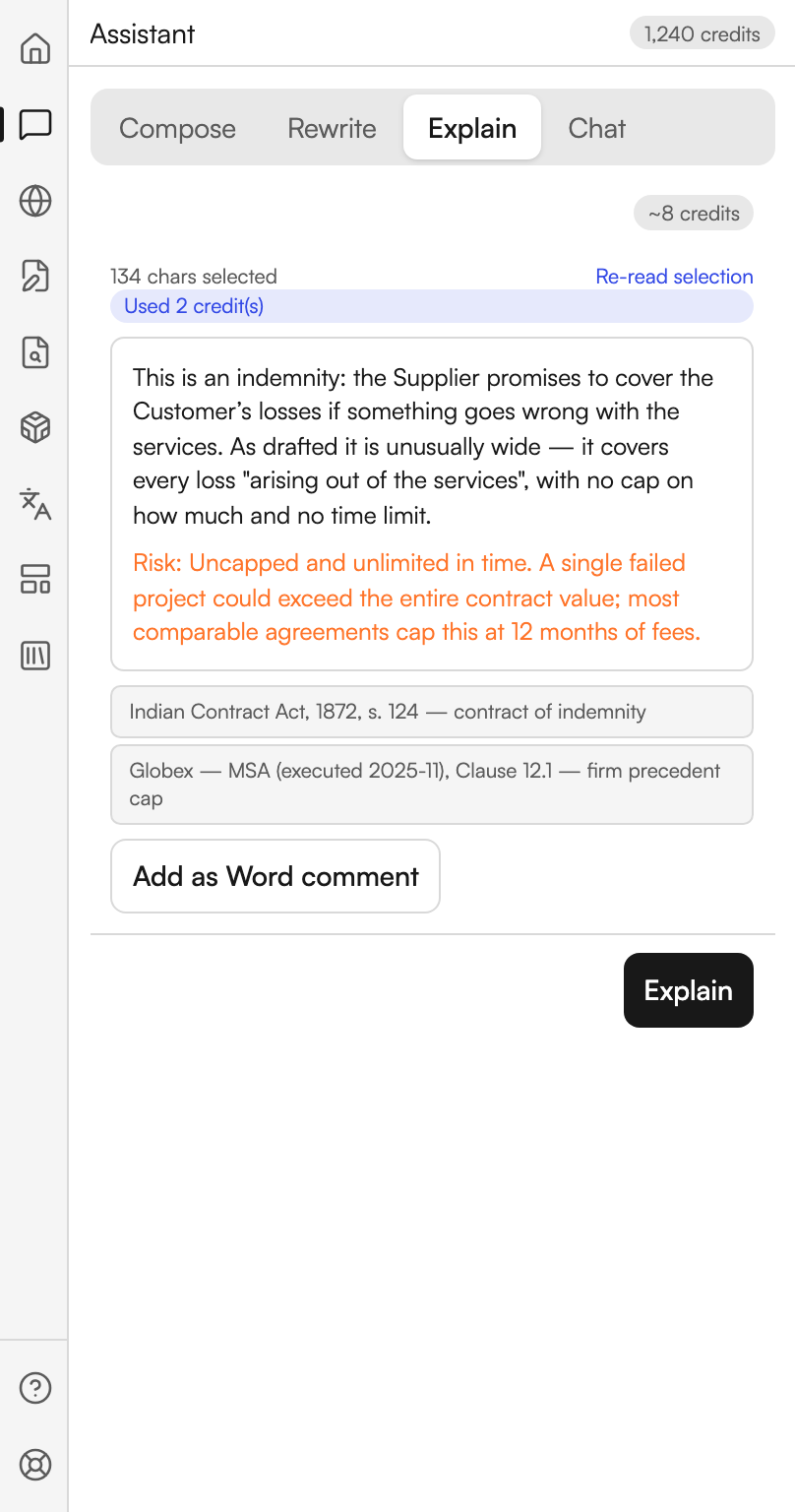
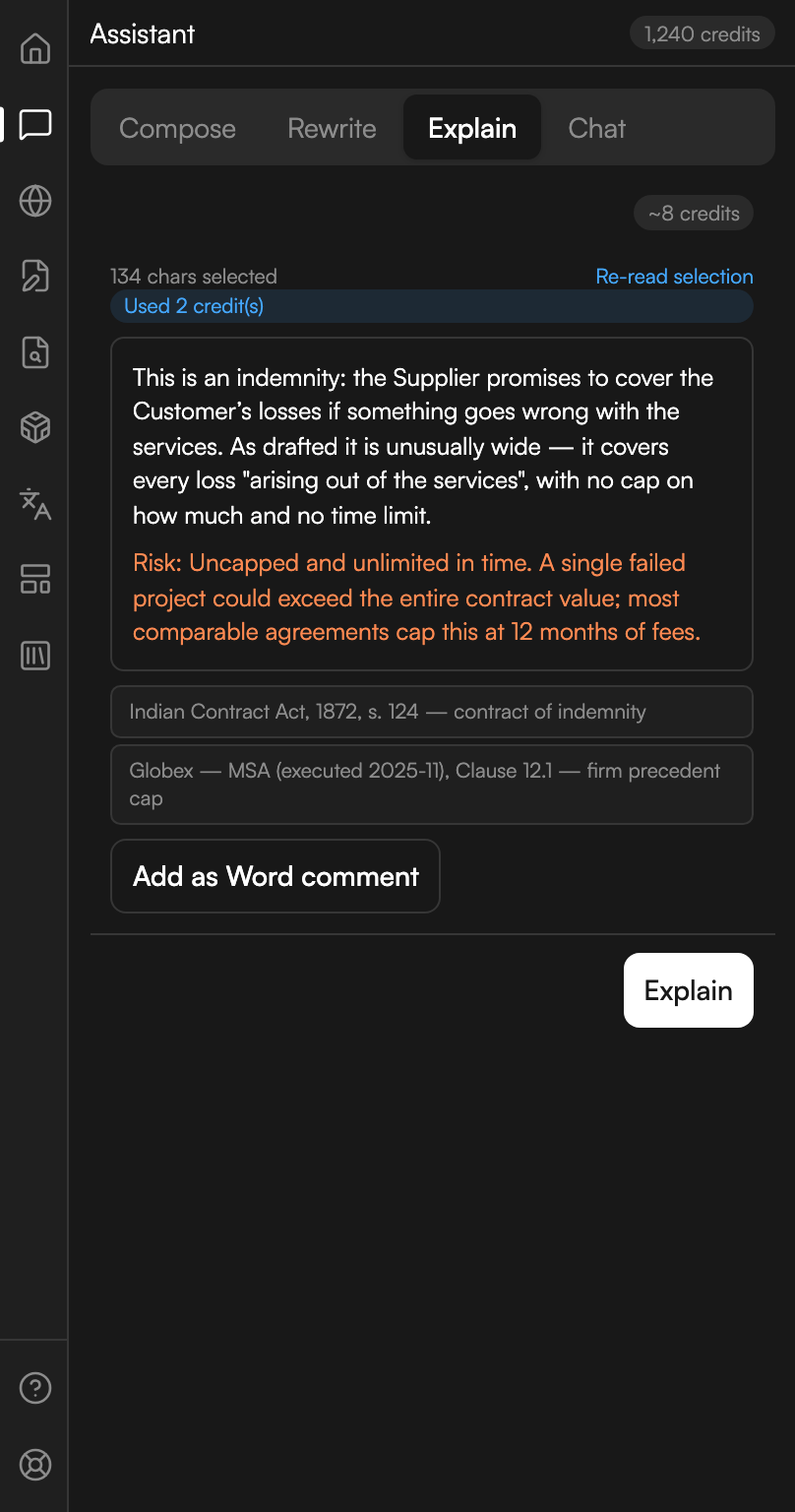
Explain this clause also works on a selection. Press Explain and you get a plain-English reading of the clause, followed by a line beginning Risk: where there is one.
Add as Word comment attaches the explanation to the clause in the document, and confirms with Comment added.
An explanation and its risk line
A plain-English reading of a selected indemnity, with the risk line under it.
Chat
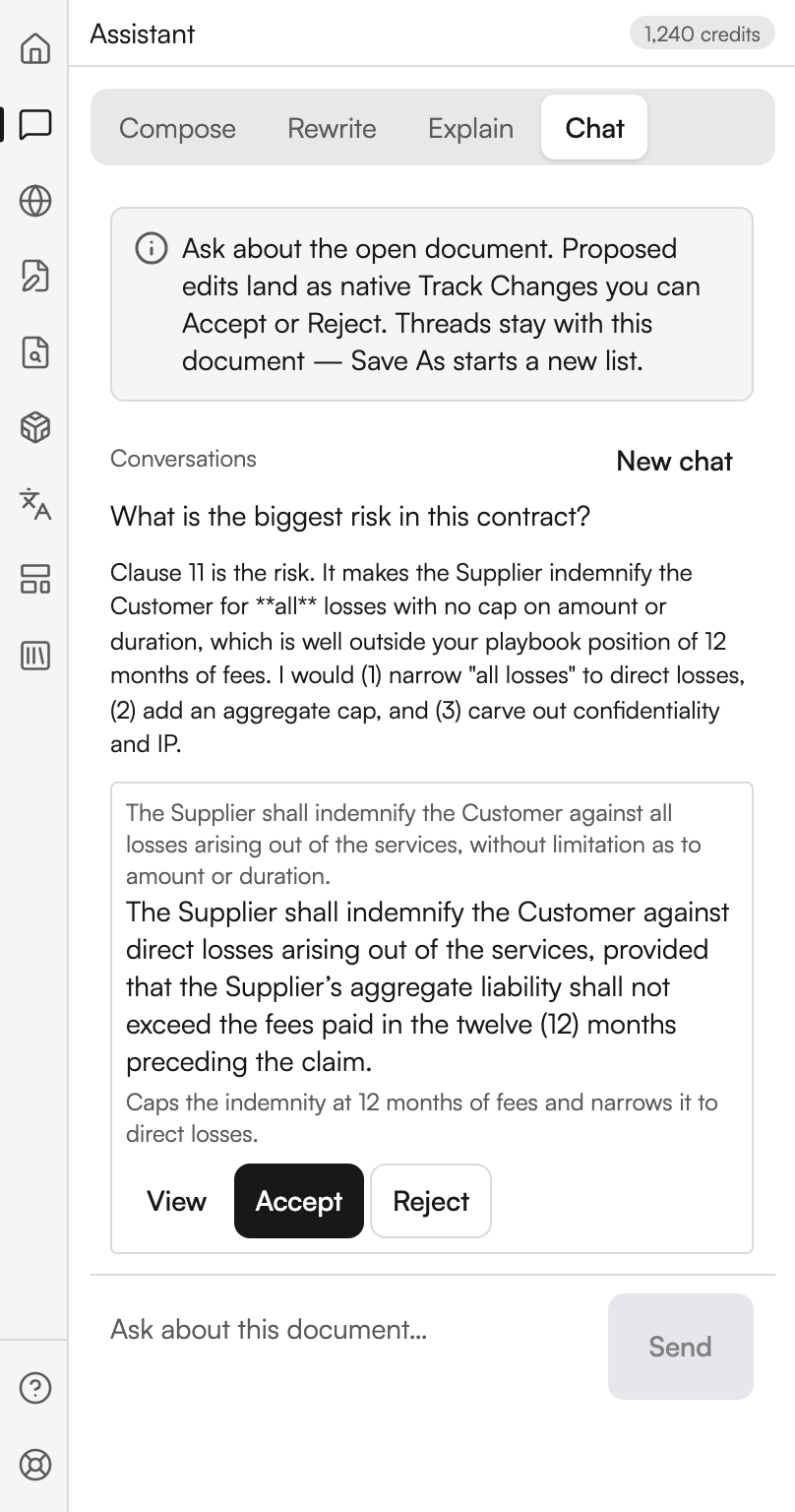
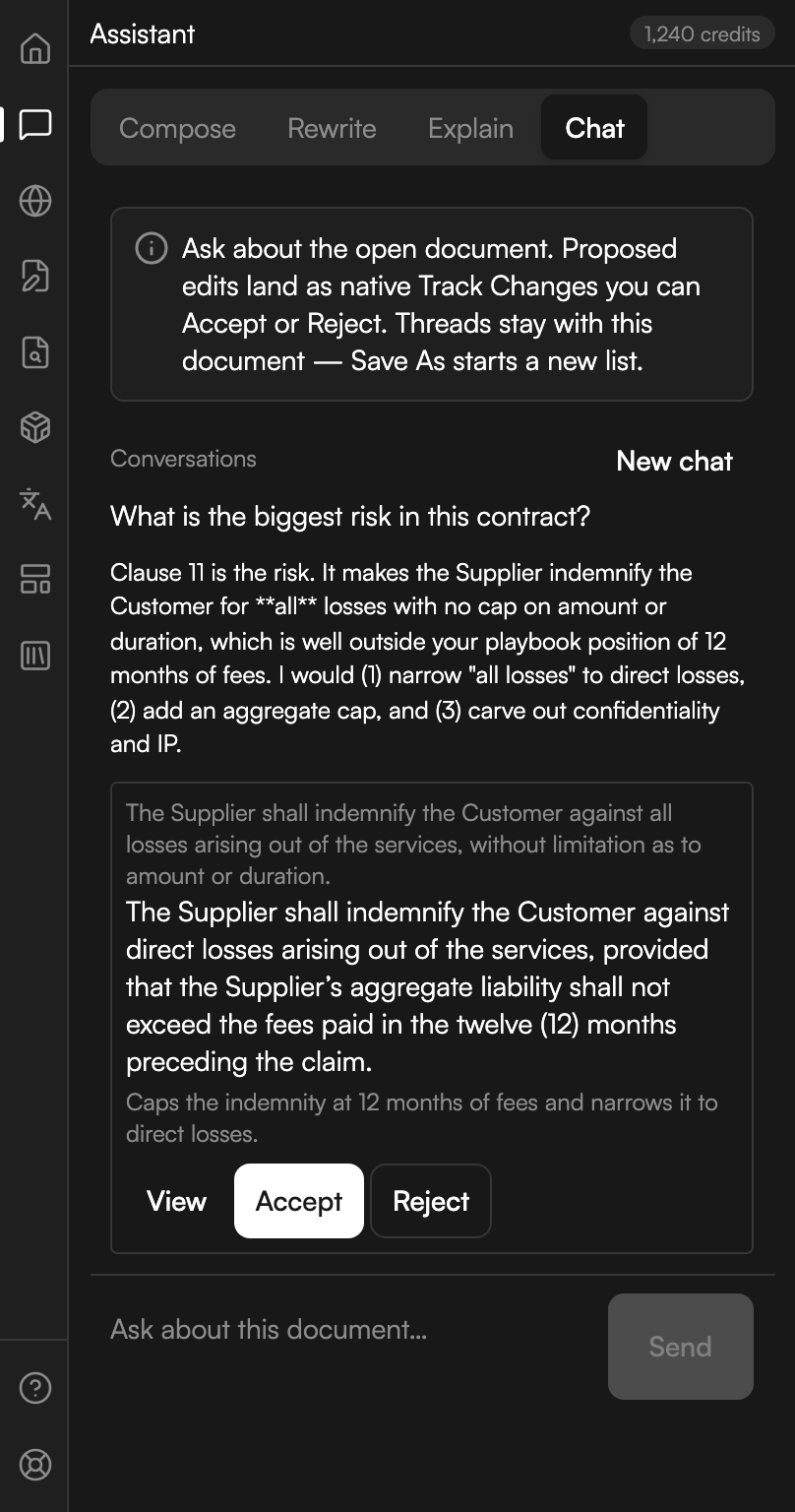
Chat is a persistent thread that stays with the document. Its note says: Ask about the open document. Proposed edits land as native Track Changes you can Accept or Reject. Threads stay with this document, Save As starts a new list.
Above the composer sits a Conversations list of your threads on this document, with New chat to start another. The composer is placeholdered Ask about this document…, with Send and, while streaming, Stop.
Answers carry numbered cite chips back into the document text. Where Judicio proposes an edit you get three controls on the proposal, Accept, Reject and View, plus Accept all above a group of them. On Word versions that cannot report a change's status the panel says so and asks you to work the tracked change in the document instead. A proposal that has already been accepted, rejected or moved is marked as no longer in the document.
A chat turn with an edit attached
An answer in the document thread, with the edit it proposes waiting on a decision.
The difference between Chat and Compose in Ask is persistence: Chat keeps threads on the document, Compose keeps one conversation for the current pane session.
Next steps
- Research - when the answer is in the law rather than the document.
- Document Review - a full redline pass rather than a single edit.
- The Home screen - where each of these tiles sits.