The Home screen
Home is the catalogue. It tells you what is in the open document, what your balance is, and gives you every tool in the pane, either as a tile or through the search box.
The screen stacks seven regions from top to bottom. Two of them appear only in certain conditions.
| Region | Where | When it appears |
|---|---|---|
| Get started callout | Top of the screen | Always |
| Document card | Under the callout | Always |
| Credits meter | Under the document card | Once your balance is known |
| Search box | Middle of the screen | Always |
| On this selection strip | Under the search box | Only while text is selected in the document |
| Recent, then the three tile groups | Under the strip | Recent only once you have opened something before |
| Account card | Foot of the screen | Always |
The top of the screen
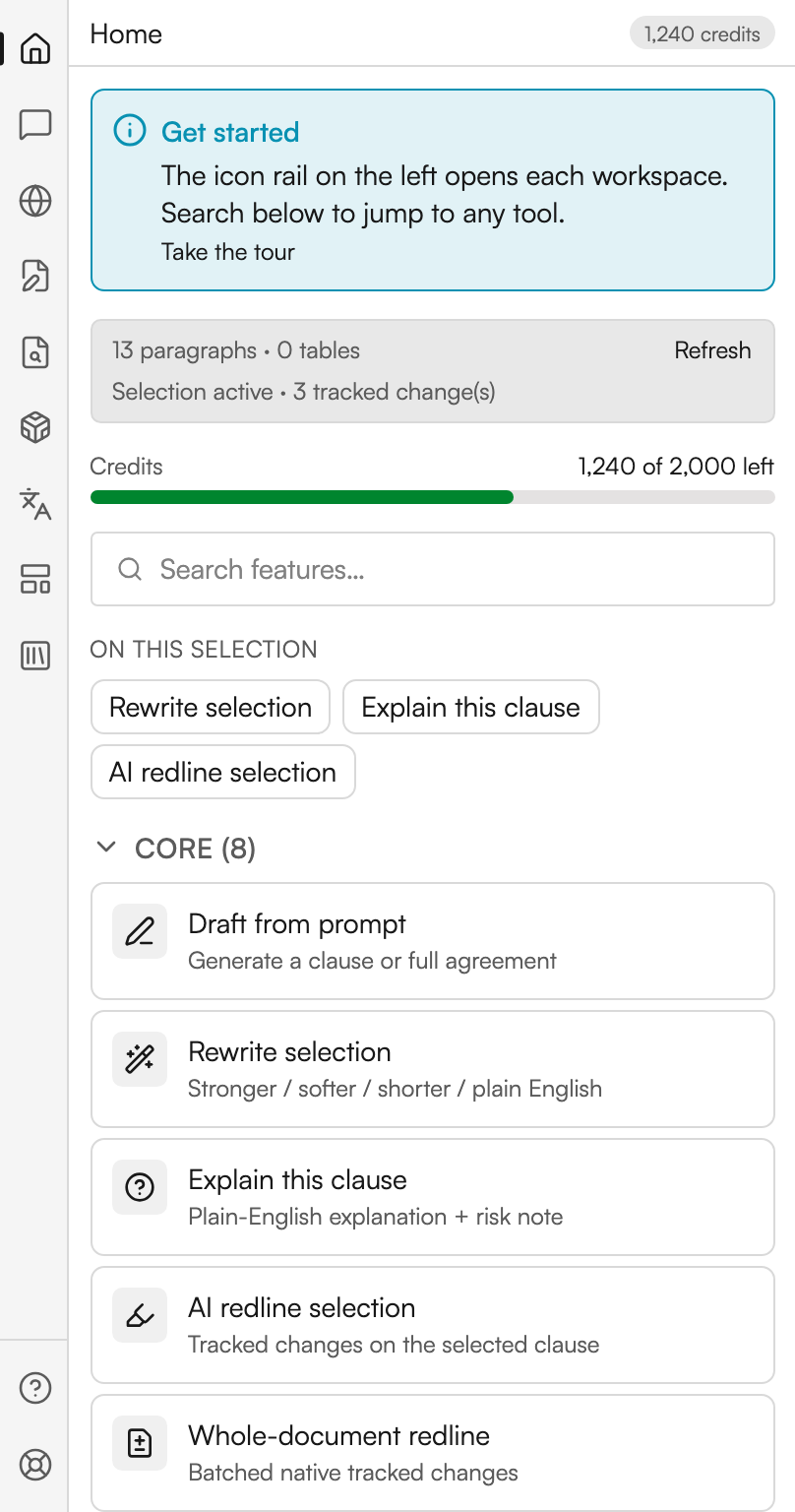
Get started reads The icon rail on the left opens each workspace. Search below to jump to any tool. Take the tour underneath it starts the welcome walkthrough, a seven-stop lap covering the rail, the document card, Document Review, Checks, credits and Guides. The same tour is on the rail under Guides, so you can replay it whenever you like.
The document card summarises what Judicio can see. While it is reading it says Reading document…; afterwards it gives a paragraph count and a table count, with a Refresh link to re-read the file after you have edited it. A second line reads Selection active or No selection, and adds a tracked-change count on Word versions that expose one. If the document has not been read at all, the card offers Read document context instead.
On an older Word build the card adds a note: This Word version supports a limited add-in API, some features will fall back to plain (untracked) edits.
The Credits meter shows your remaining balance against your total, with a bar that turns amber once you drop below a tenth of it.
Home, from the top
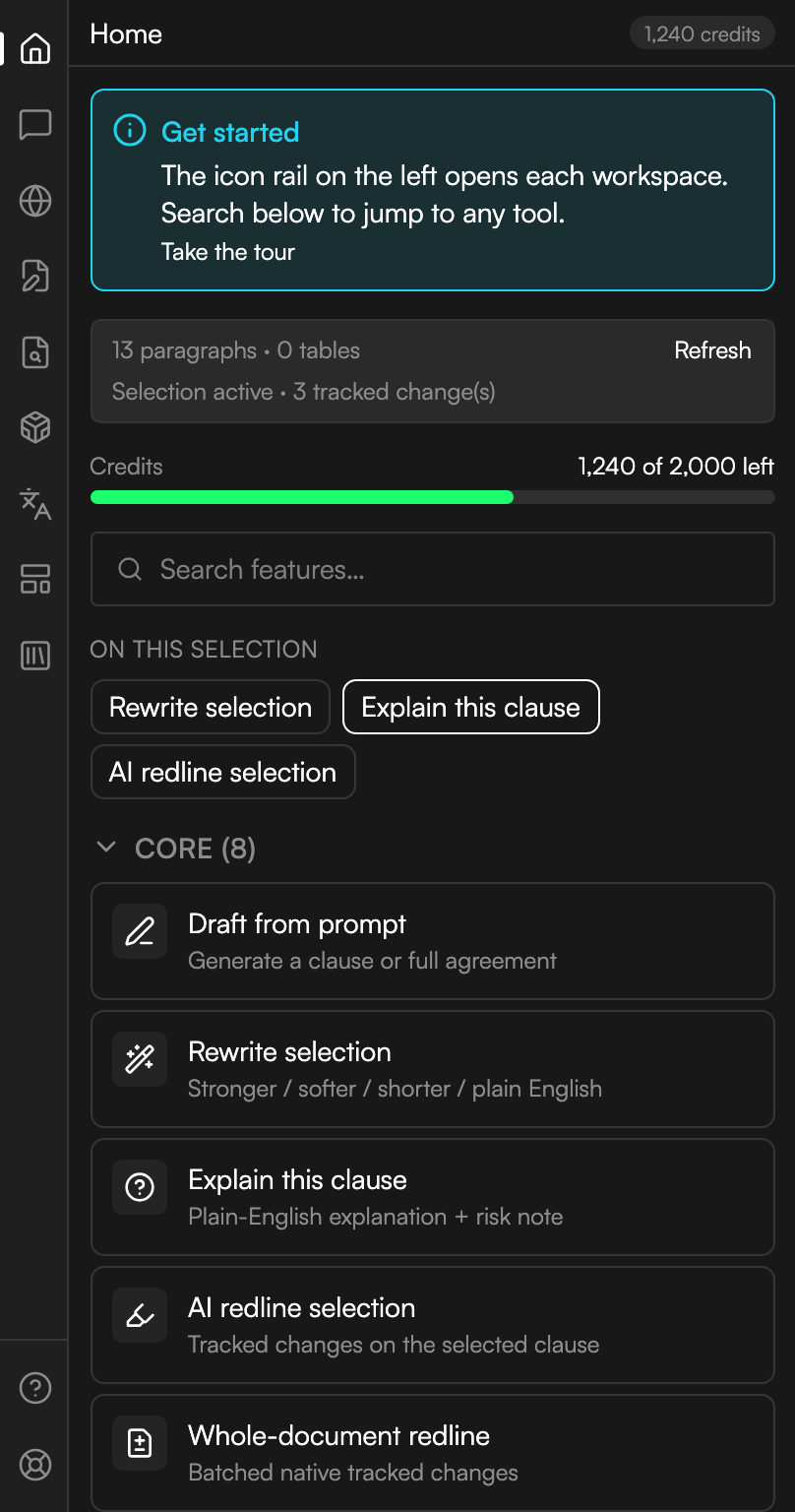
The callout, the document card and the credits meter, with the search box and the first tile group below them.
Finding a tool
The search box is placeholdered Search features… and has a Clear search control. Typing filters all twenty-eight tools on both their name and their description, and the matches appear under a Results heading. Nothing matching gives you a single line saying so.
Search is the only route to seven of the tools, so it is worth using even when you know the pane well.
Highlight text in the document and an On this selection strip appears with three chips: Rewrite selection, Explain this clause and AI redline selection. The strip disappears when you deselect.
Recent sits above the tile groups once you have used the pane, holding chips for the tools and workspaces you opened last.
Core
Eight tiles, the everyday work.
| Tile | What the tile says | Where it takes you |
|---|---|---|
| Draft from prompt | Generate a clause or full agreement | Drafting |
| Rewrite selection | Stronger / softer / shorter / plain English | Assistant, on Rewrite |
| Explain this clause | Plain-English explanation + risk note | Assistant, on Explain |
| AI redline selection | Tracked changes on the selected clause | Document Review, on Review, scoped to your selection |
| Whole-document redline | Batched native tracked changes | Document Review, on Review, scoped to the document |
| Chat with this document | Persistent chat that can propose tracked edits | Assistant, on Chat |
| Ask the document | Chat about the open contract with citations | Research, on Ask |
| Playbook review | Deviation + missing-clause flagging | Document Review, on Review, with the playbook engine selected |
AI redline selection, Whole-document redline and Playbook review all land on the same Review form. The tile you pressed sets the engine and the scope for you.
Differentiators
Nine tiles.
| Tile | What the tile says | Where it takes you |
|---|---|---|
| Find authority | Research authority with verifiable citations, then footnotes | Research, on Authority |
| Compare to market | Benchmark clauses against the market corpus | Document Review, on Checks |
| Translate document | Translate the document or a selection | Translation |
| Anonymize / redact | Find PII and redact permanently, or as tracked changes | Document Review, on Checks |
| Structure check | Defined terms, cross-refs, numbering (free) | Document Review, on Checks, in the Deep group |
| Summarize edits | Negotiation memo from tracked changes | Document Review, on Changes |
| Convert to template | Turn this doc into a placeholdered template | Templates |
| Save to Judicio | Upload back to your library / DMS | File Library, on Save |
| Clean copy | Download a clean .docx of the open document | File Library, on Clean copy |
Best in class
Four tiles.
| Tile | What the tile says | Where it takes you |
|---|---|---|
| Ground a claim | Firm + market + law, with confidence | Research, on Ground |
| Firm precedent | Retrieve firm exemplars for a clause | Research, on Precedent |
| Review Matrix | Review related contracts together, cross-doc | Review Matrix |
| Compare versions | Compute a redline vs a prior version | Document Review, on Checks |
The seven tools you reach through search
These have no tile of their own. Type any part of the name into the search box and open the result.
| Tool | What the result says | Where it takes you |
|---|---|---|
| Checks | Instant on-device checks plus a deep structure pass under Document Review | Document Review, on Checks |
| Defined terms | Find defined-term gaps, duplicates, and unused definitions | Checks, that section open |
| Cross-references | Find references that point at a section or schedule that does not exist | Checks, that section open |
| Figures | Find numbers written in words that do not match the numeral beside them | Checks, that section open |
| Reading navigator | Look up a defined term or cross-reference without leaving the clause | Checks, that section open |
| Send-ready check | Tracked changes, comments, sensitive data, terms, xrefs, and figures before you send | Checks, that section open |
| Proper format | Unify body font, size, and spacing without touching numbering or signatures | Checks, that section open |
Every one of these is free and runs on your device. Checks covers them in full.
The Account card
At the foot of Home, under the heading Account, sits Signed in as with your email address, your plan underneath it, and a Sign out button. Signing out is only available here, not from the pane header.
Next steps
- Assistant - Compose, Rewrite, Explain and Chat.
- Research - Ask, Authority, Ground and Precedent.
- Document Review - Review, Redlines, Changes and Citations.
- Checks - the nine instant checks and the deep structure pass.