Document Review
Document Review is the negotiation workspace. Five sections sit on a tab strip: Review, Redlines, Changes, Citations and Checks. Opening it from the rail lands you on Review. Redlines carries a count of the suggestions still waiting on you.
Checks has a page of its own.
Review
Review is one form with two engines. Which one you get depends on the tile you came in from, and you can switch at any time.
| Control | Where | What it does |
|---|---|---|
| Playbook / Quick redline | First segmented control | Chooses the engine |
| Whole document / Selection | Second segmented control | Chooses what gets reviewed |
| Playbook | A dropdown, on the Playbook engine only | Which playbook to review against. The first option is Suggest checks (no playbook) |
| The deep checkbox | On the Quick redline engine only | Reads Deep mode (stronger model, slower, more credits) |
| Instructions | A box below | Placeholdered What should change, e.g. shift liability to the counterparty, cap at 12 months of fees. |
| Run review | Footer | Starts the run and moves you to Redlines |
On Selection scope the form shows how many characters you have highlighted, or Select a clause in the document first.
Three tiles all arrive here. Playbook review picks the playbook engine. AI redline selection picks the quick engine and selection scope. Whole-document redline picks the quick engine and document scope.
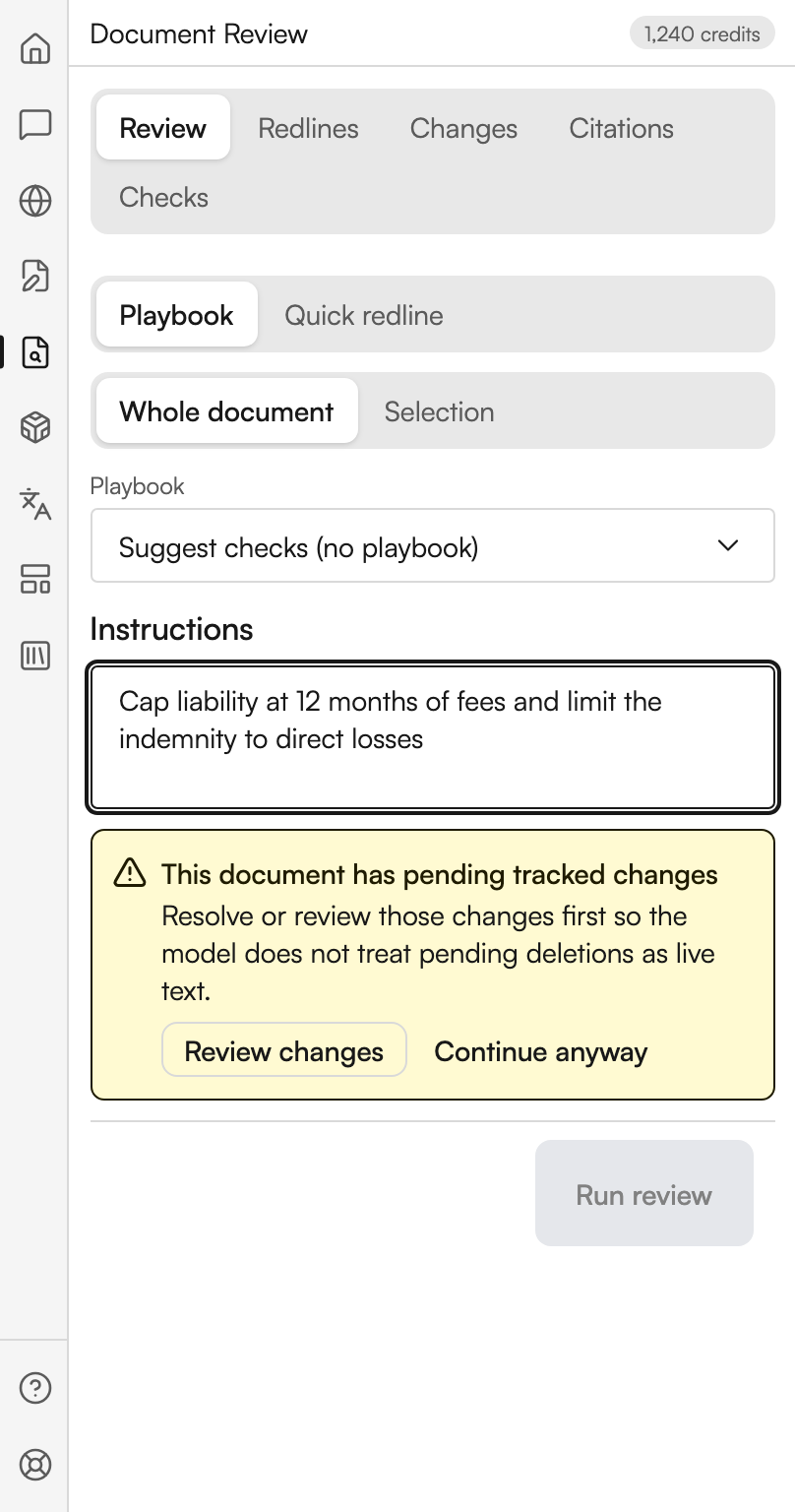
The review form
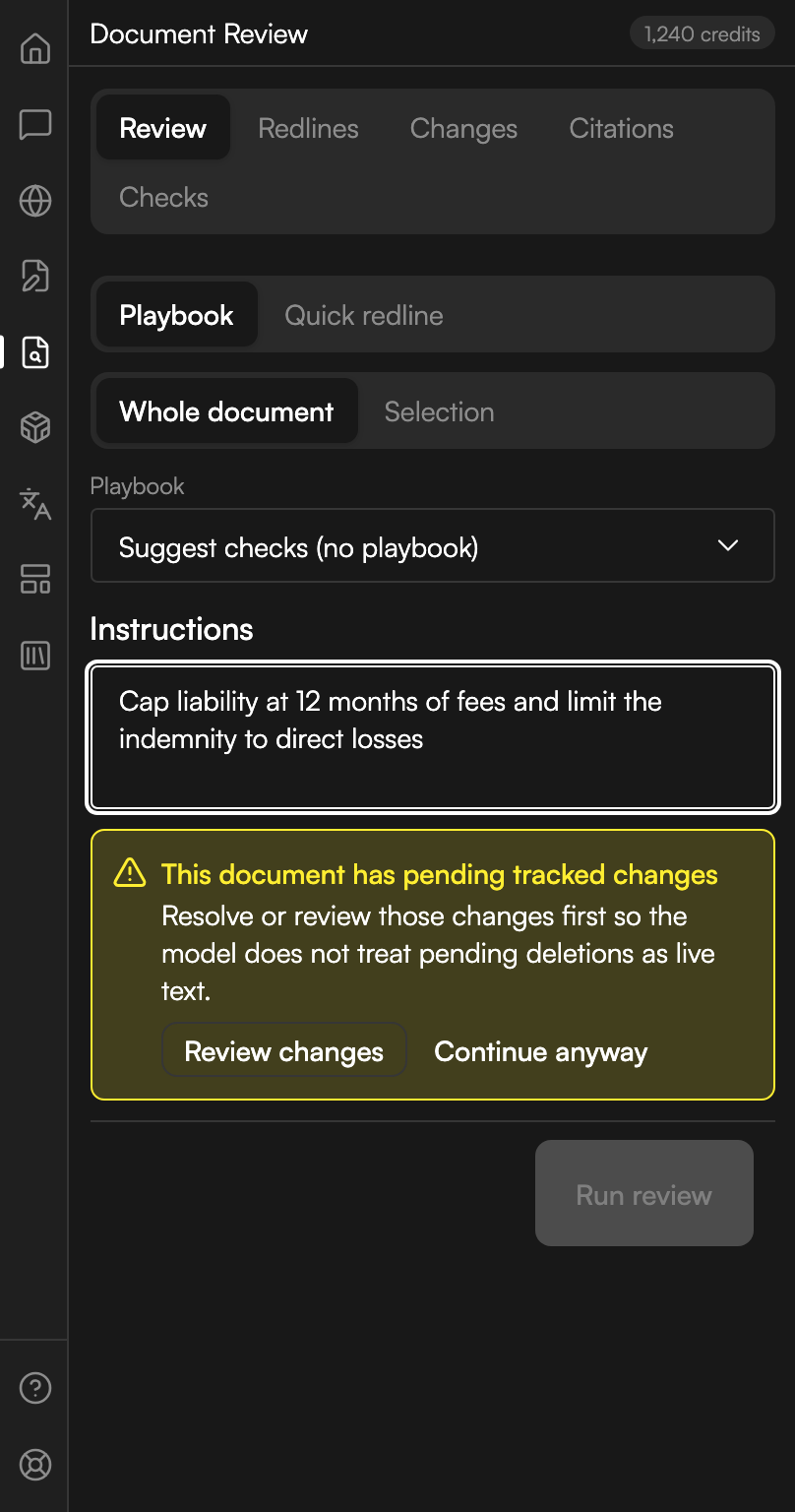
The engine and scope controls with the instruction box, stopped by the pending tracked changes warning.
When the form stops you
Two conditions put a warning above the button.
This document has pending tracked changes appears when the file already carries unresolved revisions, with the reason Resolve or review those changes first so the model does not treat pending deletions as live text. Review changes takes you to the Changes tab. Continue anyway overrides it, on Word versions that can read tracked changes. Run review stays disabled until you pick one.
Document is too large for this engine appears when a quick redline would not fit, suggesting Try a playbook review (upload) or run against the current selection. Use playbook and Use selection switch the form for you.
When the document moves under a review
A finished review is stored against the text it was run on. Edit the document afterwards and a banner appears: Document edited since this review, asking you to Rescan to keep suggestions anchored to the current text. Reopen the pane on a document that has changed since the review was saved and you instead get Document has changed since this review. Both offer Rescan.
Reopening a document whose review still matches restores it silently, with a Restored review confirmation.
Redlines
Redlines is the decision queue. Before a run it shows the empty state Redlines, Redlines will appear here after a review run.
After a run the header counts your progress, in the form 2 of 9 addressed, with Apply all pending beside it when anything is still open. Applying in bulk reports how many of the pending edits landed.
The queue after a playbook run
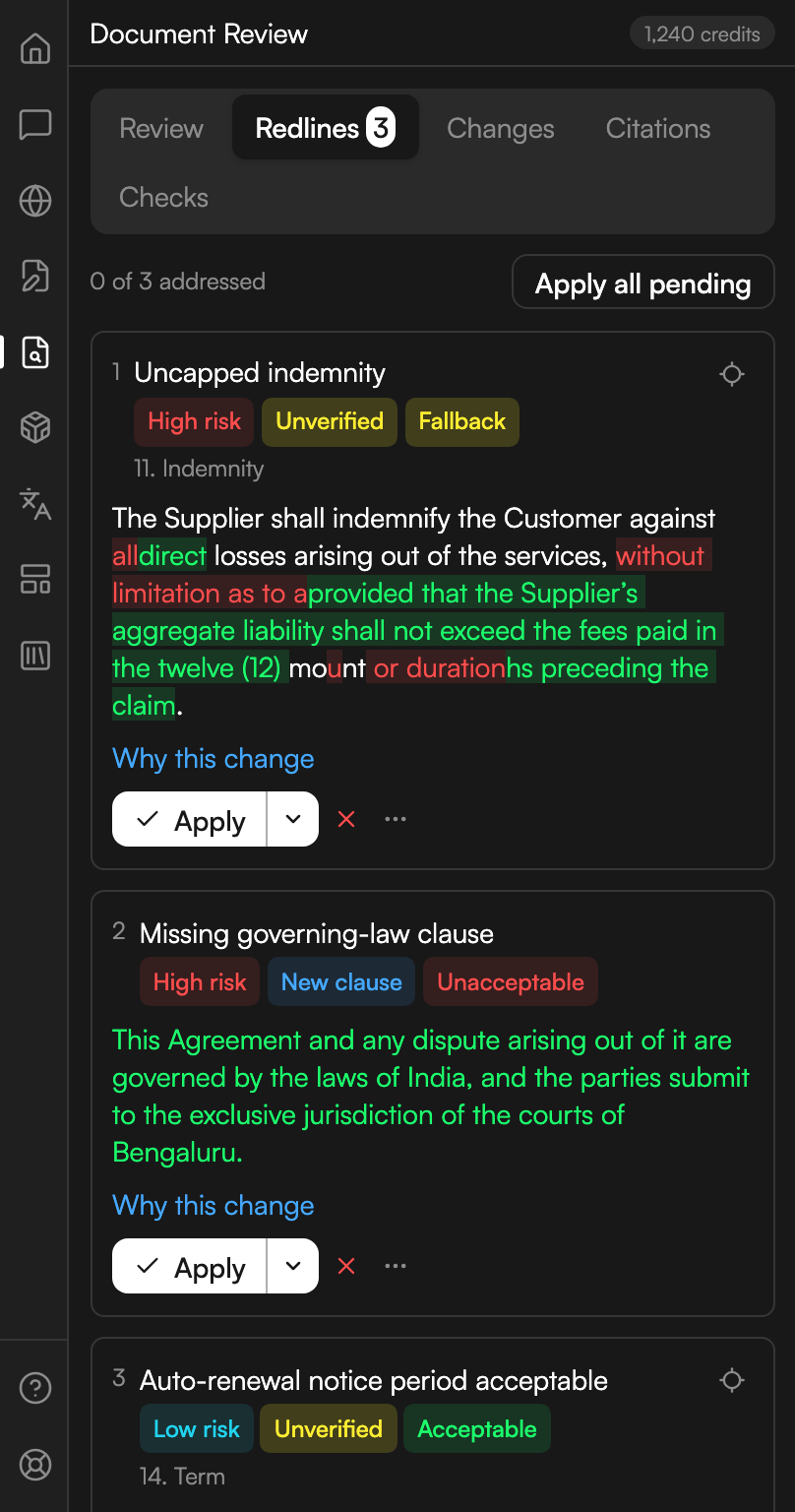
Three findings from a playbook review, none of them addressed yet.
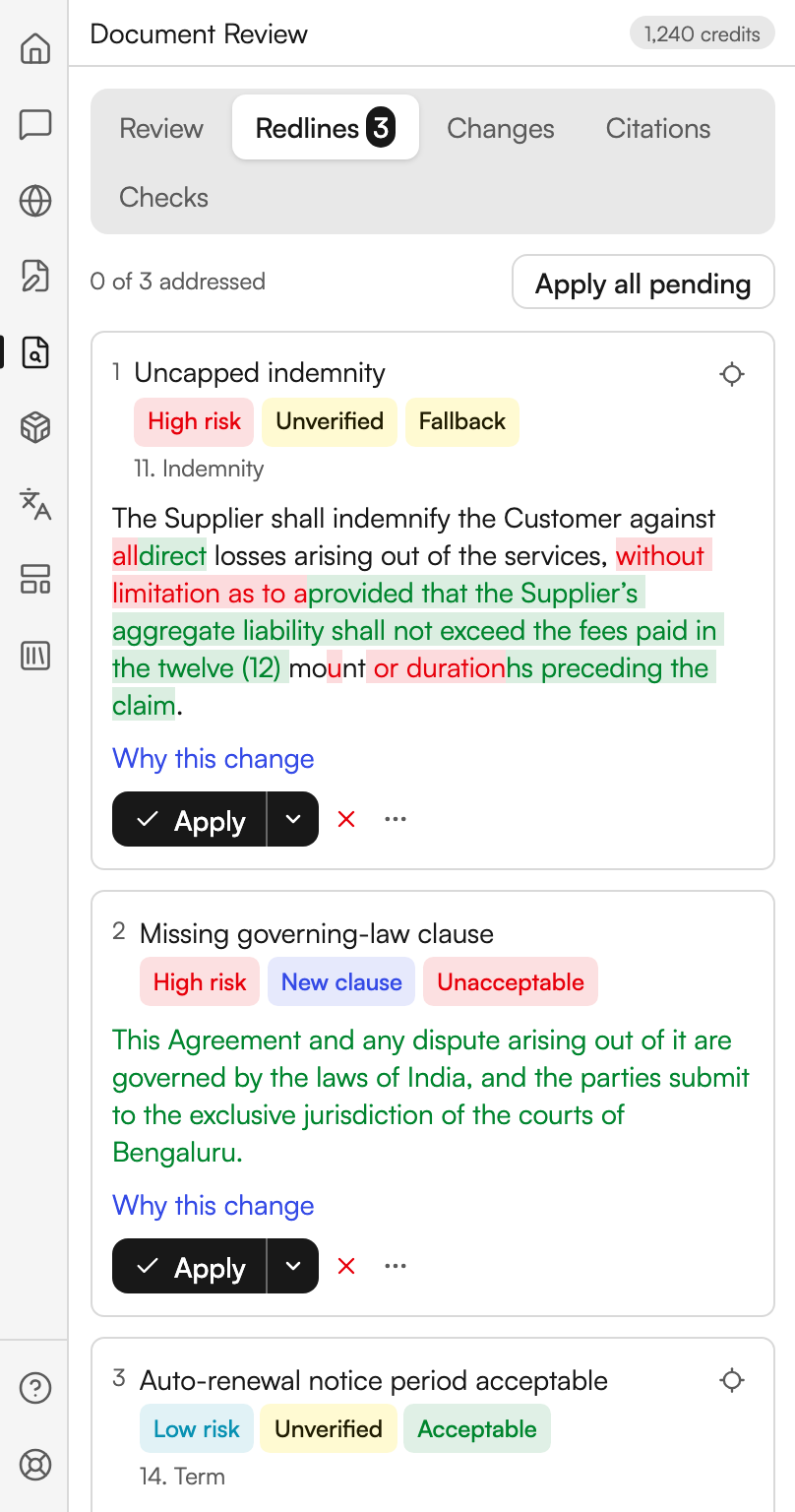
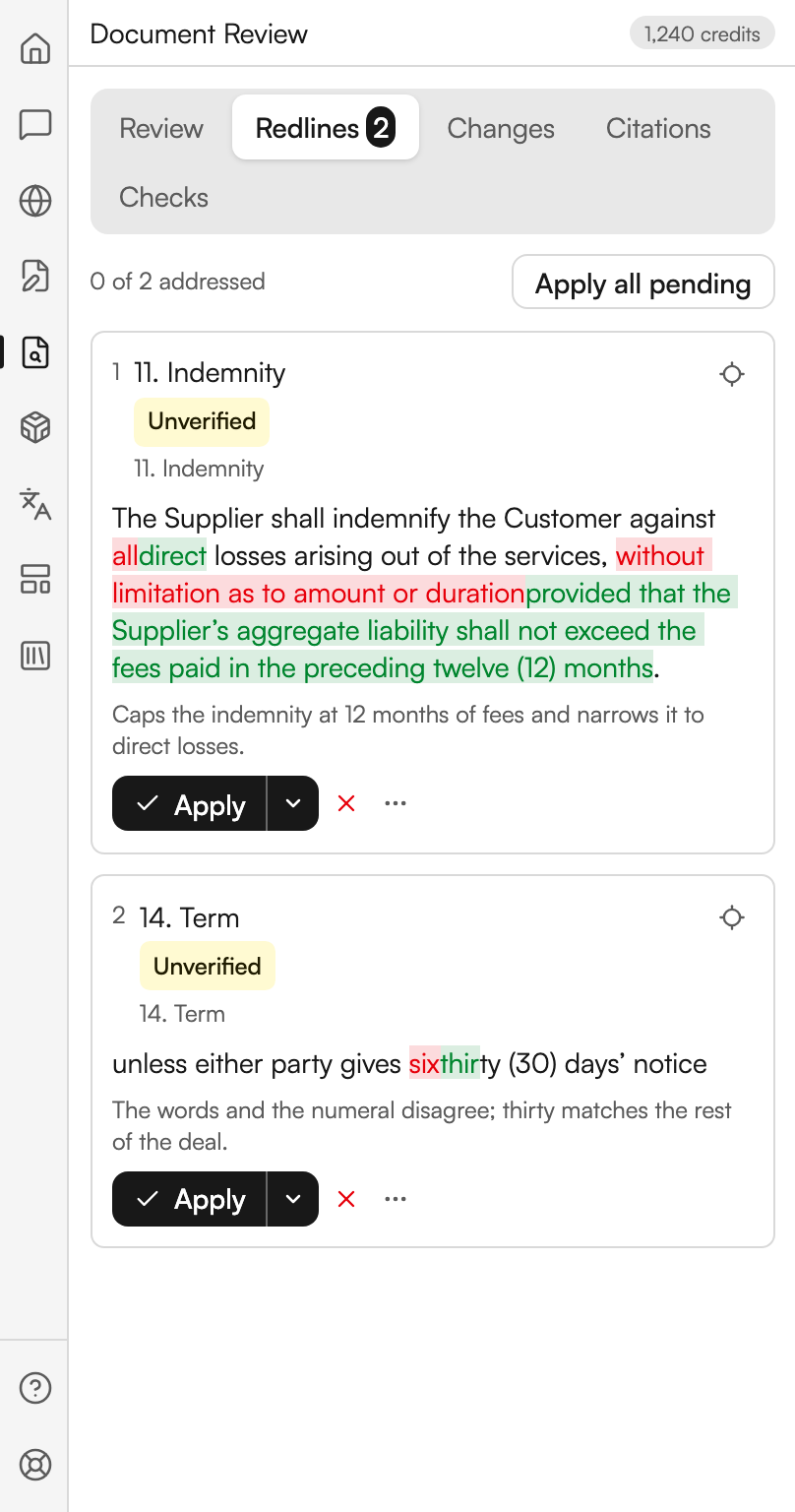
Each suggestion is a card carrying the same controls as an Assistant edit: Apply, Apply clean (no tracked change) under More apply options, Dismiss and Restore, Find in document, Why this change, Edit language with Save and Cancel, Refine, Revert to original, Copy proposed, Insert as comment, and Ask the assistant. Cards are marked Verified, Unverified or New clause, and an applied card shows Ctrl+Z to undo.
Where a card cannot be placed, it says why: the text was not found, it appears more than once, the span no longer matches, or this Word version cannot apply that kind of edit.
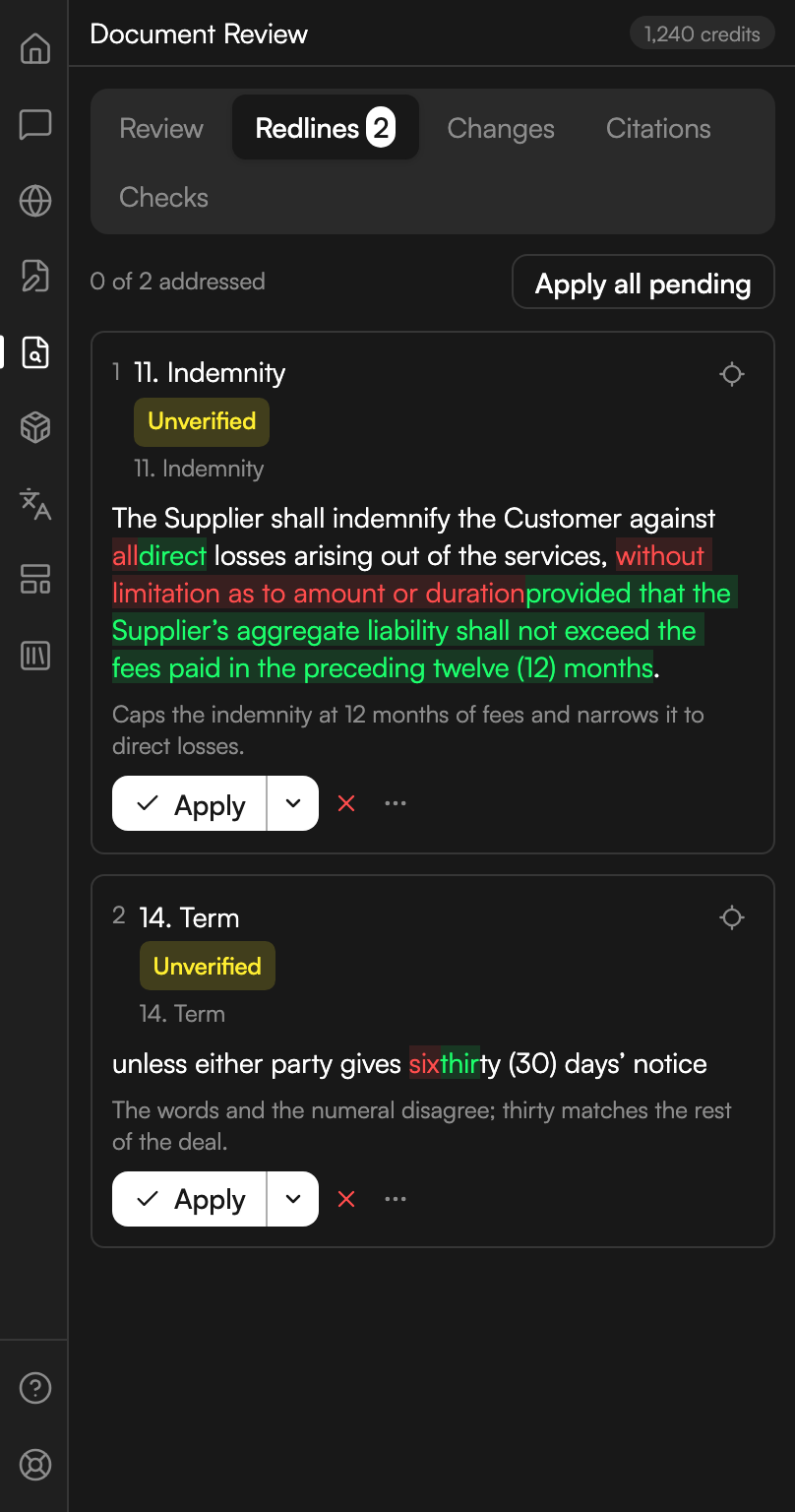
The same queue after a quick redline
Two proposals from a whole-document quick redline, each showing the words it would change.
Changes
Counterparty changes is subtitled Accept, reject, or reply to tracked changes and comments. It reads the document's own tracked changes rather than anything Judicio produced.
The header carries Reload changes and Draft negotiation memo, which turns the tracked changes into a memo of what moved and why it matters.
On a Word version that does not expose revisions to add-ins the tab says so. With nothing to show it says No tracked changes or comments yet. They appear here when the other side returns the contract.
Triage
Above the list sit the triage controls.
| Control | What it does |
|---|---|
| Playbook to triage against | A dropdown. The first option is General legal judgment (no playbook) |
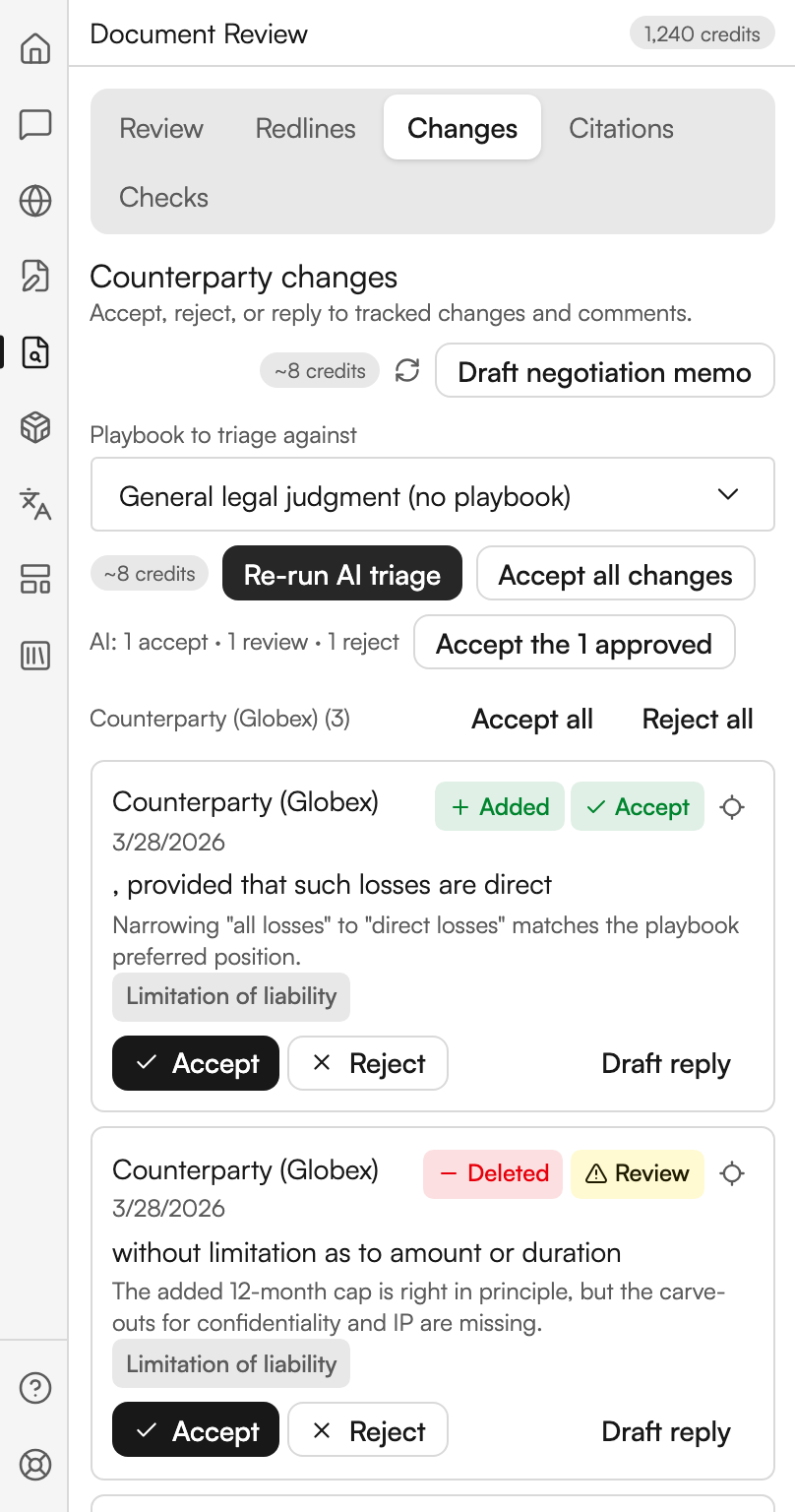
| AI triage the changes, then Re-run AI triage | Classifies every change as Accept, Review or Reject |
| Accept the N approved | Takes only the ones triage marked Accept |
| Accept all changes | Takes every tracked change in the document |
After a triage run a summary line reads AI: 4 accept · 2 review · 1 reject.
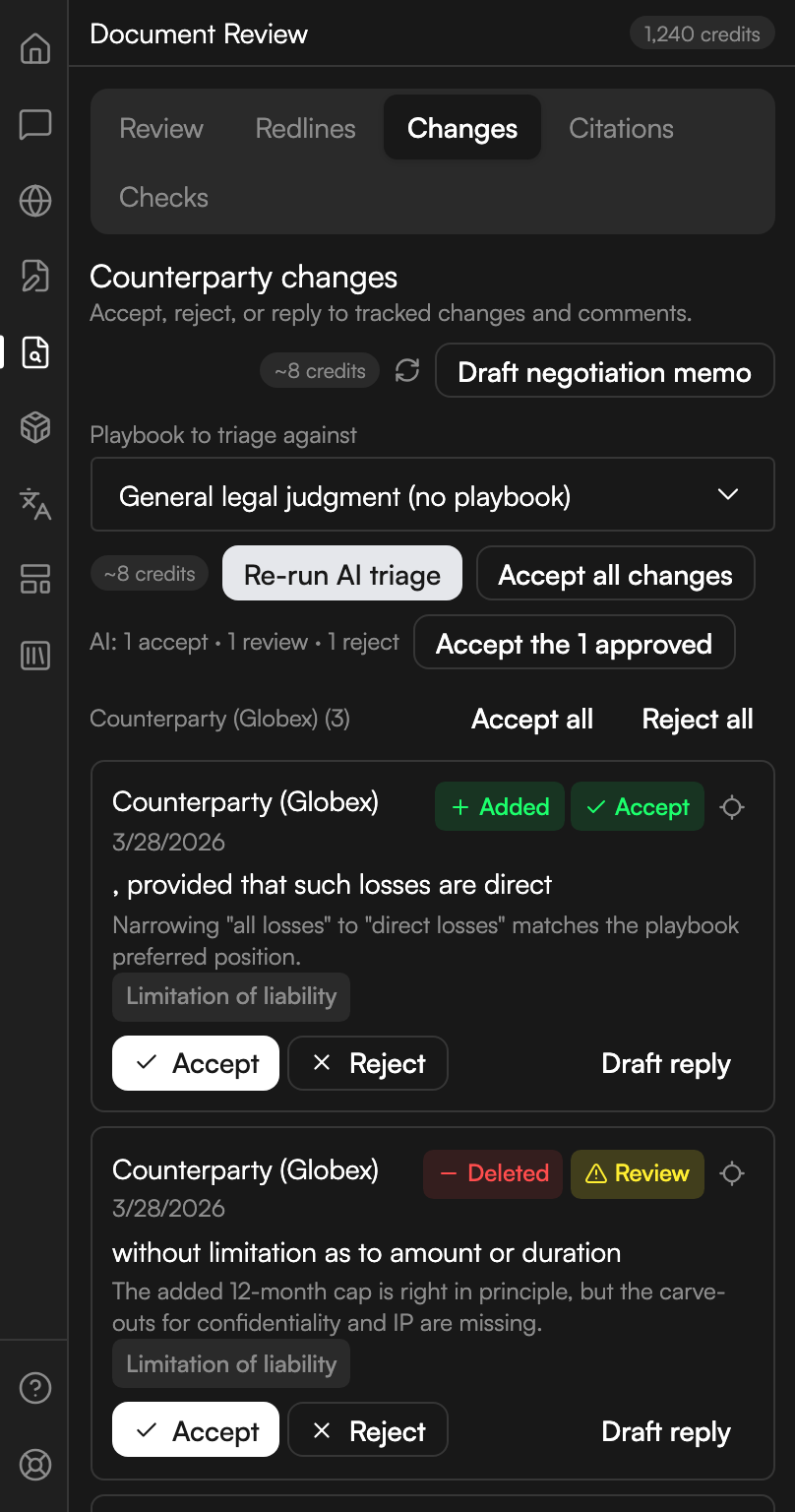
Triaged counterparty changes
The triage controls above the counterparty's changes, grouped under the author who made them.
Working the list
Changes are grouped by author, each group offering Accept all and Reject all. A note explains why: Grouped by author so a bulk action never touches another author's redlines by mistake. Formatting-only changes are hidden from the list, with a line saying how many, and bulk actions by author still include them.
Each change shows a type badge, Added, Deleted or Changed, a triage verdict badge where triage has run, and these controls:
| Control | What it does |
|---|---|
| Find in document | Scrolls to the change |
| Accept / Reject | Resolves that one change |
| Draft reply | Writes a reply to the change. The draft then offers Insert as comment, Copy and Close |
Below the changes sits a Comments section with a count. Each thread can be marked Resolve or Reopen, and Reply opens a box placeholdered Write a reply… with Send reply.
Citations
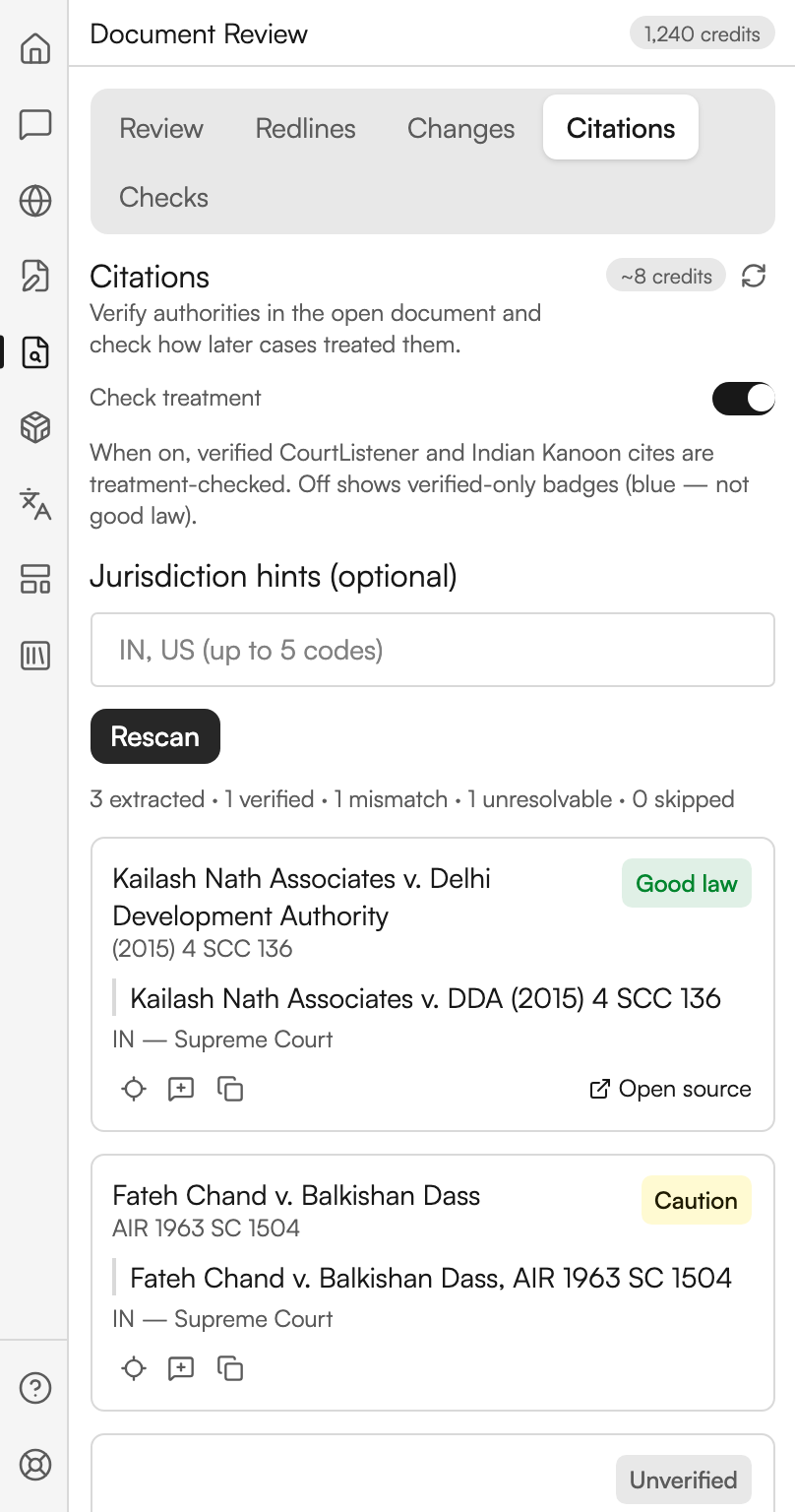
Citations is subtitled Verify authorities in the open document and check how later cases treated them. It reads the citations already written in the document and checks them.
| Control | Where | What it does |
|---|---|---|
| Check treatment | A toggle above the button | Also checks how later cases treated each authority |
| Jurisdiction hints (optional) | A box below the toggle | Placeholdered IN, US (up to 5 codes) |
| Run cite-check, then Rescan | Footer | Starts the check |
The toggle's hint explains the difference: When on, verified CourtListener and Indian Kanoon cites are treatment-checked. Off shows verified-only badges (blue, not good law). Treatment costs more, so the estimate chip changes when you switch it on.
Results open with a counts line in the form 12 extracted · 9 verified · 1 mismatch · 1 unresolvable · 1 skipped, then a badge per citation:
| Badge | What it means |
|---|---|
| Good law | Later cases treated it well |
| Adverse | Later treatment is against it |
| Caution | Treatment is mixed or qualified |
Verified — treatment unknown | The citation is real; treatment was not checked |
| Unverified | Judicio could not confirm the citation |
| Unknown | No treatment signal either way |
Skipped — statute verification coming | A statute rather than a case. Statutes are not verified |
Each citation offers Find in document, Insert as comment, Copy cite and Open source.
A finished cite-check
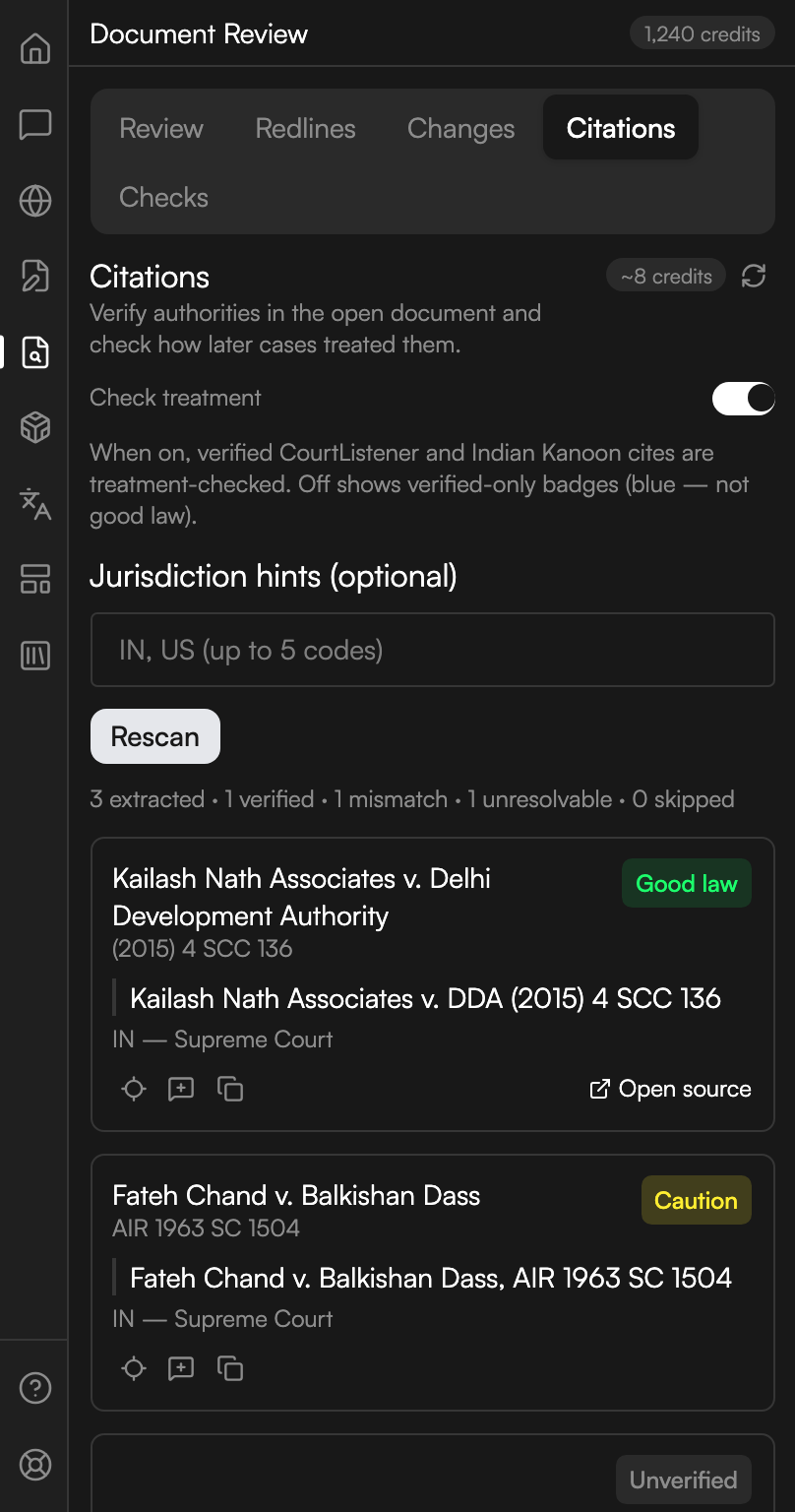
Treatment checked on the citations already in the document, with a badge on each authority.
Three callouts can appear. Document was truncated for extraction warns that citations near the end may be missing. Document edited since this cite-check offers Rescan. Cite-check is not on this backend yet means the connected Judicio API has not mounted the endpoint; the other tabs still work.
Review Matrix
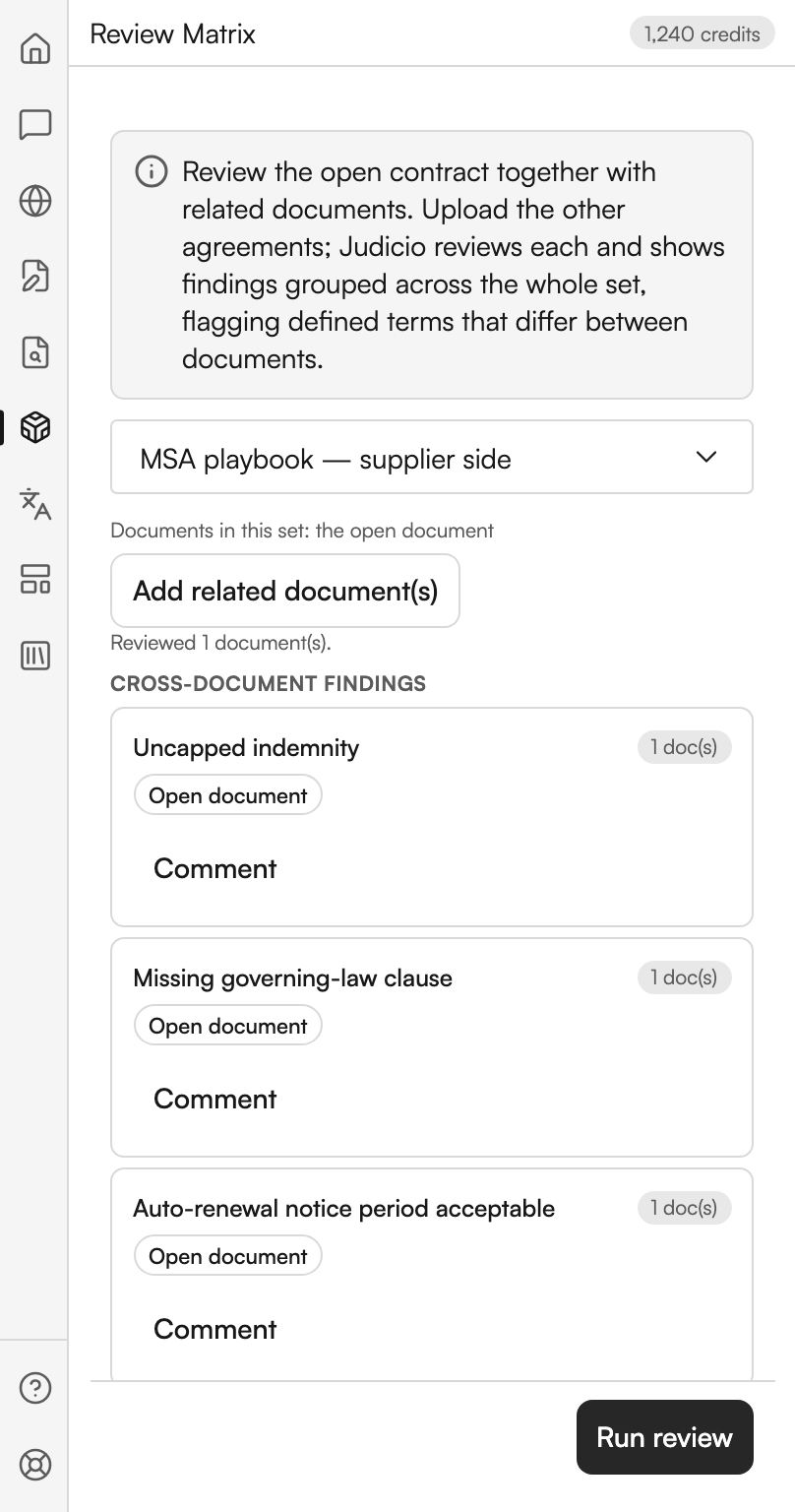
Review Matrix is its own workspace on the rail, not a section of Document Review, and it reviews a set rather than a file. Its note says: Review the open contract together with related documents. Upload the other agreements; Judicio reviews each and shows findings grouped across the whole set, flagging defined terms that differ between documents.
| Control | What it does |
|---|---|
| The playbook dropdown | Which playbook every document in the set is reviewed against |
| Add related document(s) | Adds files to the set alongside the open document |
| Remove | Drops one file from the set |
| Run review | Reviews every document in the set |
A summary line reads Documents in this set: the open document plus a count of what you have added. While it runs the panel names the file it is on.
Results come in two blocks. Inconsistent defined terms lists terms defined in one document but used in another. Cross-document findings groups issues that appear in more than one file, each with a document count, an Appears in list, and a Comment control that writes the finding into the open document. The open document is labelled Open document in those lists rather than by file name.
Findings across a set
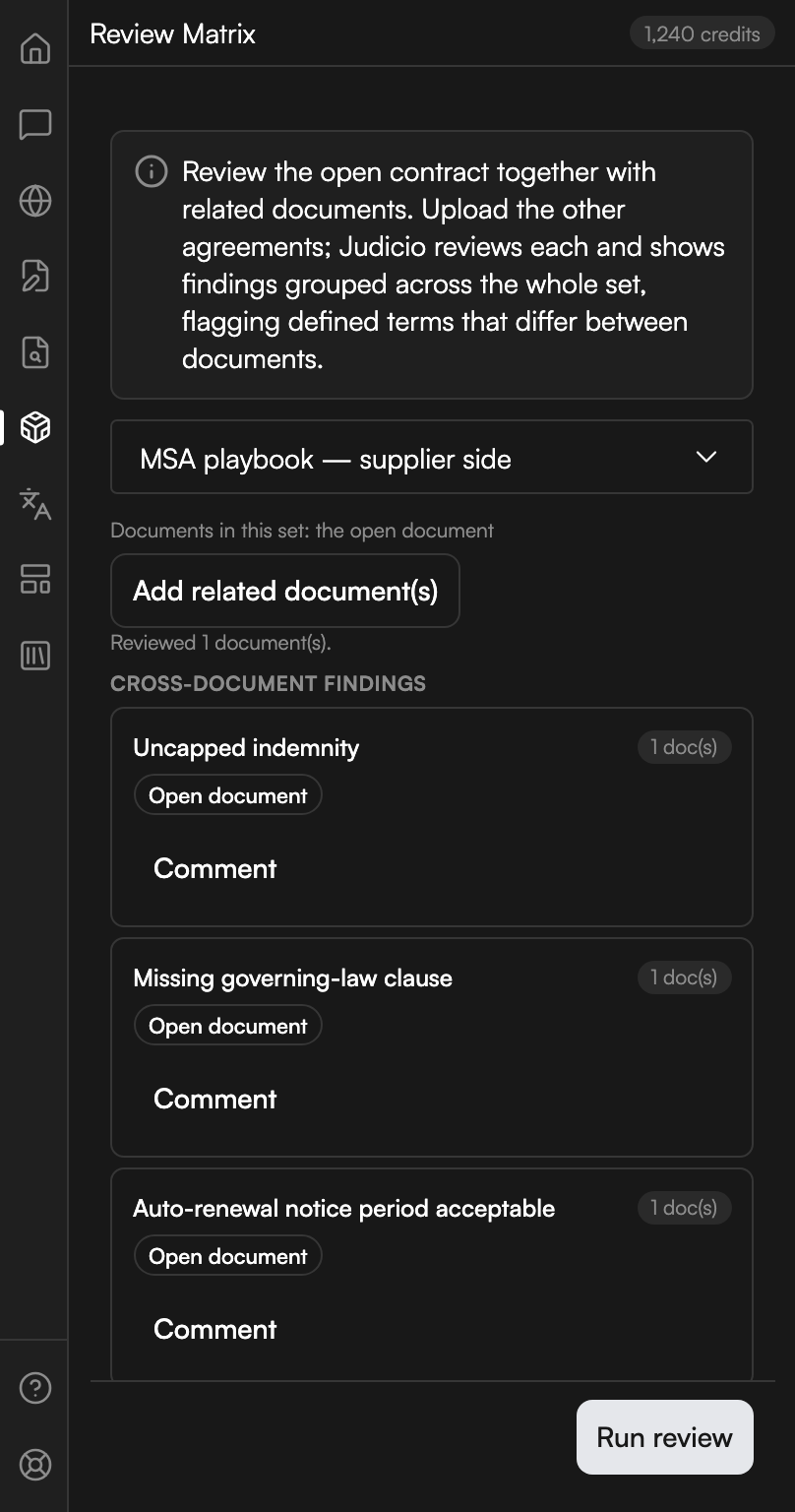
A set holding the open document alone, with each finding listed against the documents it appears in.
What each part costs
The two review engines are priced differently. Quick redline is a fixed Word action, so the form shows an estimate chip that changes when you tick the deep option. Playbook is the same run as Document Review in the web app and bills at that feature's rates, so the chip disappears when you switch the engine over. Review Matrix works the same way.
On the Changes tab, two chips sit beside their buttons. Draft negotiation memo is billed at the same price as Explain this clause, and AI triage the changes has its own price. Accepting, rejecting and replying are free.
On Citations, turning Check treatment on raises the price, and the chip updates before you commit. Full prices are on the Word add-in overview.
Next steps
- Checks - the nine instant checks and the deep structure pass.
- Assistant - a single edit rather than a full pass.
- Review templates - how playbooks are built.