Outlook add-in
Judicio for Outlook is a task pane beside your mail. It works on the message you have open, or on the draft you are writing, and files what it finds into your matters. When your organisation has the send-time check switched on, it also looks at outgoing mail before it leaves.
The ribbon button is labelled Open Judicio, in a Judicio group. The read-side pane can be pinned so it stays open as you move through messages.
- Where it runs: reading and composing on Outlook for Windows, Mac and the web. Reading only on Outlook mobile.
- Sign-in: Sign in on the Connect screen, with Having trouble signing in? Use a pairing code instead. as the fallback.
- Desktop actions are grouped under Understand, Act, File and Governance. Mobile focuses on summary, deadlines, email questions, copyable replies, and message-only filing.
- Send-time check: connect your Microsoft account once on desktop/web Home. On supported clients, enabled checks can run with the pane closed. Warnings may offer Send Anyway; blocking findings use SoftBlock. Service/authentication failures permit sending. Mobile has no automatic send check.
- Credits: the same balance as the web app. Seven panels show an estimate before you run them.
The shell
Three controls sit in the header on every screen.
| Control | Where | When it appears |
|---|---|---|
| The Judicio wordmark | Left of the header | Always. Selecting it returns you to the home screen |
| Back | Middle of the header | Only when you are signed in and inside a panel |
| Sign out | Right of the header | Only when you are signed in |
Each panel also has its own back arrow beside its title, which does the same thing.
Two banners can appear over the pane. Update required replaces the screen when your add-in build is older than the minimum the server supports, and tells you Outlook updates add-ins automatically. Subscription required appears above whatever you were doing, with Open Judicio billing, when your plan does not cover the action.
Signing in
Signed out, the whole pane is Connect to Judicio: Sign in with your Judicio account to summarise emails, extract deadlines, file messages to a matter, and draft replies, all without leaving Outlook.
Sign in in the footer starts it, and reads Connecting… while it works. On a managed Windows desktop this often completes with no window at all.
Under the button sits Having trouble signing in? Use a pairing code instead. Selecting it, or a sign-in window that will not open, reveals the pairing card.
| Control | What it does |
|---|---|
| Get a pairing code | Requests a code. Reads Generating code… while it works |
| The code | Shown large and selectable once issued |
| Open the pairing page in your browser | Opens the confirmation page |
| Cancel | Abandons the attempt |
While it waits the card reads Waiting for you to confirm the code… and picks up the confirmation on its own. The pairing page is documented in Add-ins settings.
A note at the foot of the screen is worth reading first: Use your existing Judicio sign-in. New accounts must be created in the Judicio web app first.
If your session expires the pane returns to this screen. On desktop/web Home, choose Connect this Microsoft account and accept the Microsoft consent to enable background send checks for your account. Checks read the outgoing subject, plain-text body, recipients, sender and attachment metadata; they do not insert email content or upload attachment contents. An optional advisory AI audit uses the same message data. It records a send attempt, not confirmed delivery.
Disconnect Microsoft accounts or Sign out disconnects the Microsoft accounts linked to your Judicio account. Reconnect to resume automatic checks. Mobile reply generation provides selectable text and a Copy reply text button; paste it into an Outlook reply yourself. Mobile filing excludes attachments.
The home screen
Home stacks a context card, your account line, a search box, a Recent row and four groups of tiles.
The home screen
Every action the add-in offers, each with a line saying what it does. The account you are signed in as sits above them.
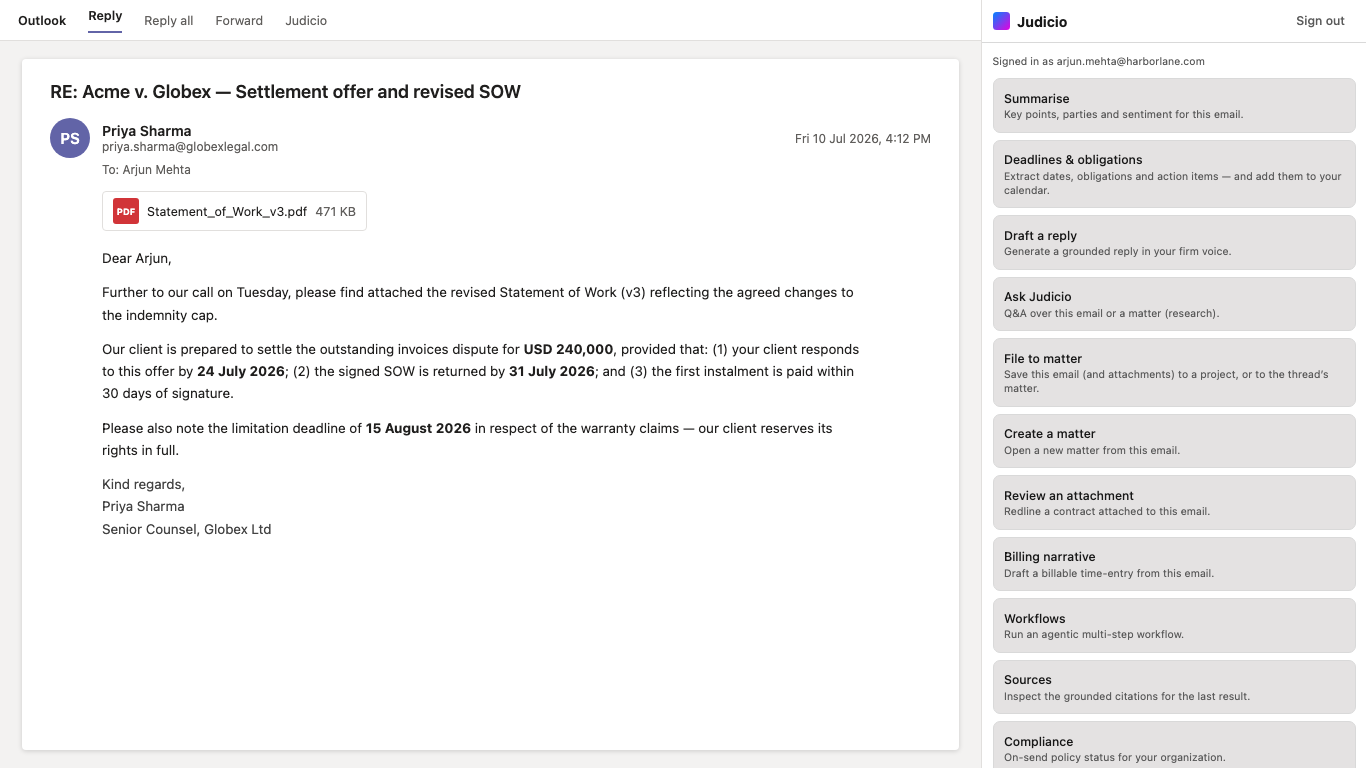
The context card at the top summarises the message. It shows the subject, or (no subject), the counterparty, and a badge reading Reading or Compose. In compose it shows the recipients instead of a sender. With nothing open it reads Open an email to see its context here.
Below it, Signed in as with your address. Then a search box placeholdered Search actions, with a Clear search control; it matches on both tile names and their descriptions. Recent holds up to five tiles you opened lately, and hides itself while you are searching.
Understand
| Tile | What the tile says | Panel |
|---|---|---|
| Summarise | Key points, parties and sentiment for this email. | Summarise email |
| Ask Judicio | Q&A over this email or a matter (research). | Ask Judicio |
| Sources | Inspect the grounded citations for the last result. | Sources |
| Thread timeline | Chronology of events and deadlines across this thread. | Thread timeline |
Act
| Tile | What the tile says | Panel |
|---|---|---|
| Draft a reply | Generate a grounded reply in your firm voice. | Draft a reply |
| Deadlines & obligations | Extract dates, obligations and action items — and add them to your calendar. | Deadlines & obligations |
| Workflows | Run an agentic multi-step workflow. | Workflows |
| Translate email | Translate this email into your working language. | Translate email |
File
| Tile | What the tile says | Panel |
|---|---|---|
| File to matter | Save this email (and attachments) to a project, or to the thread's matter. | File to matter |
| Create a matter | Open a new matter from this email. | Create a matter |
| Review an attachment | Redline a contract attached to this email. | Review an attachment |
| Sender context | Matters, filings and deadlines linked to this sender. | Sender context |
Governance
| Tile | What the tile says | Panel |
|---|---|---|
| Compliance | On-send policy status for your organization. | Compliance |
| Billing narrative | Draft a billable time-entry from this email. | Billing narrative |
Translate email, Thread timeline and Sender context are switched on per organisation. Where yours has not enabled one, its tile is simply absent rather than greyed out, which is why some people see eleven tiles and others fourteen.
Tiles are never disabled. Opening one with no message selected shows that panel's own empty state instead.
Understanding a message
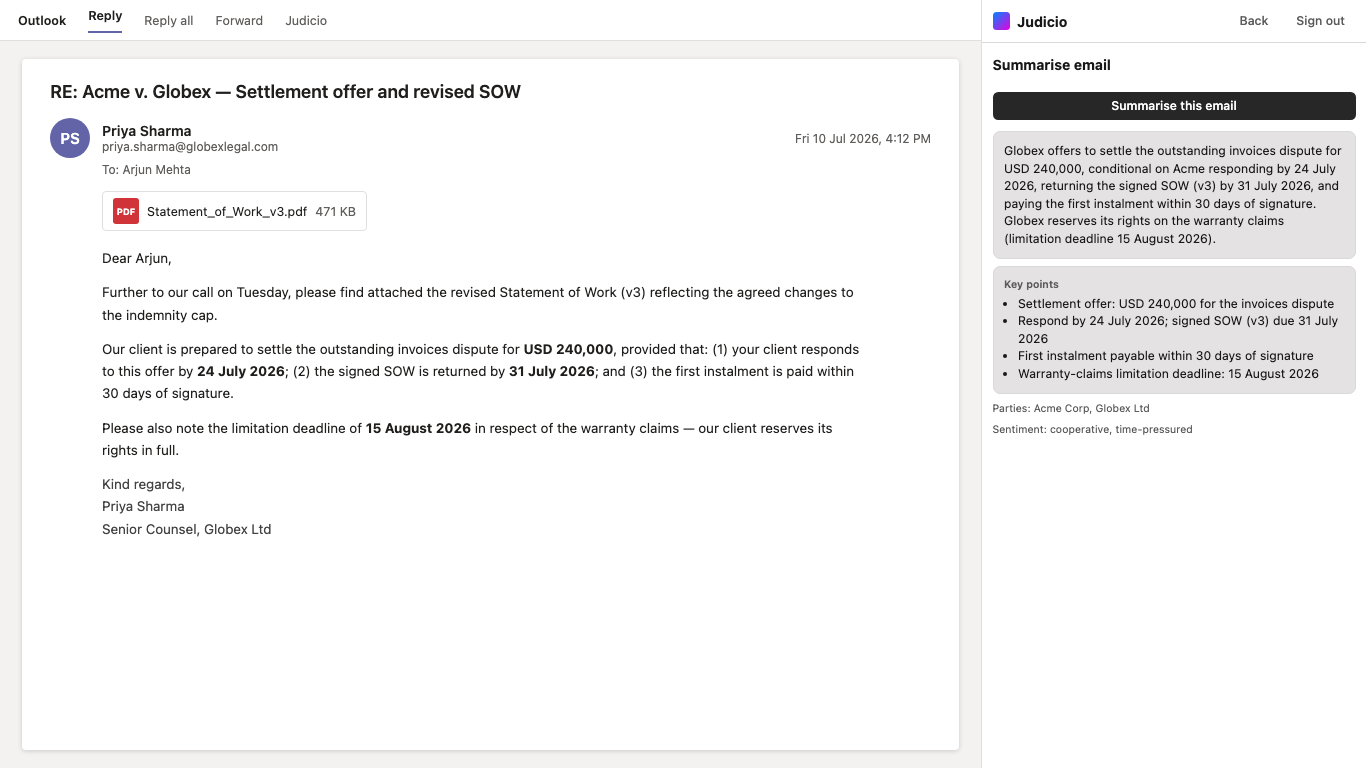
Summarise email has one button, Summarise this email, and returns the summary, a Key points list, a Parties line and a Sentiment line. Numbered citation chips in the text jump to Sources.
A summarised message
The summary sits beside the message it came from, so you can check it against the text without leaving the thread.
Ask Judicio has a Scope dropdown with two options, This email and A matter (research). Choosing the matter scope reveals a Matter / project ID box. Type into Question, placeholdered e.g. What are our obligations under clause 4?, and press Ask. Answers offer View N source(s), and a matter-scope run adds Open the full answer in Judicio.
Sources is read-only. It lists the citations behind your last summary, draft or answer, each with Open source where there is a link. The list belongs to the message you ran it on, so selecting another message empties it.
Thread timeline builds a chronology. Include the whole thread is a switch, off by default; Build timeline runs it. Events come back in order, dated or marked No date, with a Deadline badge on the ones that need action, and anything undated collapsed under Undated mentions. Where the thread found deadlines, Add deadlines to my calendar appears in the footer.
Acting on a message
Draft a reply writes the reply for you.
| Control | What it does |
|---|---|
| Tone | Four chips: formal, concise, conversational, advisory. formal is selected by default |
| Instructions (optional) | A box placeholdered e.g. Decline politely and propose next week. |
| Stream the draft live | A switch, on by default. Shows the draft as it is written |
| Draft reply | Runs it. Stop appears while it streams |
Once a draft exists the footer changes. Draft again re-runs it. Reading a message, you get Reply all and Open reply. Writing one, you get Insert into draft, which writes at your cursor. If the insert fails the panel tells you to place the cursor in the message body and retry.
Deadlines pulled out of a thread
Each deadline keeps the sentence it came from, and the calendar sync says how many events it added.
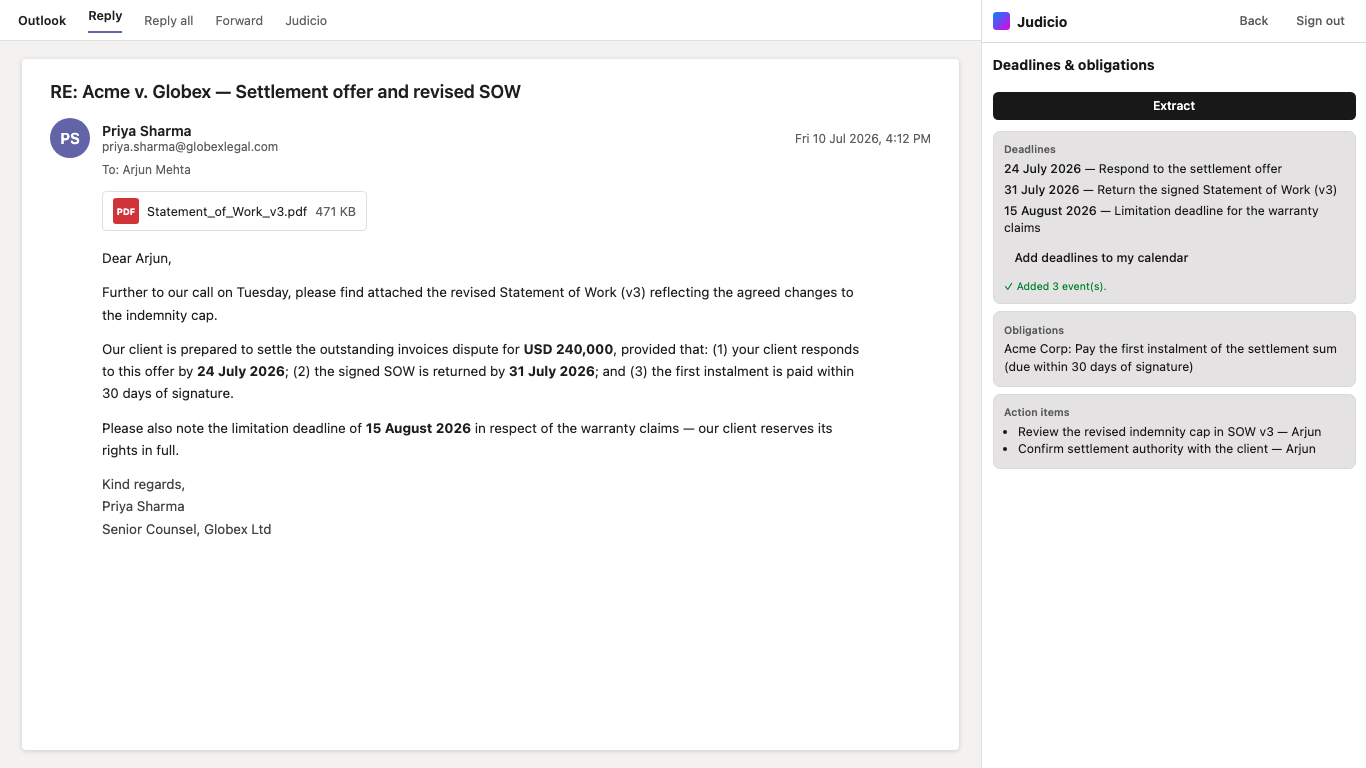
Deadlines & obligations extracts dates from the message. Extract runs it, and the results come back under Deadlines, Obligations and Action items, or Nothing found in this email. Where there are deadlines, Add deadlines to my calendar appears. That needs a connected calendar: without one you get Connect your calendar to add these deadlines. and a Connect calendar link. A successful sync confirms how many events it added and how many it skipped, and puts a note on the message itself.
Translate email translates into any of 116 languages. Translate into is a searchable dropdown with a Search languages box, defaulting to English. Translate runs it. The result gives you a Translation and Original pair of views, a Copy text control, and either Insert into reply or Insert into draft depending on whether you are reading or writing. A very long message is truncated before translation, and the panel says so.
Workflows lists the multi-step workflows available to you, each with its steps and a Run button, above an optional Matter / project ID box. A started workflow reports its progress and offers Open the result in Judicio.
Filing a message
Filing an email to its matter
The confirmation names the filing and counts what went with it, so you can tell an attachment was included without opening the matter.
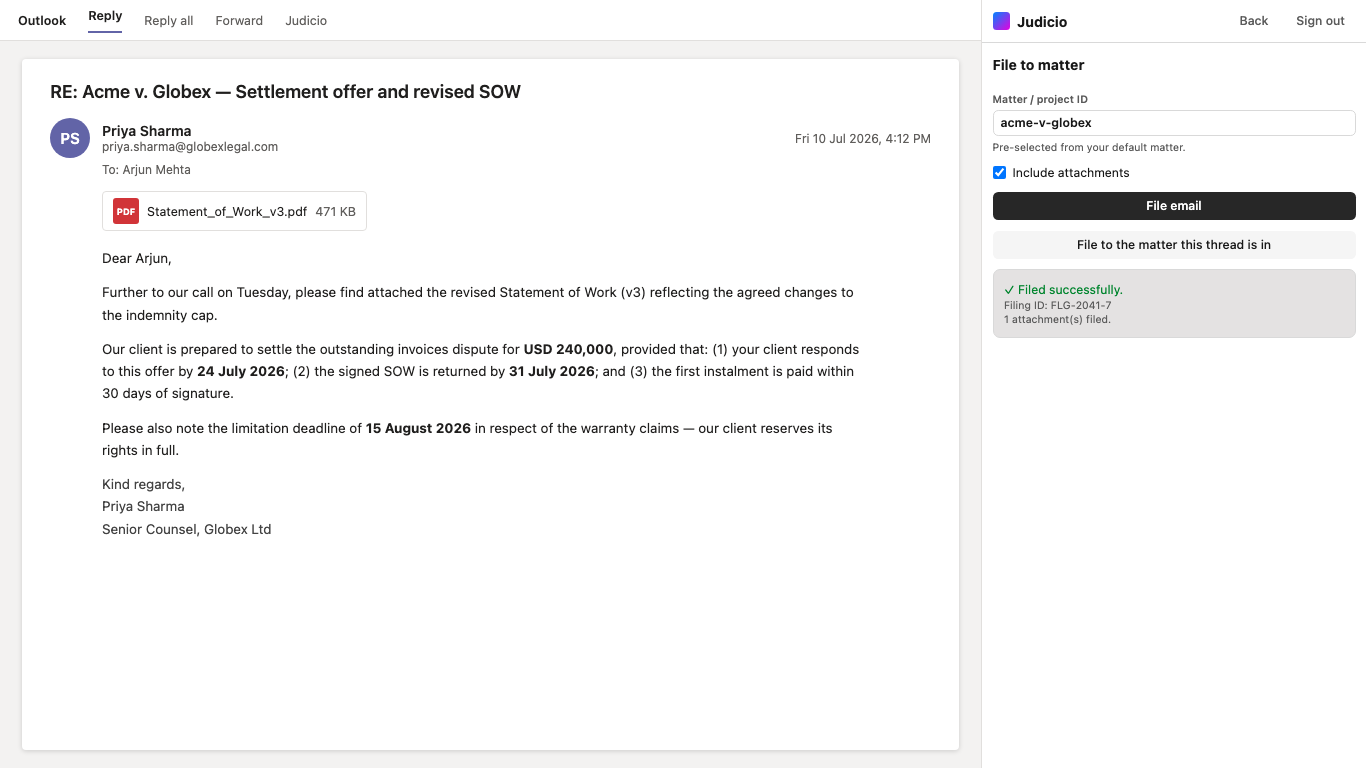
File to matter takes a Matter / project ID and an Include attachments switch, on by default. Where your organisation has set a default matter the field is pre-filled and a caption says Pre-selected from your default matter.
Two buttons sit in the footer. File email files to the matter in the box, and stays disabled until there is one. File to the matter this thread is in appears on a message that belongs to a conversation, and files to wherever that conversation already went; if the thread has not been filed it tells you to pick a matter and file it first.
A successful filing confirms Filed successfully., or Already filed (deduped)., gives you the filing identifier and a count of attachments, and offers Undo filing. Outlook also puts a bar on the message reading Filed to matter, in Judicio, with an Open in Judicio button that reopens the pane on the filed state, where the real undo lives.
Create a matter opens a new matter from the message. Matter name is required, Description (optional) is not, and File this email into the new matter is a switch that is on by default. Create matter runs it and confirms with the new matter's name and identifier.
Review an attachment is a two-step panel. First File N attachment(s) to review puts the attachments into the matter you named. Then an Attachment to review dropdown appears, placeholdered Select an attachment…, along with a Playbook dropdown where your firm has review templates; its first option is Standard review. Start redline review runs it, and the finished run offers Open the redline in Judicio. A message with no attachments says so.
Sender context runs on its own as soon as you open it, with Refresh to run it again. It shows four sections: This thread, with a Filed badge and a matter link or a note that the conversation has not been filed; Matters with this sender; Recent filings, collapsed by default; and Upcoming deadlines. It needs a sender, so it is not usable while you are composing.
Governance
Billing narrative drafts a time entry from the message. It takes an optional Matter / project ID, and Draft narrative produces the narrative and a Suggested time in minutes.
Compliance is the status and preview panel. A card at the top always reads On-send compliance is enabled for your organization or disabled, followed by When enabled, Judicio checks every outgoing message at send time.
Preview scan runs the same check against the open message without sending anything. The result reads Verdict: followed by ALLOW, WARN or BLOCK, with a tick, a warning or a stop icon, and the issues found beneath it. A clean message reads No compliance issues found. Where the check could not complete, the verdict is followed by (failed open).
The check at send time
Where your organisation has the send-time check enabled, pressing Send runs it before the message leaves.
- Allow sends the message. You see nothing.
- Warn stops the send and lists the issues found. You can send anyway.
- Block stops the send and lists the issues. You cannot send from the dialog.
What that dialog looks like depends on your Outlook build, because the add-in asks for the richest surface the mailbox supports.
| Build | What you see |
|---|---|
| Mailbox 1.15 and newer | A formatted dialog headed Judicio flagged this send. (or Judicio blocked this send.), the issues as a list, and Don't send beside Send anyway |
| Older builds | The same issues as one line of text, prefixed Judicio warning: or Judicio blocked this send: |
A send the policy flagged
The dialog names each issue rather than just refusing, and the footer says which mode the policy is in and how long the check took.
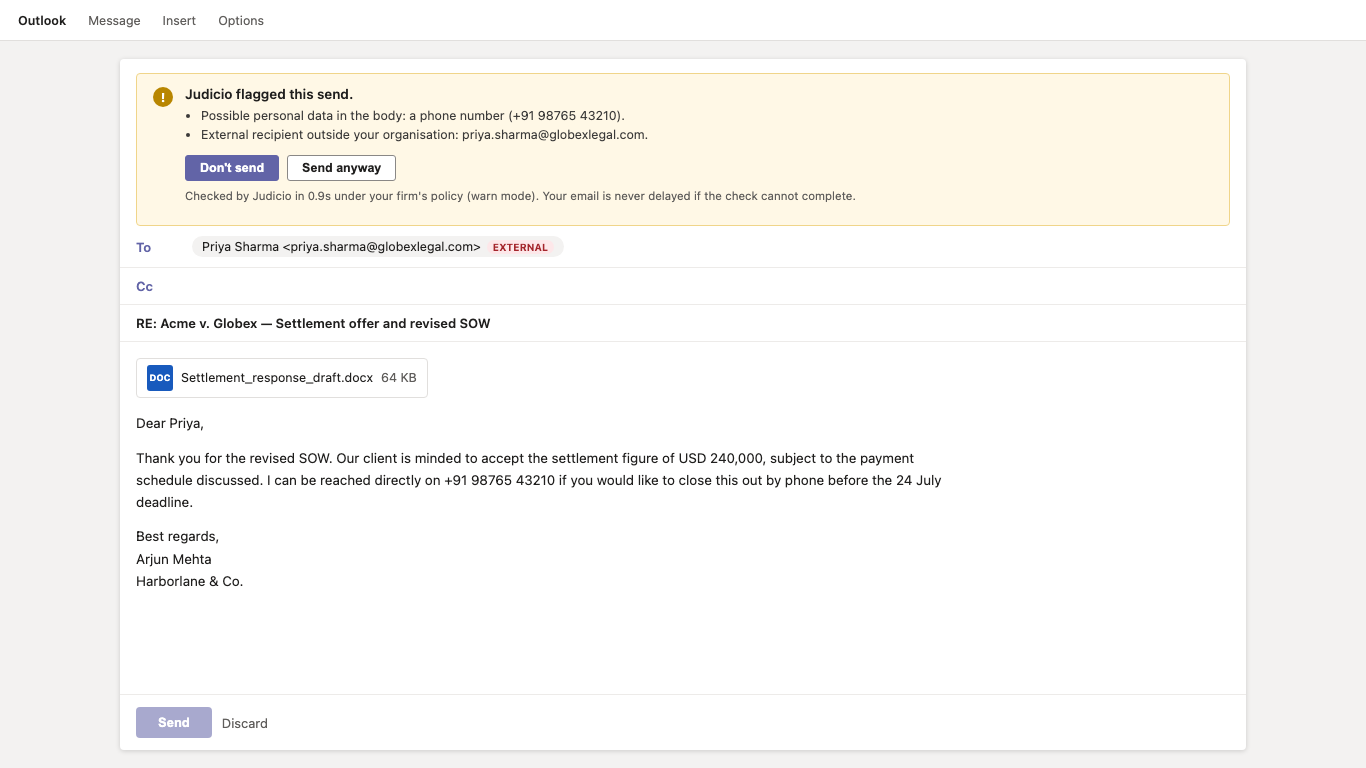
From Mailbox 1.14 the dialog also carries a button labelled Open Judicio, which opens the pane on the Compliance panel so you can see the detail. Older builds show the message without a button.
Two things are worth knowing about how firm this is. The check flags rather than hard-stops: a sender who insists can still get the message out, and the value is in the prompt and the record rather than an absolute bar. And it fails open. If the check cannot finish in its time budget, or the service is unreachable, the message sends normally rather than getting stuck.
Outlook mobile has no send-time check at all; messages sent from mobile go straight out.
What the check looks for, and who configures it, is on the on-send compliance policy page.
Credits
Outlook actions draw on the same balance as the web app.
| Action | Cost |
|---|---|
| Classify an email | 1 credit |
| Summarise an email | 2 credits |
| Extract deadlines and entities | 2 credits |
| Ask about an email | 2 credits |
| Billing narrative | 2 credits |
| Translate an email | 2 credits |
| Draft a reply | 4 credits |
| Thread timeline | 4 credits |
Seven panels show an estimate chip in their header before you run them: Summarise email, Deadlines & obligations, Draft a reply, Ask Judicio, Billing narrative, Translate email and Thread timeline. The chip reads ~N credits, or Needs N credits — M left when your balance will not cover it, and it stays hidden until the estimate resolves.
What is free
Filing an email, undoing a filing, creating a matter, syncing deadlines, running the compliance preview, viewing sources, sender context and the send-time check itself are all free. See Credits Explained.
Reading against composing
The same fourteen tiles appear whether you are reading a message or writing one. What changes is inside the panels.
| Panel | Difference when composing |
|---|---|
| Home | The badge reads Compose, and the context line lists recipients rather than a sender |
| Draft a reply | Reply all disappears, and the primary button becomes Insert into draft |
| Translate email | The insert button becomes Insert into draft |
| Sender context | Not usable. A draft has no sender, so the panel shows its empty state |
| File to matter | File to the matter this thread is in appears only on a reply, which has a conversation to file to |
Because the reading pane can be pinned, it stays open as you move between messages. Switching message clears the panel you were on, so results and anything you typed do not carry across. The one exception is a matter-scope research job in Ask Judicio, which keeps running.
Next steps
- On-send compliance policy - what the check looks for, and who configures it.
- Gmail add-on - the same email work in Gmail, with an on-demand check instead.
- Word add-in - the document side of the same account.
Matter context and saved work
On desktop, use Overview, Ask, Files and Activity. Choose a matter by name, then select existing documents in Files to ground a question or reply. Results show the sources and actual email coverage used. Connected conversation analysis respects your mailbox connection and Sent Items preferences.
Review an actual email attachment against an available playbook, and reopen saved research or reviews through Activity. Advanced Timeline, Review Matrix and Case Strategy work opens in Judicio with the selected inputs prepared; opening the workspace does not start analysis automatically.
Reply controls include tone, length, language and drafting templates. Review and edit before inserting. Deadline calendar actions require you to select events, review dates/timezone and grant calendar access. Billing assistance produces an editable narrative, not measured or recorded time.