Word add-in
Judicio for Word is a task pane that works on the document already open in Word. Selection tools read the text you highlight. Document tools read the open file, and drafting, research and review can also use authorized library documents you select. Edits come back as native tracked changes you accept or reject in Word itself.
The pane calls itself Judicio for Word, and its ribbon button reads Open Judicio.
- Where it runs: a task pane docked beside the document, on Word for Windows, Word for Mac and Word on the web.
- What it reads: the open document, or just your selection, depending on the tool.
- Sign-in: your existing Judicio account. Sign in opens a sign-in window; Use a pairing code instead is the fallback.
- Nine workspaces: Home, Assistant, Research, Drafting, Document Review, Review Matrix, Translation, Templates and File Library.
- Twenty-one tiles: Home lists them across Core, Differentiators and Best in class, plus seven more tools reachable from the search box.
- Credits: the same balance as the web app. Charged actions show an estimate before you run them.
The shape of the pane
Signed out, the pane is a single screen: the word Judicio in the header, the Sign in to Judicio heading, and the two sign-in buttons.
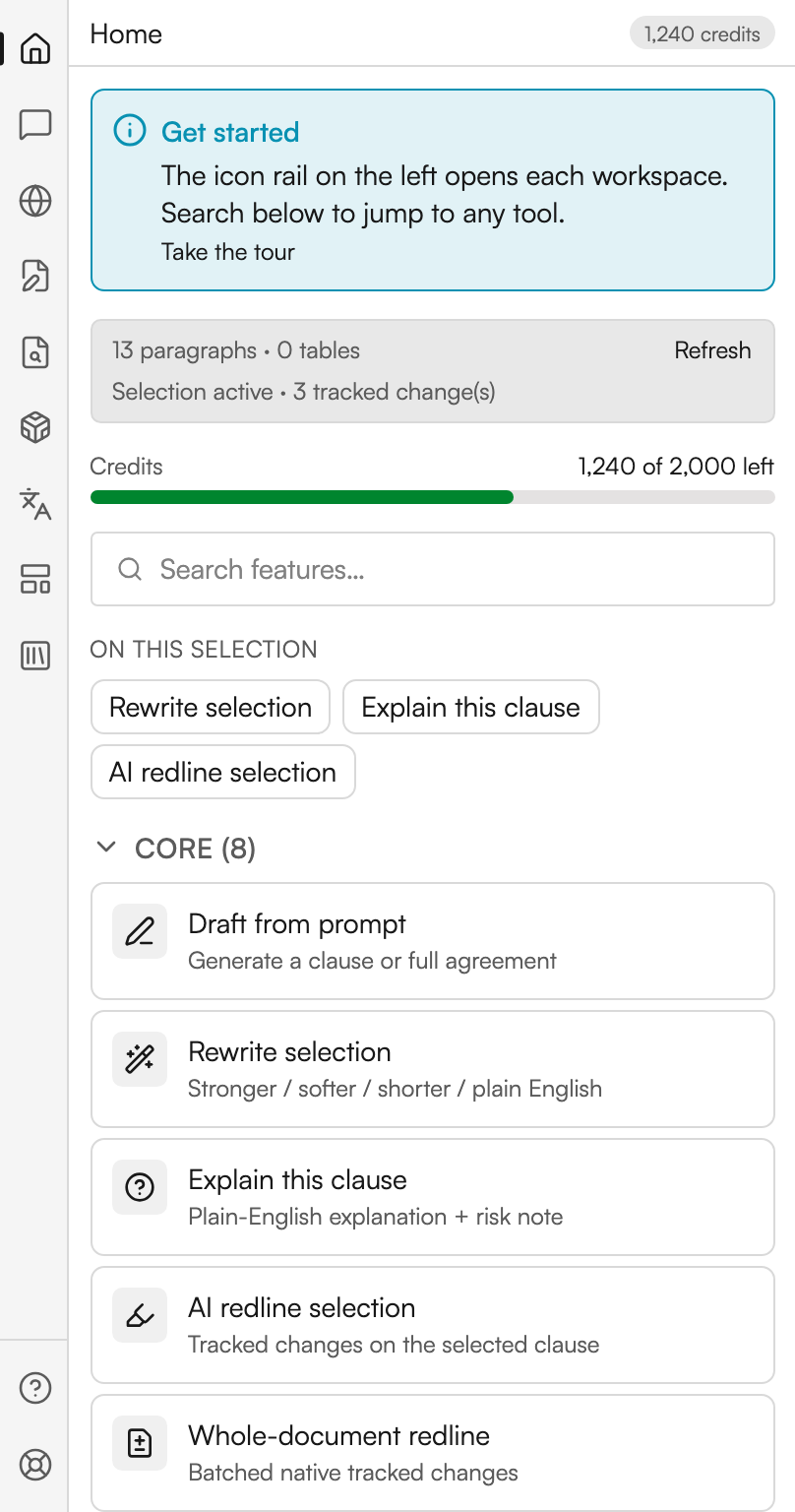
Signed in, the pane has three parts.
| Part | Where | What it holds |
|---|---|---|
| Icon rail | The narrow strip down the left | One icon per workspace, then Guides and Support at the foot |
| Workspace header | Across the top of the content column | The name of the workspace you are in, and your remaining credits |
| Content column | The rest of the pane | The workspace itself |
The rail carries nine workspaces in this order: Home, Assistant, Research, Drafting, Document Review, Review Matrix, Translation, Templates, File Library. Below them sit two footer items: Guides, which opens a list of walkthroughs you can replay, and Support, which opens the Judicio support site in your browser.
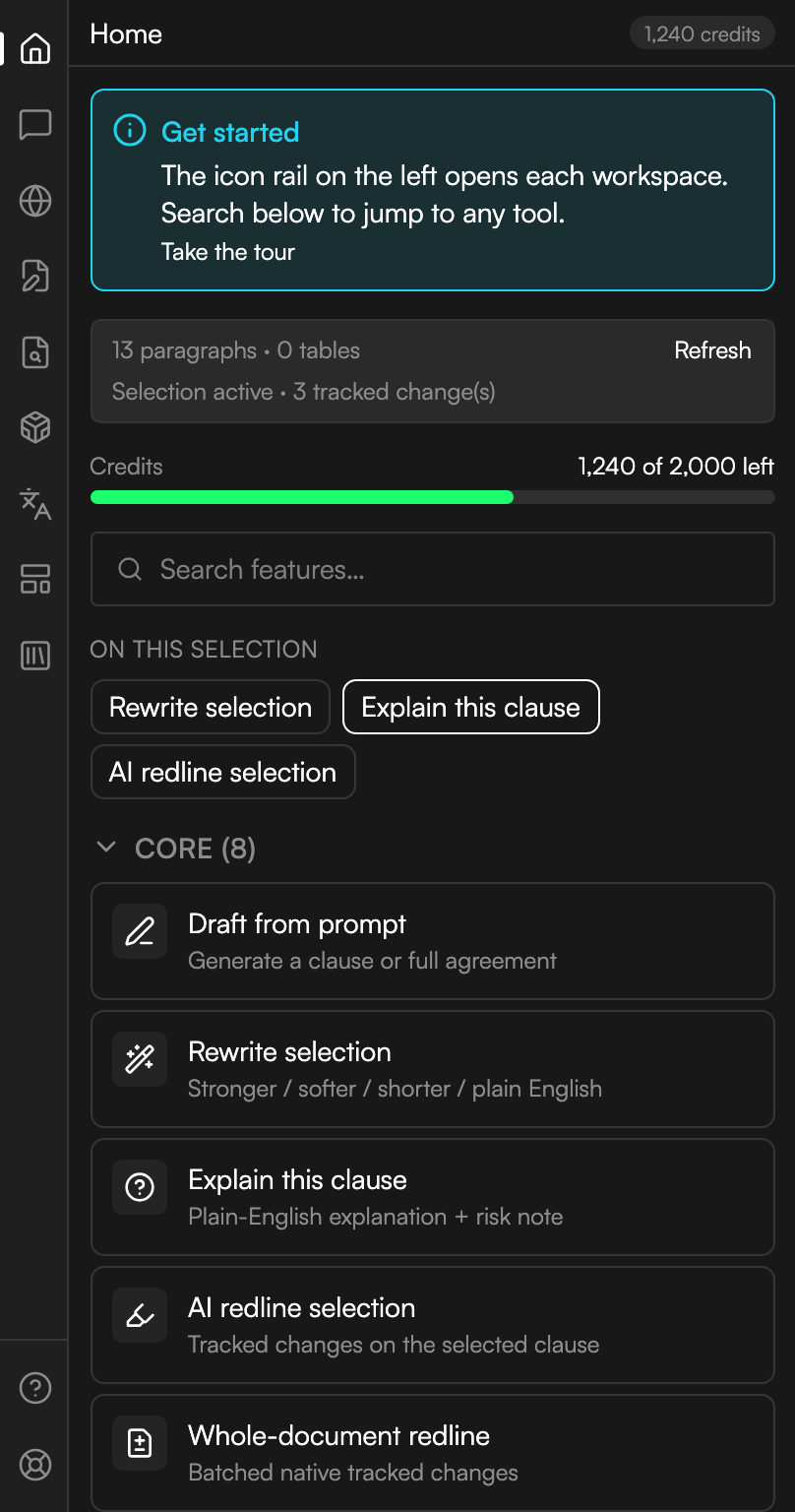
Below 300 pixels, a Workspace selector replaces the icon rail so every workspace stays reachable. The header also offers Light, Dark and System appearance. System follows Office appearance when available, then your operating system.
The pane, signed in
The three parts of the pane, on Home: the icon rail, the workspace header with your balance, and the content column under it.
What each workspace is for
| Workspace | Sections | Use it to |
|---|---|---|
| Home | none | Find any tool, see what is in the document, and check your balance |
| Assistant | Compose, Rewrite, Explain, Chat | Ask about the document or describe an edit, in one conversation |
| Research | Ask, Authority, Ground, Precedent | Answer a question from the document, or from the law, firm precedent and market practice |
| Drafting | Compose | Generate a clause or a whole agreement from a brief |
| Document Review | Review, Redlines, Changes, Citations, Checks | Redline, work the counterparty's changes, verify citations, and run pre-send checks |
| Review Matrix | none | Group independent reviews of selected contracts; continue to the full web matrix for cross-document analysis |
| Translation | none | Translate the document and insert the result |
| Templates | Convert | Turn the open document into a placeholdered template |
| File Library | Files, Activity, Save, Clean copy | Choose library sources, resume saved work, save to a selected folder, or export a detached copy |
Matter and library context
Choose a matter in the pane header. In File Library, select ready documents you are authorized to access. Source indicators show what the next drafting, research or compact review run will use. Changing the matter clears the previous folder and source selection.
Drafting and compact reviews accept up to 20 selected library sources. Research accepts up to 10 documents; Ask reserves one place for the open Word document, leaving nine library sources. If the open document changes between questions, Ask uploads its current bytes and starts a new source context.
Use Activity to reopen saved drafts, research, reviews and translations, including work started in the web app. Reconnect checks the existing job; it does not repeat a billed start. Selection-only tools remain in the current pane session.
Where the document goes
Most tools read the document through Word and send only what they need. Three behaviours are worth knowing.
- Selection tools read only what you have highlighted. Rewrite selection, Explain this clause and Firm precedent all say No selection until you highlight something, and each offers Re-read selection if you change your mind.
- Instant checks never leave your device. Six of the nine sections in the Instant group of Checks, and Clean copy in File Library, run locally and cost nothing.
- Staged tools upload the document to your Judicio workspace first. Choose a matter and destination folder to control where uploads go. Temporary document analysis can also use a temporary destination configured for the deployment.
The sign-in note in the pane is explicit about tokens: your session is held in memory only and is never written into the document.
Credits
Word actions draw on the same balance as the web app. A charged panel shows an estimate chip reading ~N credits before you run it, and Needs ~N credits · M left when your balance will not cover it. After a run the panel reports what it actually cost.
| Action | Mode | Cost | Example |
|---|---|---|---|
| Structure check | - | Free | - |
| Counter a comment | - | 1 credit | - |
| Rewrite selection | - | 2 credits | - |
| Explain this clause | - | 2 credits | - |
| Translate selection | - | 2 credits | - |
| Ask the assistant | - | 2 credits | - |
| Anonymise or redact | - | 4 credits | - |
| Proofread pass | - | 4 credits | - |
| Find firm precedent | - | 4 credits | - |
| Triage tracked changes | - | 4 credits | - |
| Ground a claim | - | 5 credits | - |
| Check citations | - | 5 credits | - |
| Compare versions | - | 5 credits | - |
| Compare to market | - | 6 credits | - |
| Convert to template | - | 6 credits | - |
| Check citations, with treatment | - | 8 credits | - |
| Assistant edit | Standard | 8 credits | - |
| Redline | Standard | 10 credits | A selection or the whole document |
| Assistant edit | Deep | 20 credits | - |
| Redline | Deep | 25 credits | - |
Two rows are worth mapping to their controls. Counter a comment is what Draft reply costs on a counterparty change in the Changes tab. Ask the assistant is Assistant · Compose in Ask mode, not Research · Ask.
What is free, and what is not
The deterministic checks are free. Structure check is charged only if you tick its optional proofreading pass, and six of the nine Instant sections of Checks run on your device at no cost. So do Clean copy, Save to Judicio, Compare natively in Word, navigating, filtering and accepting or rejecting a change.
Six panels bill at the matching web-app feature's rates rather than at a Word-specific price, and show no estimate chip: Drafting, both Ask and Authority in Research, Translation, Review Matrix, and playbook review under Document Review. See Credits Explained.
Deep Mode is a plan entitlement rather than a Word setting. Where a panel offers it, the checkbox reads Deep mode (stronger model, slower, more credits). See Subscription Plans.
Next steps
- Getting started - turning the add-in on, signing in, and your first run.
- The Home screen - every tile, in every group, and the search-only tools.
- Assistant - Compose, Rewrite, Explain and Chat.
- Research - Ask, Authority, Ground and Precedent.
- Document Review - Review, Redlines, Changes and Citations.
- Checks - the nine instant checks and the deep structure pass.
- Drafting, Translation, Templates and File Library - the four remaining workspaces.